
Winfr Recover Folder: Fix Errors and Recover Folders Using CMD

The first time I tried to use winfr recover folder in Command Prompt, I was confident it would be straightforward. I had accidentally deleted an entire project folder from my Windows PC, skipped the Recycle Bin, and immediately searched for a Microsoft-approved recovery solution. Windows File Recovery (winfr) sounded perfect. Reality was very different. My first scan returned “No files found.” The second attempt failed with “Access is denied.” At one point, winfr appeared frozen for over an hour, with no progress indicator and no clear explanation of what was happening. Like many users, I started wondering whether winfr actually worked—or whether I was making things worse. After testing winfr across multiple drives, file systems, and failure scenarios, I realized the tool itself wasn’t the real problem. The real issue was cryptic errors, unclear limitations, and commands that must be almost perfectly structured. This guide is written from that hands-on experience. Instead of separating problems and solutions, I pair each common error with its exact CMD fix, so you can recover folders faster and with fewer risks. I’ll also mention WinfrGUI as a safer fallback when command-line recovery becomes inefficient or stressful.
Key Takeaways
- No Files Found” Error: This often happens in
/regularmode. Switch to Extensive Mode (/extensive) to perform a sector-level scan that bypasses missing file records. - Access is Denied” Error: You must run Command Prompt as Administrator. This grants the tool permission to read system-level data and write to your destination drive.
- Path Not Specified” Error: CMD is literal. Always create your destination folder first using
mkdir, and use quotation marks for any folder names that contain spaces. - The “Freeze” Myth: WinFR often looks frozen during Extensive scans because it is reading every disk sector. As long as your disk activity light is blinking, do not stop the scan.
- SSD Reality: If your folder was on an SSD, the TRIM command may have already scrubbed the data. If recovery returns 0KB files, the hardware has likely cleared the blocks permanently.
- Smart Fallback: If CMD syntax keeps failing, use WinfrGUI. It uses the same official engine but automates the paths and switches to prevent human error.
Error 1: “No Files Found” After Running Winfr
What This Error Means
This message does not always mean your deleted folder is permanently gone. It usually indicates that Windows File Recovery cannot locate valid file records under the conditions defined by your command.
Why It Happens
This error commonly appears when:
- The folder was deleted days or weeks ago
- The source drive is an SSD with TRIM enabled
- You used /regular mode instead of /extensive
- The source and destination drives are the same
Any one of these conditions can cause winfr to return zero results.
CMD Solution (Recommended)
In most real-world cases, Extensive mode provides the best chance of success. Always recover to a different physical drive.
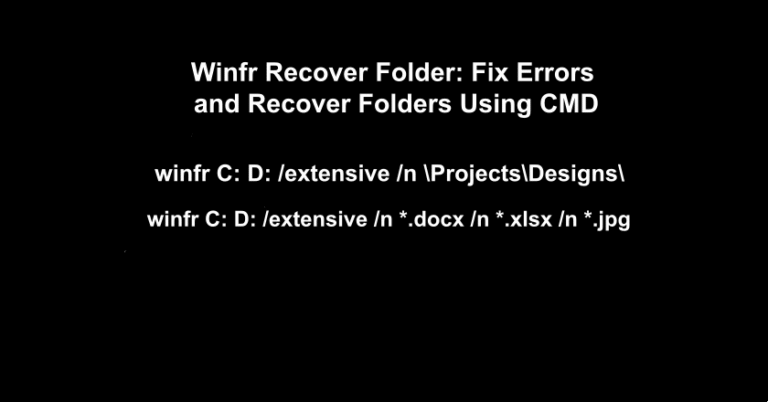
winfr C: D: /extensive /n \Projects\Designs\
If winfr cannot rebuild the original folder structure, try recovering by file type instead:
winfr C: D: /extensive /n *.docx /n *.xlsx /n *.jpg
In Regular mode, winfr relies heavily on existing NTFS file records (MFT entries). If those records are partially overwritten, corrupted, or already trimmed (common on SSDs), Regular mode will return nothing—even though file data may still exist on disk.
/extensive switches winfr into sector-level scanning, allowing it to:
- Bypass missing or damaged file records
- Search raw disk sectors for file signatures
- Recover files even when folder metadata is gone
That’s why, for any deleted folder scenario where time has passed, Extensive mode is not optional—it’s mandatory.
If the deleted folder was located on an SSD and TRIM has already cleared the underlying data blocks, no CMD-based recovery tool can restore it. This is a hardware-level limitation, not a failure of winfr.
Error 2: “Access Is Denied” When Running Winfr
What This Error Means
Winfr does not have sufficient permissions to read from the source drive or write recovered data to the destination drive.
Why It Happens
- Command Prompt was not launched with administrator privileges
- The source drive is protected, encrypted, or currently in use
This error is especially common when recovering folders from the system drive (C:).
CMD Solution
- Press Windows + S and search for cmd
- Right-click Command Prompt → select Run as administrator
- Re-run your winfr recover folder command
Example:
winfr C: D: /extensive /n \Users\Name\Documents\Work\
Running Command Prompt as Administrator fixes permission issues, but it doesn’t change how winfr scans the disk.
If you rerun the command in Regular mode after fixing “Access is denied,” winfr may still fail silently because:
- System-protected folders often have fragmented metadata
- Some file records are marked inaccessible even with admin rights
Using /extensive ensures winfr reads disk sectors directly, rather than depending on file-system-level access alone.
In short: Admin rights grant permission, Extensive mode grants visibility. You usually need both for successful folder recovery.
When recovering from drive C:, avoid opening applications, copying files, or installing software during the scan. Background activity can interfere with recovery.
Error 3: “The System Cannot Find the Path Specified”
What This Error Means
Windows File Recovery cannot locate the source folder path or the destination directory defined in your command.
Why It Happens
- The destination folder does not exist
- Quotation marks are missing for paths containing spaces
- Incorrect drive letters or small typos in folder names
Even a single missing backslash can cause this error.
CMD Solution
First, manually create the destination directory:
mkdir D:\RecoveredFiles
Then rerun winfr with correct path formatting:
winfr C: D: /extensive /n “\Project Files\Designs\”
Before pressing Enter, double-check:
- Drive letters (C:, D:, E:)
- Backslashes (\)
- Folder names, spacing, and spelling
The error “The system cannot find the path specified” often makes users think the folder path itself must be exact. In reality, this matters far less in Extensive mode. Unlike Regular mode, /extensive does not require a fully intact folder tree. Even if:
- The original folder no longer exists
- Only file fragments remain
- Directory structure is unrecoverable
Extensive mode can still extract individual files based on signatures. This is why, when path-related errors appear, switching to /extensive gives winfr more flexibility and tolerance for imperfect input.
Error 4: Winfr Freezes or Takes an Extremely Long Time
What This Error Means
Winfr may appear frozen, but in many cases it is still actively scanning the disk.
Why It Happens
- Extensive mode performs sector-level scanning
- Large folders with thousands of small files increase metadata reconstruction time
- Older or slower drives amplify scan duration
CMD Solution
If disk activity is visible, allow the scan to complete. If you need to reduce scan time, narrow the recovery scope:
winfr C: D: /extensive /n *.psd /n *.ai
Many users assume winfr has crashed when it runs for hours—but in Extensive mode, this behavior is expected. Here’s why:
/extensivescans every disk sector, not just indexed file records- Large folders with thousands of small files dramatically increase scan time
- Rebuilding partial metadata requires repeated verification passes
As long as disk activity continues, winfr is still working.
This is the trade-off: Extensive mode sacrifices speed for recovery depth. If speed is your priority, Regular mode is faster—but if recovery success matters, Extensive is the correct choice.
If disk activity remains at zero for an extended period, stopping the scan and retrying with fewer file types may help.
When WinfrGUI Is the Better Choice
CMD-based recovery gives you full control, but it also means every mistake is final. A wrong destination drive, an incorrect switch, or a malformed path can overwrite recoverable data—especially when you’re trying to recover an entire folder. WinfrGUI simplifies this process by turning the same Windows File Recovery engine into a guided workflow.
How to use WinfrGUI for folder recovery:
- Launch WinfrGUI and select the drive where the folder was deleted
- Choose a different drive as the recovery destination
- Select Extensive mode if the folder was deleted some time ago or no results were found before
- Specify the folder name or file types to recover
- Start the scan and let the tool generate and execute the correct winfr command automatically
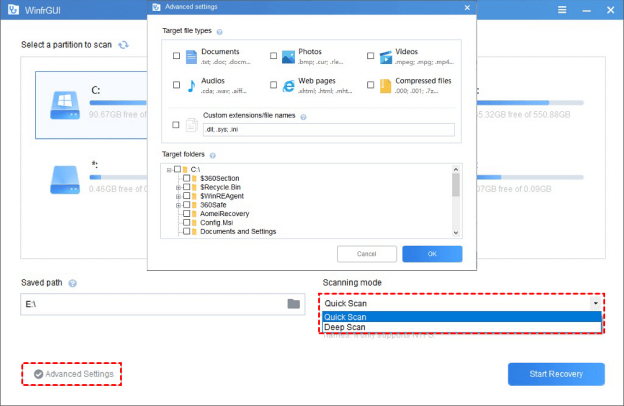
Because the command is generated internally, you avoid common issues such as incorrect paths, missing quotation marks, or unsafe recovery targets. This approach is especially useful when CMD recovery keeps failing due to syntax errors, unclear folder paths, or uncertainty about recovery modes. You still get the same recovery logic as winfr CMD—but with far less room for human error.
For users who already understand winfr syntax, CMD remains powerful. When the goal is simply to recover files safely without guesswork, WinfrGUI is often the more practical option.
Common Winfr Questions
Q1. Can winfr recover a permanently deleted folder?
Yes, but only if the underlying data blocks have not been overwritten. Success depends on drive type, file system, and time since deletion.
Q2. Why does winfr recover files but not the original folder name?
Folder names rely on metadata. If metadata is lost, files may still be recovered without their original directory structure.
Q3. Is winfr effective on SSDs?
Recovery on SSDs is limited due to TRIM. Once blocks are cleared, recovery is no longer possible.
Q4. Should I stop a winfr scan if it seems stuck?
If disk activity continues, wait. If activity drops to zero for a long period, restarting with narrower filters may help.
Q5. Is WinfrGUI safer than using CMD?
For non-technical users, yes. It reduces syntax errors and minimizes the risk of accidental overwrites.
Final Thoughts
Most winfr recover folder failures stem from incorrect recovery modes, permission issues, or unrealistic expectations—particularly on SSDs. Once you align each error with the correct CMD solution, Windows File Recovery becomes far more predictable and usable. If CMD starts to feel like a liability instead of a solution, WinfrGUI provides a safer way to access the same recovery engine. Acting quickly and choosing the right approach ultimately determines whether folder recovery succeeds or fails.
🔗 More Tutorials:
 MyRecover
 FoneTool
