
How to Recover USB Files Using CMD: Complete Guide

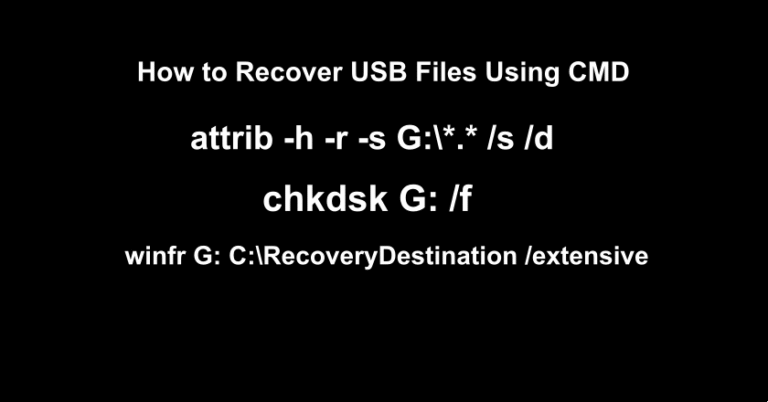
It started with a simple “Safe to Remove Hardware” notification that I ignored. I was in a rush, yanked my USB drive out, and headed to a major client presentation. When I plugged it back in, my heart stopped. “The disk in drive G: needs to be formatted.” Six months of design work had vanished into a digital void. I sat there in the parking lot, staring at a blank screen, feeling that cold pit of panic. I didn’t have $500 for a recovery lab, and I didn’t trust those “free” tools that look like malware. That’s when I turned to the only thing left: the Windows Command Prompt. I realized that if you know how to recover usb files using cmd, you can bypass the “Format Disk” errors and communicate directly with the drive’s memory. In this guide, I’m sharing the exact steps I used to pull my project back from the brink.
Key Takeaways
- The “Invisible” File Fix: If your USB shows used space but no files, it is likely a “Shortcut Virus.” Use
attrib -h -r -s G:\*.* /s /dto force hidden files back into view. - The Drive Repair Tool: If your USB is unreadable or shows a “RAW” error, use
chkdsk G: /f. This repairs the file system structure and often restores lost access. - Advanced Data Carving: For files that were truly deleted (skipped the Recycle Bin), use Windows File Recovery (Winfr) with the
/extensiveswitch to scan the raw disk sectors. - The Admin Requirement: Always run Command Prompt as an Administrator. Without “Elevated Privileges,” commands like
attriborchkdskwill fail with an “Access Denied” error. - The .CHK Mystery: If
chkdskcreates aFOUND.000folder with.chkfiles, these are fragments of your data. You can often restore them by manually renaming the extension to.jpgor.docx. - A Safer Alternative: If CMD syntax feels too risky, use WinfrGUI. It provides a free, one-click interface for Microsoft’s recovery engine, preventing the risk of typing the wrong drive letter or command.
CMD Prompt for USB Data Recovery
Command Prompt (CMD) is the command-line interpreter in Windows. While most users navigate their computers using icons and windows, CMD allows you to communicate directly with the operating system. This direct communication is incredibly powerful for data recovery because it can bypass certain limitations of the standard File Explorer.
Why Do Files Disappear from USB Drives?
Before running commands, it’s helpful to understand what happened to your data:
- Virus/Malware Infection: Many “Shortcut Viruses” change file attributes to “System” and “Hidden,” making them invisible but still present.
- File System Corruption: Improperly ejecting a USB can corrupt the File Allocation Table (FAT) or NTFS headers.
- Accidental Deletion: Files removed from a USB usually bypass the Recycle Bin.
Method 1: Recover Hidden USB Files Using CMD Attrib
The most common “data loss” scenario on USB drives is actually a visibility issue. If your USB shows that space is being used, but you cannot see any files, the attrib command is your best friend. This is often the first step when you try to recover usb files using cmd.
Steps to Use the Attrib Command:
- Connect your USB drive and note the drive letter (e.g.,
G:). - Open CMD as Administrator: Press the Windows key, type
cmd, right-click, and select “Run as Administrator.” - Enter the Command: Type the following and press Enter:
attrib -h -r -s G:\*.* /s /d
(Replace G with your specific USB drive letter.)
Syntax Breakdown:
-h: Clears the Hidden attribute.-r: Clears the Read-only attribute.-s: Clears the System attribute./s&/d: Tells CMD to search through all subfolders and directories.
Method 2: Repair Corrupted USB via CHKDSK
If your USB is inaccessible, showing a “File System is RAW” error, or saying the drive needs formatting, the file system structure is likely corrupted. While the attrib command handles hidden files, the chkdsk (Check Disk) command is a complementary tool used to recover usb files using cmd when the drive itself is failing to open.
Steps to Use CHKDSK:
- Open CMD as Administrator.
- Type the following command and press Enter:
chkdsk G: /f
(Replace G with your USB drive letter.)
What happens next?
- The
/fswitch tells Windows to fix errors on the disk. If prompted to “convert folder pits to files,” type Y. - Once finished, check your USB for a folder named
FOUND.000. Your files may be recovered there as.chkfiles.
Method 3: Use Windows File Recovery (Winfr CMD)
For files that have been truly deleted, Microsoft provides Windows File Recovery (winfr). This is a dedicated engine that digs into the disk sectors to find deleted fragments. This is the most advanced way to recover usb files using cmd if simple attribute changes don’t work.
How to use Winfr CMD:
- Install “Windows File Recovery” from the Microsoft Store.
- In CMD (Admin), use this syntax to recover from USB (G:) to C: drive:
winfr G: C:\RecoveryDestination /extensive
The Catch: This method is notoriously difficult for average users. The syntax is complex, and the “Extensive” mode can be very slow. One mistake in the command string can lead to failed recovery.
Method 4: The Best Alternative — WinfrGUI
When the manual command line feels too risky or chkdsk fails to fix the drive, WinfrGUI is the premier solution. It provides the power of the Microsoft recovery engine without the stress of manual typing. WinfrGUI is a free, professional-grade software that provides a “Graphical User Interface” for the official Microsoft Winfr tool. It gives you the power of sector-level recovery without needing to type a single line of code.
Why Choose WinfrGUI over CMD?
- Visual Interface: No more typing
attriborwinfrstrings. Just click “Scan.” - Deep Scan Mode: Essential for USB drives (FAT32/exFAT) that have been formatted or corrupted.
- File Filtering: Target specific file types like
.jpgor.pdfto save time. - 100% Free & Safe: It uses Microsoft’s own recovery engine, ensuring high reliability.
How to Recover with WinfrGUI:
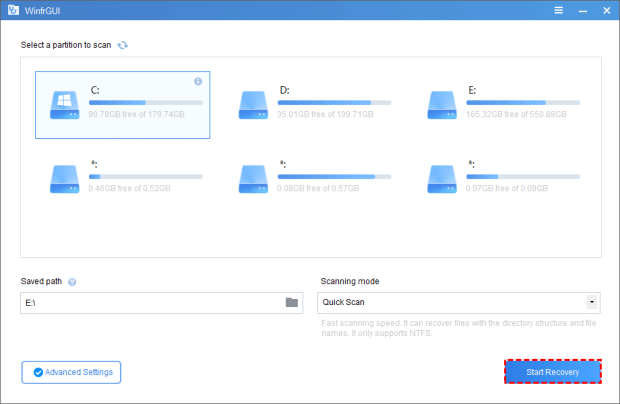
- Select Partition: Click on your USB drive.
- Set Destination: Choose a folder on your computer’s internal hard drive.
- Choose Mode: Select “Deep Scan” for best results on USB drives.
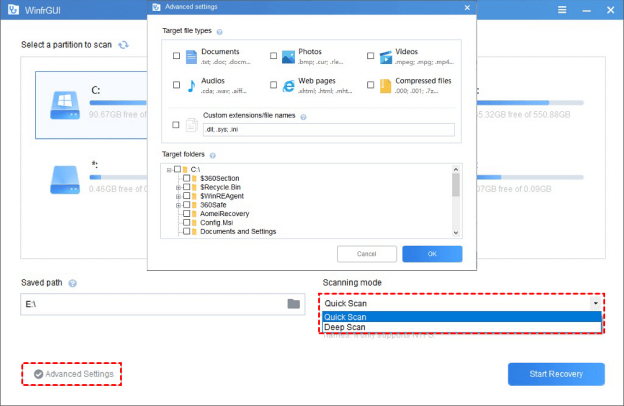
- Click “Start Recovery”: The software organizes recovered files into neat folders by type.
Recover Files from USB Using CMD FAQ
Q1. Can CHKDSK recover deleted files?
Not directly. chkdsk is designed to fix the logical structure and file system errors of a drive. If your files disappeared because the drive’s “index” was corrupted, chkdsk might restore access to them. However, if you manually deleted the files, you need a recovery tool like WinfrGUI to scan the raw data sectors.
Q2. Why does CMD say “Access Denied” when I run these commands?
This error occurs because data recovery commands require “Elevated Privileges.” To fix this, you must run Command Prompt as an Administrator. Right-click the CMD icon in your Start menu and select “Run as Administrator” before typing any recovery strings.
Q3. What is the difference between Winfr CMD and WinfrGUI?
Both tools use the same Microsoft recovery engine. The difference lies in the user experience: Winfr CMD requires you to manually type complex command-line syntax and parameters, while WinfrGUI provides a visual interface with buttons and menus, making it much safer and easier for non-technical users.
Q4. Can I use the attrib command on a formatted USB drive?
No. The attrib command only works if the files still exist on the drive but have been marked as hidden or system files (common with virus infections). Once a drive is formatted, the file markers are erased. In this scenario, you must use Method 4 (WinfrGUI) with “Deep Scan” enabled to recover usb files using cmd technology.
Q5. Why are my recovered files named “file001.chk” after running CHKDSK?
When chkdsk finds fragments of data that aren’t linked to a specific file, it saves them as .chk files in a folder named FOUND.000. These are parts of your lost data. You can often recover them by manually changing the file extension back to its original format (e.g., renaming .chk to .jpg or .docx).
Conclusion
Losing data on a USB drive doesn’t have to be a permanent catastrophe. As we’ve explored, Windows provides a robust set of tools to handle everything from virus-hidden files to accidental formatting. By mastering the recover usb files using cmd technique with the attrib command, you can quickly solve visibility issues. If corruption is the culprit, the chkdsk utility serves as a powerful repair tool. For deeper data loss, the Winfr CMD utility offers a professional-grade search engine.
However, the evolution of data recovery in 2025 has made these technical processes much more accessible. WinfrGUI stands out as the bridge between professional-grade Microsoft technology and a user-friendly experience. It removes the fear of the “black screen” and replaces it with a reliable, free, and safe interface. Whether you choose the manual command line or the graphical alternative, the key to success remains the same: act fast, stop using the drive, and always recover to a secure secondary location.
🔗 More Tutorials:
 MyRecover
 FoneTool
