
Why a Winfr Help User Guide Won’t Save Your SSD

I didn’t expect to spend my Tuesday night staring at a blinking command-line cursor, feeling that specific kind of cold dread that settles in when you realize you might have just wiped out six months of work. It started with a simple “Shift + Delete.” I was cleaning up my project folders, felt a bit too efficient for my own good, and realized two seconds too late that the “Archive_2025” folder I just nuked wasn’t the duplicate—it was the master.
The first thing you do is hit Ctrl+Z, which does nothing for a permanent delete. Then you go to the Recycle Bin, hoping you were wrong about the “Shift” part, but it’s empty. That’s when the frantic searching starts. I ended up looking for a winfr help user guide because I’d heard Windows had a built-in tool for this, something that didn’t feel like those sketchy “free” programs that ask for $60 the moment they find a thumbnail of your file. But the more I dug into how these things actually work, the more I realized that the “magic” of data recovery is mostly lucky breaks.
Key Takeaways
- The SSD Factor: On modern SSDs, the TRIM command often wipes data permanently within seconds. Act fast, but realize recovery is harder than on old HDDs.
- Mode Selection: * Regular Mode: Use for recent deletions on healthy NTFS drives.
- Extensive Mode: Use for corrupted/formatted drives or non-NTFS systems.
- Why It Fails: You may recover “Ghost Files” (0KB) or “Frankenstein Files” (partially overwritten) if Windows background tasks write over the empty space.
- Syntax Precision: Commands like
winfr C: D: /extensive /n *Documents\*must be exact. One missing space or colon causes a “Parsing Error.” - The Best Alternative: Use WinfrGUI. It provides a simple “point-and-click” interface for the WinFR engine, eliminating syntax stress.
- Cost vs. Effort: If a file is 0KB or corrupted after recovery, it’s often faster to rebuild the work than to chase a digital ghost.
The SSD “Janitor” vs. Your Data
The fundamental problem with almost every winfr help user guide online is that they treat storage drives like it’s still 2005. Back then, we had mechanical Hard Disk Drives (HDDs). When you deleted a file, the data stayed on the physical platter until it was eventually overwritten. Today, almost every Windows laptop uses an SSD.
SSDs manage data through the TRIM command. Think of TRIM as a background janitor obsessed with efficiency. Because of how flash memory works, an SSD cannot just write over old data; it must wipe the cell first. To keep the drive fast, the OS tells the janitor the moment you delete a file. The janitor then physically zeroes out those blocks. Even if you find a winfr help user guide and follow it perfectly, you are fighting a hardware feature designed to destroy data for the sake of performance. By the time I downloaded the tool, the janitor had likely finished his rounds.
Deciphering the Winfr Command Line
When you finally open the Command Prompt (as an Administrator, of course), you realize that winfr isn’t a “one-button” solution. It requires a specific syntax that looks something like
winfr source-drive: destination-drive: [/mode] [/switches]
Understanding the modes is where most people get lost.
The Regular Mode (/regular) This mode is essentially a search through the Master File Table (MFT). It’s like looking at a library’s index card system. If the index card says the book is in Section A, Row 4, the tool goes there.
- When to use: Only for recently deleted files on a healthy NTFS drive.
- The Reality: If your drive has performed any background maintenance, the MFT record is likely gone. In my case, running the regular mode resulted in “No files found” because the index had already been updated to show the space as empty.
The Extensive Mode (/extensive) This is the “deep dive” or “signature” scan. It ignores the MFT and scans the actual clusters of the drive looking for “headers”—the specific binary code that identifies a file as a .jpg or a .pdf.
- When to use: For corrupted drives, formatted disks, or non-NTFS systems like FAT32/exFAT.
- The Reality: It is agonizingly slow. While I sat there watching the percentage crawl, my computer was still running. Every temporary internet file my Windows OS created during that scan was potentially being written over the very clusters
winfrwas trying to read.
Anatomies of Failure: Why My Recovery Floped
To understand why a winfr help user guide isn’t a silver bullet, you have to look at the specific ways the technology fails in the real world. I experienced three distinct types of failure during my “rescue” attempt.
1. The Metadata Ghost (Success in Name, Failure in Substance)
After running an extensive scan for three hours, the tool proudly announced it had recovered 45 files. My heart leaped. I opened the destination folder and saw the correct filenames: Project_Final_v2.docx. But the file size was 0 KB. This happens because the tool found the “metadata”—the information about the file—but the actual data blocks had been scrubbed by TRIM. The OS knew a file used to be there, but the “storage rooms” it pointed to were now empty. The winfr help user guide doesn’t warn you that a “successful” scan often just recovers the ghost of a file, not the file itself.
2. The Frankenstein File (Partial Overwrite)
For one of my large .PSD design files, the tool recovered a 50MB file that actually had a file size. I thought I was saved. However, when I opened it, the top 10% of the image was my project, and the bottom 90% was a grey block of digital noise. This is the result of “partial overwriting.” Because Windows is always “alive,” it constantly writes small bits of data to the disk. One of those bits—maybe a browser cookie or an update log—happened to land right in the middle of my deleted project file. In the world of binary, a single overwritten bit can render a complex file unreadable.
3. The Path of Most Resistance (Syntax Fatigue)
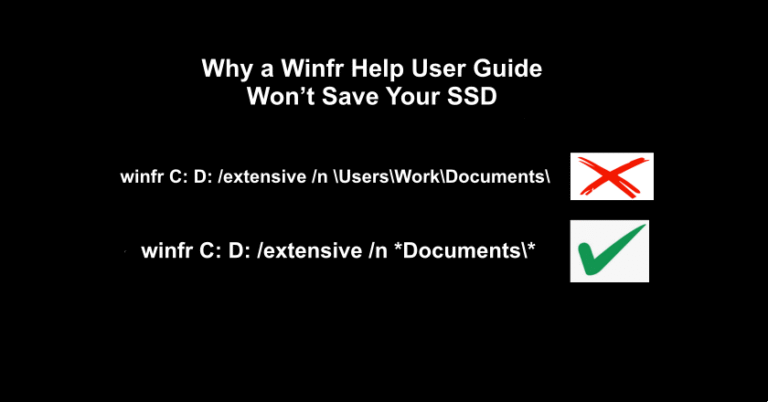
I spent nearly an hour just trying to get the tool to look in the right place. The winfr help user guide tells you to use the /n switch for filtering, but it doesn’t emphasize how literal the tool is. I typed:
winfr C: D: /extensive /n \Users\Work\Documents\
❌ It failed because I forgot that the tool needs a wildcard or a very specific folder structure.
✔️ By the time I figured out the exact syntax:
winfr C: D: /extensive /n *Documents\*
By the time I realized what was happening, the system had already used those extra minutes to write over parts of the data I was trying to recover.
Is There a Better Way?
If the thought of typing long strings of code while your heart is racing feels impossible, there is an alternative: WinfrGUI. This is essentially a “skin” for the Microsoft tool. It provides a visual interface where you can click buttons to select your drives and modes instead of typing them out. For many, WinfrGUI is the better starting point because it eliminates syntax errors. However, it’s important to remember that it uses the same underlying engine. If the data is gone from the SSD cells because of TRIM, no amount of user-friendly buttons will bring it back. It just makes the process of trying—and potentially failing—less stressful.
Troubleshooting FAQ: The Short Version
Q: Why do I get “Invalid Syntax” errors?
Check your colons and backslashes. You must have a space between the source and destination drives, and the destination must be a different physical or logical drive than the source.
Q: Why does the tool say “Destination drive is full”?
winfr doesn’t just recover your files; it often recovers “shadow” fragments and temporary files you didn’t ask for. You often need 2x the space of the files you’re trying to save.
Q: Is “Extensive” mode always better?
No. It takes much longer, increasing the risk of background overwriting. Use “Regular” first; only switch if that fails.
Q: Does it work on cloud-synced folders (like OneDrive)?
Usually no. If the file was “Online Only,” it was never physically on your disk to begin with, so there are no bits to recover.
Q: Why are my files renamed to “FILE001”?
If the file table is destroyed, winfr only sees the raw data. It assigns a generic name because the original name was stored in the (now lost) index.
The Decision: To Recover or to Rebuild?
After five hours of scanning, I had to ask: What is this data actually worth? I looked at the corrupted Word document the tool finally spit out. It was a mess of “NUL” characters and gibberish. Even if I found a more advanced winfr help user guide, the reality was that the blocks had been zeroed out. I had three paths. I could keep running deeper scans for days, I could ship the drive to a professional lab for $700 with no guarantee of success, or I could accept the loss and start over. For a project that would take 20 hours to rewrite, spending hundreds of dollars or an entire week of stress was a bad trade. I chose to close the command prompt.
🔗 More Tutorials:
 MyRecover
 FoneTool
