
How to Recover Deleted Excel Files Windows 10/11 Efficiently


Microsoft Excel, the world’s most popular spreadsheet software, stores countless critical financial, data, and sensitive records. However, whether due to an application crash, accidental human error, or system failure, unexpectedly losing or deleting an Excel file is an all-too-common and worrying problem. Don’t panic. This article provides a comprehensive and effective recovery plan to address the core question of how to recover deleted Excel files, helping you retrieve those “missing” crucial documents on Windows 10/11 systems.
Key Takeaways
- The Unsaved Lifeline: If Excel crashed before you could save, go to File > Open > Recover Unsaved Workbooks. Excel stores temp files (
.xlb) in a hidden “UnsavedFiles” folder. - Recycle Bin vs. Permanent Deletion: Always check the Recycle Bin first. If you used Shift+Delete, the file is “permanently” gone from the index, but the data remains on the disk until overwritten.
- Version History: For overwritten files, right-click the file in Explorer and select “Restore previous versions” to roll back to an earlier save point.
- The 365 Cloud Advantage: If you use OneDrive, check the online Version History or the OneDrive Recycle Bin; these are separate from your local computer’s trash.
- Professional Recovery: When files are truly deleted and not in any backup, use WinfrGUI. It uses Microsoft’s official recovery engine to scan disk sectors for
.xlsxsignatures, bypassing the need for manual CMD coding.
Quick Navigation: Targeted Solutions
| Scenario | Best Recovery Path |
| ❌ Closed accidentally and not saved | Method 1: Excel AutoRecover Feature |
| 🗑️ Recently deleted (still in Recycle Bin) | Method 2: Restore from Windows Recycle Bin |
| 📂 File permanently deleted (not in Recycle Bin) | Method 4: Professional Data Recovery Software (e.g., WinfrGUI) |
| 🕒 File was accidentally overwritten or replaced | Method 5: Use Windows “Previous Versions” Feature |
| ☁️ Lost after working with Office 365/OneDrive | Method 3: Check OneDrive/SharePoint Cloud Backup and Version History |
| 💻 Application or system crash led to loss | Method 1: Excel AutoRecover Feature |
Recovering an Unsaved Excel File (AutoRecover Mechanism)
Excel has a powerful built-in mechanism that can largely salvage your work even if you forget to click “Save.” This function is called “AutoRecover.”
Using AutoRecover to Retrieve Unsaved Files
- Relaunch Excel: Open the Microsoft Excel application.
- Access Files: Click the “File” tab in the top-left corner.
- Find Unsaved Files: Select “Open” -> “Recent Workbooks.”
- Click the Recovery Button: Scroll to the bottom and click the “Recover Unsaved Workbooks” button.

- Locate and Save: In the folder that appears, look for a file with a
.xlbextension or a recent timestamp. Open it and use the “Save As” function to store it in a safe location.
Verify and Optimize AutoRecover Settings
- Click “File” -> “Options.”
- In the pop-up window, select the “Save” tab.
- Ensure the following two options are checked:
- ☑️ “Save AutoRecover information every X minutes“: We recommend setting this interval to 1–5 minutes to minimize data loss.
- ☑️ “Keep the last autosaved version if I close without saving.”
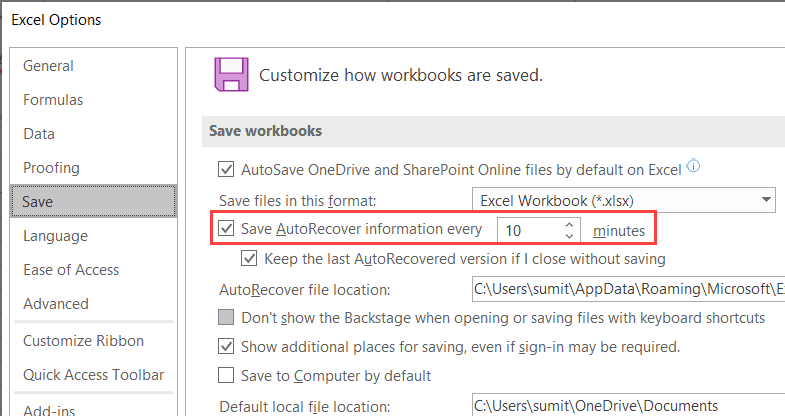
- Click “OK” to save the settings.
🔍 AutoRecover File Storage Location: By default, Excel temporary files are saved in the following path on Windows 10/11: C:\Users\YourUserName\AppData\Local\Microsoft\Office\UnsavedFiles
How to Recover Deleted Excel Files (From Recycle Bin and Backup)
If your file was saved but then accidentally deleted, the recovery process is different. This section specifically addresses how to recover deleted Excel files using native operating system features.
Method 1: Check the Windows Recycle Bin
- Double-click to open the “Recycle Bin” icon on your desktop.

- Use the search bar or sorting functions to find your lost Excel file (typically with the extension
.xlsxor.xls). - Right-click the found item.
- Select the “Restore” option.
- The file will be immediately restored to its original location before deletion.
Method 2: Utilize System or Cloud Backups (File History / OneDrive)
💡 Best Practice: Regular backup is the golden rule of data recovery.
Restore via Windows File History
- In the taskbar search box, type “file history” and select “Restore your files with File History.”
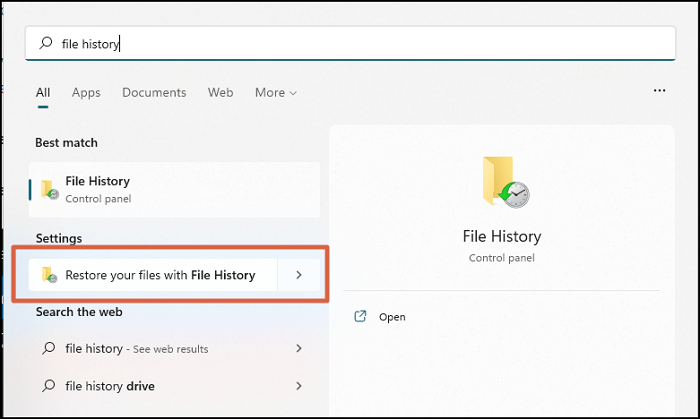
- In the File History window, navigate to the folder that contained the deleted Excel file.
- Use the arrow keys to view different versions (time points) of the file.
- Once you find the version you need, click the green “Restore” button at the bottom.
Restore via Office 365/OneDrive
- Log in to your OneDrive/SharePoint web portal.
- Check the “Recycle Bin” folder within OneDrive/SharePoint.
- If the file is here, select it and click “Restore.”
How to Recover Deleted Excel Files Permanently (Data Recovery Software)
If the file has been permanently deleted, traditional methods will fail. At this point, you must rely on professional data recovery software. This addresses the most challenging aspect of how to recover deleted Excel files when standard methods fail.
Method 3: Data Recovery Software WinfrGUI
When Windows deletes a file, it only removes the logical link in the file system. Before the data is overwritten by new files, data recovery software can scan the sectors and reconstruct the file.
⚠️ Crucial Warning: Immediately Stop Using the Storage Device! Immediately stop writing any new data to that hard drive to prevent data from being overwritten. It is recommended to install recovery software on a different disk.
Recommended Procedure (Using WinfrGUI):
WinfrGUI is a Graphical User Interface (GUI) wrapper for Microsoft’s Windows File Recovery tool, offering a user-friendly way to perform powerful, low-level recovery tasks.
- Download and Install the Software: Install WinfrGUI on a different drive from where the Excel files were lost.
- Select Source and Target Drives: Launch WinfrGUI. Select the Source Drive where the Excel files were lost. Then, select a Target Drive (must be different from the source) to save the recovered files.
- Select Recovery Mode: Based on the file loss scenario, choose the appropriate mode:
- Quick Scan: Suitable for recently deleted files on NTFS drives.
- Deep Scan: Best for files that were formatted, corrupted, or deleted a long time ago.
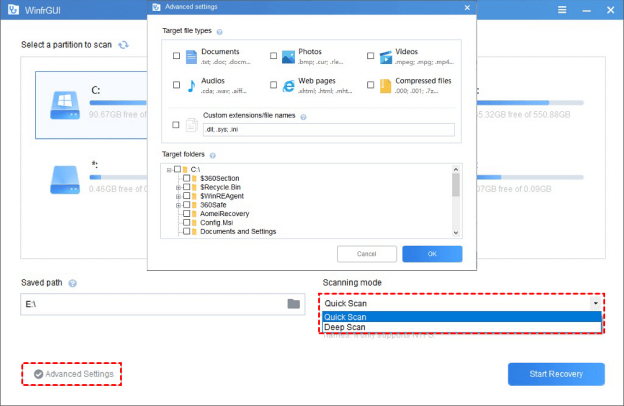
- Specify File Types: In the settings, specify the file extensions to recover. For Excel, enter or select
.xlsxand.xlsto narrow the search. - Start Recovery: Click the “Start Recovery” button. The software will begin scanning the selected drive.
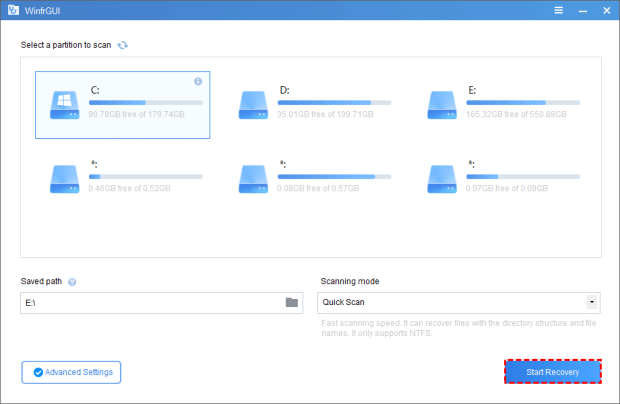
- Check Results: After the scan, browse the recovery folder to check the retrieved Excel files.
- Verify: Open the recovered files to ensure data integrity.
Recovering an Overwritten Excel File
If you saved over an older version of your file, you might need to find the file’s “predecessor.” We also briefly touch on a related issue: how to recover deleted Excel files (if they were overwritten), as this involves retrieving older versions.
Method 4: Utilize Windows “Previous Versions” Feature
- Open File Explorer and navigate to the folder containing the overwritten Excel file.
- Right-click the file and select “Properties.”
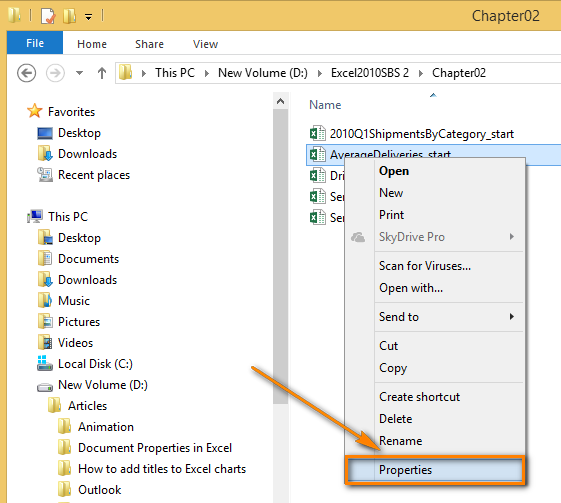
- Switch to the “Previous Versions” tab.
- Select the version you need. You can choose “Restore” or click “Open” to view the content and then “Copy” it to another location.
Method 5: Online Version History (Office 365)
- Click the “Restore” button to overwrite the current file with this older version.
- Open the currently overwritten Excel file.
- Click the file name at the top of the Excel window and then click “Version History.”
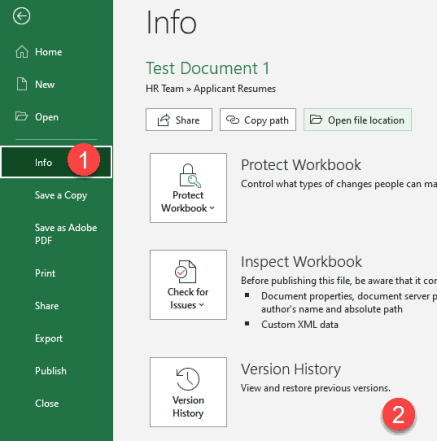
- The “Version History” pane will open on the right side.
- Click a historical version and select “Open version” to preview it.
Frequently Asked Questions (FAQ)
To provide quick answers to common user queries, here are five frequently asked questions about file recovery:
Q1: Where do autosaved Excel files get stored on Windows 10/11?
The default path is: C:\Users\YourUserName\AppData\Local\Microsoft\Office\UnsavedFiles.
Q2: Where do deleted Excel files go?
They first go to the Windows Recycle Bin. Permanently deleted files (Shift+Delete) occupy space marked as available.
Q3: How can I recover a corrupted Excel file?
Use Excel’s built-in “Open and Repair” function, selected from the dropdown menu in the “Open” dialogue box.
Q4: Can I recover permanently deleted files without software?
If the file is not in any backup, it cannot be recovered using system tools (like the Recycle Bin). Professional software is required.
Q5: What should I do immediately after realizing a file is permanently deleted?
Immediately stop using the storage device to prevent data from being overwritten, and avoid installing any new software.
Conclusion
Losing an Excel file, whether due to a crash or accidental deletion, can be a major setback. Fortunately, as demonstrated in this guide, multiple layers of defense and recovery tools are available. For unsaved work, Excel’s AutoRecover is your first and best hope. For recently deleted files, the Recycle Bin and cloud/local backups offer straightforward solutions. When facing the complexity of a permanent deletion, specialized data recovery tools like WinfrGUI offer a powerful final resort, utilizing underlying Windows technology to retrieve lost data. The key to successful recovery lies in acting fast to prevent overwriting the data and maintaining a robust backup strategy. By implementing the preventative measures and recovery steps outlined here, you are well-equipped to handle future data loss incidents and protect your valuable spreadsheets.
🔗 More Tutorials:
 MyRecover
 FoneTool
