
Common Winfr Syntax Errors and How to Fix Them Fast

The digital age has gifted us with incredible convenience, but it has also introduced a unique form of modern anxiety: the accidental deletion of vital data. Whether it is a collection of high-resolution digital illustrations, a complex legal contract, or a year’s worth of financial spreadsheets, the moment you realize a folder has been permanently purged is often met with cold panic. Microsoft’s Windows File Recovery (winfr.exe) serves as a powerful, native lifeline for Windows 10 and 11 users, offering a free alternative to expensive third-party software. However, unlike the user-friendly interfaces of most modern applications, this utility is a command-line tool that demands precision. It does not have a “undo” button for its own commands; it has strict rules that must be followed. Most users fail not because their files are truly gone, but because the winfr syntax is unforgiving to those unaccustomed to the terminal. In this comprehensive guide, we will demystify the complexities of the command line, troubleshoot common parsing errors, and provide a roadmap to successful data restoration.
Key Takeaways
- Native & Free:
winfr.exeis a powerful, official Microsoft tool for Windows 10/11 that replaces expensive third-party recovery software. - Precision is Mandatory: The tool uses a strict command-line structure:
winfr [source] [destination] [/mode] [/switches]. A single missing space or colon will cause a “Parsing Error.” - The Golden Safety Rule: Never set your destination to the same drive as your source. This prevents you from overwriting the very data you are trying to save.
- Choose Your Mode: * Use Regular Mode for recently deleted files on NTFS drives.
- Use Extensive Mode for formatted drives, corrupted disks, or SD cards.
- Filter Your Search: Use switches (like
/n *.jpg) to target specific file types. This saves time and prevents the recovery folder from being cluttered with system junk. - WinfrGUI for Ease: If the terminal feels too complex, use WinfrGUI. It provides a simple graphical interface for the same Microsoft engine, eliminating syntax errors.
The Anatomy of a Perfect Command
Before we can troubleshoot the failures, we must understand the fundamental architecture of a successful recovery operation. The utility operates within the Command Prompt (CMD) or PowerShell environment, acting as a direct bridge between the user and the file system’s low-level sectors.
The “Golden Rule” of the winfr syntax follows a non-negotiable structure:
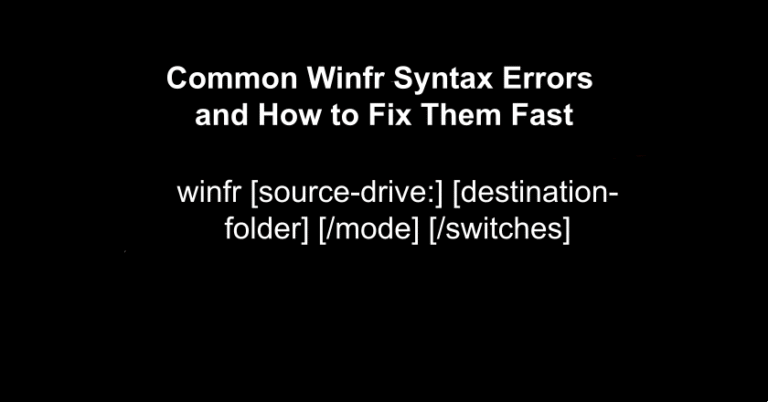
winfr [source-drive:] [destination-folder] [/mode] [/switches]
Every element in this string serves a vital purpose. The “source-drive” tells the tool where to look, the “destination-folder” tells it where to put the salvaged data, the “mode” determines the depth of the scan, and the “switches” act as filters to narrow down the search. If you miss a single space, forget a colon, or point the tool at the same drive you are scanning, the process will fail instantly. Understanding this “sentence structure” is the first step toward moving from a novice to an expert in data recovery.
Error1: “There was an error parsing your command”
This is the most frequent roadblock encountered by users. It essentially means you have submitted a command that the computer cannot “read.” In the world of CMD, a typo is not just a misspelled word; it is often a formatting oversight involving spaces or special characters.
The “Space in Path” Trap
Windows users frequently name their folders with spaces for readability, such as Work Documents. However, the command line treats a space as a separator between two different instructions. If you type:
winfr C: E: /regular /n \Users\Admin\Documents\Work Documents\
The system interprets the path as ending at Work and views Documents as a new, invalid command parameter.
The Fix: To resolve this, you must wrap any path containing spaces in double quotation marks. This tells the computer to treat everything between the marks as a single string of text. Correct:
winfr C: E: /regular /n “\Users\Admin\Documents\Work Documents\”
The Missing Colon and Backslash
In the winfr syntax, drive letters must always be followed by a colon. Many users mistakenly type winfr C E: which results in a parsing error because the tool does not recognize C as a drive. Furthermore, when specifying filters, a leading backslash \ is required to indicate the root of the source drive. Omitting these tiny characters is the leading cause of early-stage failure.
Error2: “Source and destination must be different”
This error is actually a critical safety feature designed by Microsoft to protect your data, yet it frustrates many users who only have one hard drive.
The Technical Logic of Overwriting
When a file is deleted, the data isn’t actually wiped immediately; the Master File Table (MFT) simply marks the space it occupies as “available.” This means the bits and bytes are still there, but they are vulnerable. If you attempt to save recovered files onto the same drive you are currently scanning, the operating system might write the new “recovered” file directly on top of the “deleted” data cells you are trying to rescue. It is the digital equivalent of trying to rebuild a house using bricks taken from the foundation of that same house while it is still standing. The Fix:
- External Media: The most reliable method is to plug in a USB flash drive or an external hard drive. This ensures the source and destination are physically separate.
- Secondary Partition: If your physical SSD is partitioned into a
C:and aD:drive, the tool will accept this as two different locations, even if they share the same physical hardware. - Network Storage: Mapping a network drive can also bypass this restriction, as the data is being sent over a cable to a different machine entirely.
Error3: The “No Files Found” Silent Failure: Mode Mismatch
Sometimes, the command appears to work—the progress bar moves, and the scan finishes—but the resulting folder is empty. This is rarely a bug; it is almost always a misunderstanding of the “Mode” parameter within the winfr syntax.
Regular vs. Extensive: Choosing the Right Engine
- Regular Mode (
/regular): This mode uses the Master File Table (MFT) to track down files. It is incredibly fast, often finishing in seconds. However, it only works on NTFS-formatted drives and is only effective if the file was deleted recently and its MFT record is still intact. - Extensive Mode (
/extensive): This is the “heavy lifter.” It performs a signature search, scanning every cluster of the disk for the binary headers of specific file types (like the start of a JPEG or a PDF). This mode is mandatory for SD cards (FAT32/exFAT) or drives that have been recently formatted or corrupted.
If you are trying to recover data from a camera’s memory card or a thumb drive, using the Regular mode will almost always result in zero files found. You must switch to Extensive mode to achieve results.
The No-Syntax Alternative: WinfrGUI
For many users, the stress of a data loss event makes it difficult to concentrate on technical command strings. If the thought of manual entry is too intimidating, there is a third-party solution called WinfrGUI.
Developed by the team at AOMEI, WinfrGUI acts as a free graphical “skin” for Microsoft’s official recovery engine. It essentially provides a “point-and-click” interface that handles the complex winfr syntax for you in the background. You simply select your source drive from a list of icons, choose a destination folder using a standard Windows explorer window, and click “Start Recovery.”
While power users might prefer the precision of the command line, WinfrGUI is a life-saver for those who want the reliability of a Microsoft-authored tool without the risk of a syntax error. It effectively democratizes data recovery, making it accessible to those who are not comfortable with the Command Prompt.
Advanced Filtering: Mastering the /n and /y Switches
Efficiency is key in data recovery. Scanning a 1TB drive for a single lost document can take hours if you don’t use filters. To be truly effective, you must master the filtering portion of the winfr syntax.
Stacking Filters
You are not limited to one search term. You can “stack” filters to find multiple types of files simultaneously. For example, if you lost both photos and documents, your command might look like this:
winfr C: E: /extensive /n *.pdf /n *.jpg /n *Report*
Extension Groups (/y)
Instead of typing every possible image extension, you can use built-in groups. Using /y:Photos will automatically search for JPEGs, PNGs, TIFFs, and more. This significantly reduces the length of your command and minimizes the chance of a typo.
The Hard Truth: SSDs and the TRIM Command
It is vital to manage expectations regarding Solid State Drives (SSDs). Modern SSDs use a background maintenance command called TRIM. When you delete a file on an SSD, the operating system informs the drive that the data is no longer needed. To maintain high write speeds, the SSD may physically erase those cells almost immediately during idle time.
Once the TRIM command has executed, the data is physically gone from the flash memory. No amount of winfr syntax expertise can bring it back. If you realize you have deleted a file on an SSD, the most important step is to pull the power or initiate a hard shutdown immediately. This prevents the drive from running its background “garbage collection” and gives you a window of opportunity to perform a recovery scan.
Common Syntax Mistakes and Solutions
| Error Message | Likely Root Cause | The “Fast” Fix |
| Error Parsing Command | Spaces in filenames or paths | Wrap the entire path in "Quotes" |
| Source/Dest. must be different | Attempting to save to the same disk | Plug in an external USB drive |
| Access Denied | Standard user permissions | Right-click CMD and “Run as Admin” |
| 0 files recovered | Incorrect scan mode or TRIM | Switch from /regular to /extensive |
| Invalid Filter | Missing the colon after drive letter | Ensure it is C: and not just C |
When to Stop: Recognizing Hardware Failure
The utility is designed to recover files lost due to software issues—accidental deletion, formatting, or file system corruption. It is not designed to handle physical hardware failure. If your hard drive is making clicking, grinding, or whirring sounds, or if Windows frequently “freezes” when trying to access the drive, stop immediately.
Repeatedly running a software recovery scan on a physically failing drive can cause the read/write heads to crash into the platters, leading to permanent data loss. In these scenarios, the only safe option is to power down the device and consult a professional data recovery laboratory that operates in a “clean room” environment.
Conclusion
Navigating the world of data recovery can feel like walking through a minefield, especially when your most important files are on the line. However, as we have explored, most obstacles are not caused by the permanent disappearance of data, but by the rigid requirements of the winfr syntax. By understanding that the command line is simply a language—one that requires specific punctuation, “grammar” in the form of switches, and a clear hierarchy of drives—you can transform a high-stress situation into a manageable technical task. Whether you choose the manual precision of the Command Prompt or the user-friendly assistance of WinfrGUI, the goal remains the same: a successful restoration of your digital life.
🔗 More Tutorials:
 MyRecover
 FoneTool
