
WinFR Command Examples for File Recovery

If you’ve just lost important files on Windows 10 or Windows 11 and heard people mention “WinFR,” you’re probably wondering what it is and how to use it. WinFR stands for Windows File Recovery, a command-line tool created by Microsoft that helps users restore deleted files. But here’s the catch: the tool runs entirely in CMD, and its syntax can be confusing—especially when you’re stressed and just want your files back. That’s why people search for WinFR command examples. Instead of reading a technical manual, they want simple, copy-ready commands that work immediately. In this guide, I’ll walk you through clear examples for different recovery scenarios, explain when to use each mode, and share common mistakes to avoid. Whether you’re recovering photos, documents, or files from an external drive, this guide will give you everything you need.
Key Takeaways
- The Command Structure: Every command follows the same pattern:
winfr <source> <destination> <mode> <switches>. Remember: your destination must be a different drive (e.g., recover from C: to D:). - Mode Selection Strategy: * Use
/regularfor files you just deleted on an NTFS drive.- Use
/extensivefor older deletions, formatted USBs, or SD cards. - Use
/segmentif the file’s “map” (metadata) is corrupted but the data is still there.
- Use
- Admin Power: WinFR will not work in a standard window. You must right-click Command Prompt and select “Run as Administrator.”
- The Best All-Rounder Command:
winfr C: D: /extensive /n *.jpg /n *.pdf. This deep-scans for common photos and documents simultaneously. - The Beginner’s Shortcut: If typing commands feels like a liability, use WinfrGUI. It provides a free, “point-and-click” interface for the official Microsoft engine, eliminating the risk of syntax errors.
- SSD Warning: Recovery on SSDs is time-sensitive due to the TRIM command, which actively erases deleted blocks. Act immediately for any chance of success.
What Is WinFR and When Should You Use It?
Windows File Recovery (WinFR) is Microsoft’s official data recovery tool. It’s lightweight, safe, and completely free—but there’s no GUI. You must type commands in Command Prompt, which is the main reason many users give up halfway.
WinFR works best when:
- You’re using an NTFS drive
- The files were recently deleted
- The storage drive is still readable
- You want a free, offline recovery method
However, the tool does have limitations. It can be slow in extensive scan mode, can’t preview files before recovering, and its command syntax is not beginner-friendly. That’s why having a list of real WinFR command examples is extremely helpful—especially in urgent situations.
Basic Syntax of WinFR
Before diving into the examples, it’s important to understand the basic structure of a WinFR command.
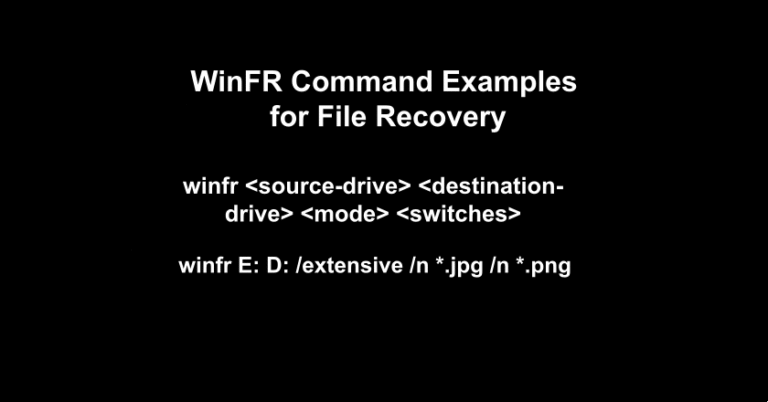
winfr <source-drive> <destination-drive> <mode> <switches>
Here’s what each part means:
- source-drive: The drive you want to recover files from (e.g., C:, D:, E:)
- destination-drive: Where recovered files will be saved
- Must be different from the source drive
- mode: Tells WinFR how deep the scan should go
- switches: Filters such as file paths or file types
Once you understand this structure, everything else becomes easier.
WinFR Command Examples for Different Recovery Scenarios
This section includes the most commonly used WinFR commands. You can copy, paste, and adjust drive letters as needed.
1. Recover All Recently Deleted Files (Regular Mode)
Best for fresh deletions and NTFS drives.
winfr C: D: /regular
This command tells WinFR to scan the C: drive and save recovered files to D: using the fast, standard recovery mode.
2. Recover Specific File Types (e.g., Word Documents)
Useful when you know exactly what file type you lost.
winfr C: D: /regular /n *.docx
You can replace *.docx with:
*.xlsx(Excel)*.pptx(PowerPoint)*.txt(text files)
3. Recover Photos (JPEG/PNG)
If you accidentally deleted your camera roll or SD card photos:
winfr E: D: /extensive /n *.jpg /n *.png
Use /extensive when recovering from SD cards, USB drives, or older deletions.
4. Recover an Entire Folder Path
When you want to restore a specific folder (e.g., Documents):
winfr C: D: /regular /n \Users\Name\Documents\
Make sure the folder path matches your system username.
5. Recover Deeply Lost or Corrupted Files (Extensive Mode)
If files were deleted long ago, or the drive shows errors:
winfr C: D: /extensive
This mode is slower but more thorough.
6. Recover PDF Files Using Segment Mode
Segment mode works well when metadata is damaged.
winfr C: D: /segment /n *.pdf
Use this when Regular mode fails to find your files.
7. Recover Files From an External Drive (USB/SSD/HDD)
For removable storage:
winfr E: C: /extensive
Replace E: with your external drive’s letter.
8. Recover Videos (MP4/MOV)
Great for large media files:
winfr D: C: /segment /n *.mp4 /n *.mov
Segment mode tends to handle large video types better.
Understanding WinFR Modes
Here is a simple breakdown of the three scan modes:
| Mode | Best For | Notes |
|---|---|---|
| /regular | Recently deleted files | Fastest mode; works only on NTFS |
| /extensive | Deep scans, damaged drives, older deletions | Slow but thorough |
| /segment | Specific file types when metadata is damaged | Good for .pdf, .mp4, .jpg |
If your first command doesn’t recover your files, try switching from /regular → /segment → /extensive.
WinFR Too Hard? Try WinfrGUI (Beginner-Friendly Alternative)
If all those commands seem confusing—or if you’d rather not risk using the wrong syntax—there’s a much simpler alternative: WinfrGUI. It is a free tool that transforms Microsoft’s Windows File Recovery into a straightforward, point-and-click interface. No commands to remember, no Command Prompt to open, and no syntax errors to worry about.
Why WinfrGUI is Perfect for Beginners
- 100% free and safe – built on Microsoft’s official recovery engine, with no cost or hidden fees.
- Fully compatible – works seamlessly with Windows 10 and 11.
- Powerful recovery core – uses the same engine as Microsoft WinFR, ensuring high success rates.
- Multiple scan modes – recover by file type, folder, or full disk scan to fit different data loss situations.
- Preview before recovery – view files before restoring them, so you only save what you need.
If you want to skip the command-line learning curve and recover your important files quickly and with confidence, WinfrGUI is the ideal choice. No technical background required—just a few clicks to perform professional-grade data recovery.
Common WinFR Errors and How to Fix Them
WinFR errors are common, especially for first-time users. Here are the most frequent issues and the easiest solutions.
1. “Destination drive must be different from the source drive”
WinFR does not allow saving recovered files to the same drive it is scanning.
Fix: Change the second drive letter to another partition or external drive.
2. “No files recovered”
Usually caused by:
- Wrong file path
- Wrong file type
- Wrong scan mode
Fix: Try using /segment or /extensive and widen your file filters.
3. Command doesn’t run due to missing admin privileges
Fix: Open Command Prompt as Administrator.
4. Incorrect path syntax
Windows paths must follow a strict format.
Correct example: /n \Users\John\Desktop\
5. Trying to recover from drives that are not NTFS
Regular mode works only on NTFS.
Fix: For FAT, exFAT, or RAW drives, use: /extensive
FAQs About WinFR Command Usage
Q1. Can WinFR recover permanently deleted files?
Yes, especially in /segment or /extensive mode. Success depends on whether the data has been overwritten.
Q2. Does WinFR work for external drives?
Yes. Use:
winfr E: C: /extensive
Q3. Is WinFR safe?
WinFR is non-destructive and does not overwrite your original drive.
Q4. How long does WinFR take?
Regular mode takes a few minutes. Extensive mode can take hours depending on drive size.
Q5. Can WinFR recover corrupted files?
Sometimes. If metadata is corrupted, try /segment mode.
Conclusion
Knowing the right WinFR command examples can make file recovery on Windows dramatically easier. Whether you’re restoring photos, documents, videos, or entire folders, the commands in this guide cover all major recovery scenarios. If you’re comfortable with CMD, WinFR provides a powerful, free method to recover lost data. But if command-line recovery feels overwhelming—or if you want a simpler, more reliable way to restore files—WinfrGUI offers a clean, easy, beginner-friendly alternative without sacrificing recovery power. Whichever method you choose, act quickly. The sooner you start your recovery, the higher your success rate.
🔗 More Tutorials:
 MyRecover
 FoneTool
