
Use Windows File Recovery Commands to Recover Lost Files

If you have accidentally lost files and are looking for a data recovery tool, Windows File Recovery should definitely be on your list. This article will provide you with a comprehensive guide to Windows File Recovery, covering how Windows File Recovery commands work and offering a step-by-step tutorial on how to use them. Additionally, an alternative GUI tool, WinfrGUI, will also be recommended, giving you more options for file recovery.
What is Windows File Recovery?
Windows File Recovery is a command-line data recovery tool developed by Microsoft. Using this app, you can recover lost files that have been deleted from your local storage device (including internal drives, external drives, and USB devices) and cannot be restored from the Recycle Bin. It offers several distinct command-line modes, each tailored to specific usage scenarios and file systems. You may still be wondering about this tool: Can Windows File Recovery recover deleted data, and how to use Windows File Recovery command to recover lost files? This guide will answer these questions in detail and guide you through the process of using Windows File Recovery to retrieve deleted data.
Basics of Windows File Recovery Command
To ensure successful data recovery, download and install Windows File Recovery on your computer from the official Microsoft channel. It is only compatible with Windows 10 and 11 and is not supported for running on older Windows versions. One thing to keep in mind: never install it on the drive where the deleted data was stored.
The most basic command structure is:
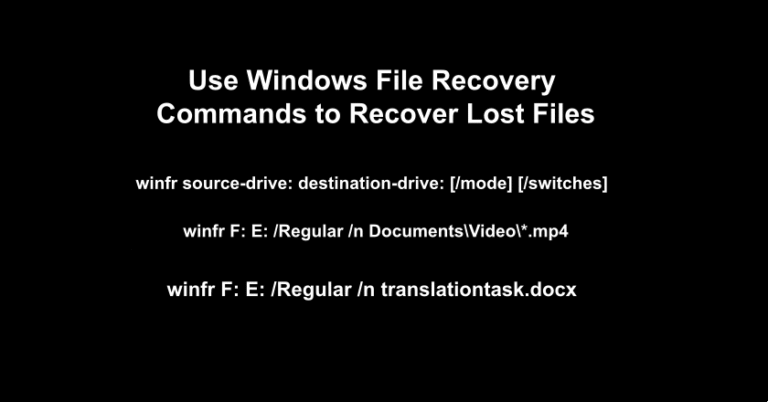
winfr source-drive: destination-drive: [/mode] [/switches]
- Source-drive: The letter of the drive where the deleted files originally were stored.
- Destination-drive: The letter of the drive where you want to save the recovered files (must be a different drive than the source-drive).
- Mode (/mode): There are 2 basic modes:
regularandextensive.regularmode: Standard recovery option for non-corrupted NTFS file systems (usually for recently deleted files).extensivemode: Thorough recovery option suitable for all file systems (including FAT, exFAT, etc.), and for NTFS files deleted a while ago, or after formatting/corruption.
- Switches (/switches): Additional options that refine recovery results.
/n: Use this switch to scan for specific files by using a file name, path, type, or wildcards./?: This switch provides a summary of syntax and switches for general users, suiting all modes.
How to Choose the Right Recovery Mode
| File system | Circumstances | Recommended mode |
| NTFS | Deleted recently | Regular |
| NTFS | Deleted a while ago | Extensive |
| NTFS | After formatting a disk | Extensive |
| NTFS | A corrupted disk | Extensive |
| FAT and exFAT | Any | Extensive |
How to Use Windows File Recovery Command to Recover Lost Files
Now that you have understood the basic structure and modes of Windows File Recovery commands, you can start the data recovery process. This section will walk you through how to recover files using Windows File Recovery command with concrete examples.
Run this program by following these steps:
- Download and install Windows File Recovery from the official channel.
- Open Windows File Recovery in the Start menu.
- Right-click and choose “Run as administrator“.
(In all the following examples, the F: drive is the source drive while the E: drive is the destination drive).
1. Recover All Recently Lost Files from One Drive to Another
You can recover all recently deleted files from the F: drive to the E: drive by executing this command.
Enter the command:
winfr F: E: /regular
Regular mode only supports the NTFS file system. If the file system of your drive is FAT or exFAT, you can only use extensive mode.
This command performs a quick scan for lost files on the F: drive and saves them to the E: drive. Once the scanning process is completed (reaches 100%), you can locate the recovered files in the designated destination folder.
2. Recover Files from a Specific Folder
By specifying the file path in the command switch, you can recover the files within that path from the F: drive to the E: drive.
Enter the command:
winfr F: E: /Regular /n Documents\Video\*.mp4
This command performs a quick scan for all .mp4 files within the Documents > Video folder on the F: drive and saves them to the E: drive.
3. Recover Specific Files Using File Type
Add file types like .docx, .txt, .excel, .ppt, .mp3, .mp4, etc., to the command switch. This allows you to recover files with these types from the F: drive to the E: drive.
In the command prompt window, enter the command:
winfr F: E: /Regular /n *.mp3
This command performs a quick scan of the F: drive for all .mp3 files and saves them to the E: drive.
4. Recover Specific Files by File Name
By specifying the file name and file type in the command switch, you can precisely recover the specific file from the F: drive to the E: drive.
Enter the command:
winfr F: E: /Regular /n translationtask.docx
This command performs a quick scan of the F: drive for traces of the deleted file “translationtask.docx” and restores it to the E: drive.
Similarly, if you wish to perform a deep scan for lost files, you can execute the extensive mode in the same manner. However, patience is required, as this mode retrieves a larger volume of data and consequently takes longer to complete.
Windows File Recovery Issues and Alternatives
After learning how to use the tool, you may encounter some issues while running it that prevent successful file recovery. For instance, Windows File Recovery is stuck at 99% or 0%, or you encounter an error while parsing the command. These are common problems users face when using Windows File Recovery.
To resolve these issues, you can take the following steps: ensure that the connection to the external drive is working properly, verify the accuracy of the entered command mode, and check for problems like incorrect drive letters, spelling errors, and other potential issues. If none of these methods can resolve the issue, you can opt for other data recovery tools, such as WinfrGUI.
Alternative Tool to Winfr Commands: WinfrGUI
There’s no doubt that Windows File Recovery, as a command-line data recovery tool, is highly professional. However, many users complain that its command-line interface is overly complex and difficult to understand. Even a single spelling error can halt the recovery process, making it rather unfriendly to computer beginners.
To address this pain point, we turn to WinfrGUI, a third-party data recovery application developed based on the Windows File Recovery engine. Unlike the Windows File Recovery Command Line, WinfrGUI features a graphical user interface (GUI). This makes it significantly more user-friendly, enabling both tech-savvy individuals and novices to recover deleted data effortlessly, without the need for a steep learning curve.
Steps to Recover Data Using WinfrGUI
- Download and install WinfrGUI (Do not install on the drive where the data was deleted).
- Open WinfrGUI and select the source partition where the deleted files were stored.
- Select the destination location to save the recovered files (must be a different drive from the source partition).
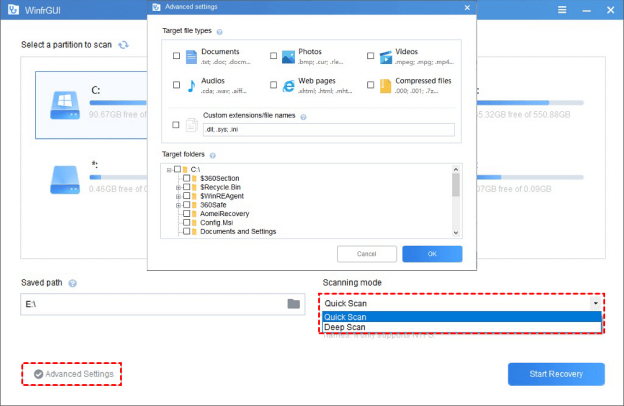
- Choose the scanning mode based on your file loss scenario (Quick Scan corresponds to
Regularmode, Deep Scan corresponds toExtensivemode).
- Click the “Start Recovery” button.
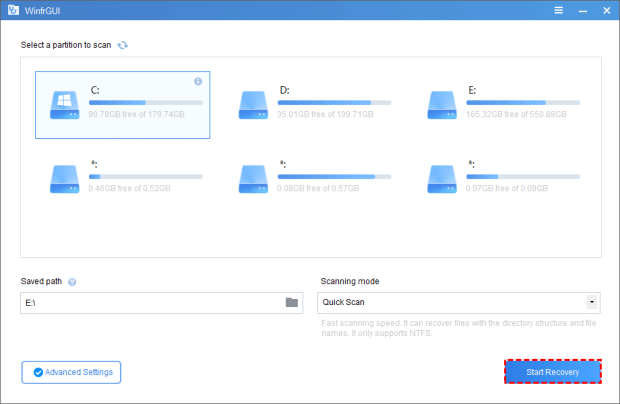
Once the process is complete, you can navigate the recovered files in the recovery folder.
Related Windows Commands for File and Disk Troubleshooting
When performing data recovery or dealing with a potentially corrupted drive, users might also employ other fundamental Windows Command Prompt utilities. These commands are often used to check the health of a drive or reveal hidden files that might have been lost due to malware or system errors, acting as complementary tools to Windows File Recovery commands.
chkdsk(Check Disk): This utility is used to check the integrity of a disk volume and can fix logical file system errors.- Usage Example: To check and repair errors on the C: drive, you would use:$$\text{chkdsk C: /f}$$
- The
/fswitch tells the utility to fix any errors it finds. While this doesn’t recover deleted data, fixing file system errors can prevent further data loss and make the drive accessible forwinfr.
attrib(Attribute): This command is used to display or change file attributes (Read-only, Hidden, System). It is sometimes used in older recovery methods to unhide files hidden by viruses.- Usage Example: To remove the Hidden, Read-only, and System attributes from all files and folders on the D: drive:$$\text{attrib -h -r -s /s /d D:\*.\*}$$
- The
-h,-r, and-sremove the attributes, and/s /dprocesses all subfolders and files.
Summary
After familiarizing yourself with the Windows File Recovery commands and operations, it becomes evident that the command prompt demands a certain level of technical expertise from users, presenting a relatively high usage threshold. In contrast, WinfrGUI is a data recovery solution designed for users of all skill levels. Even without extensive prior knowledge, users can quickly get up to speed with WinfrGUI. It offers the powerful functionality of Windows File Recovery in a much more intuitive way, making it the more recommended choice for most users.
🔗 More Tutorials:
 MyRecover
 FoneTool
