
How Recover Deleted Folders on Windows: Complete Guide

A week ago, a colleague accidentally deleted an entire folder filled with critical work documents. He quickly recovered about 95% of them from routine backups, but the remaining 5%—the most recent and crucial ones—were not backed up in time. If you’re facing a similar crisis and wondering how to recover deleted folders from your desktop or any other location, you are in the right place. This article outlines a range of successful recovery methods, from simple built-in utilities to powerful third-party tools, designed to help you retrieve your missing data. When data is “deleted,” the operating system usually just removes the pointer to it. The data itself often remains physically on the hard drive, waiting to be overwritten by new files. Your success rate depends critically on how fast you act and the tools you choose.
Key Takeaways
- The Immediate Fix: If you just deleted the folder, press Ctrl + Z in File Explorer immediately. This is the fastest way to “undo” a mistake before you close the window.
- The SSD Race (TRIM): If your folder was on an SSD, you are racing against the TRIM command, which physically erases deleted data blocks to keep the drive fast. Stop all activity now to have any chance of recovery.
- Recycle Bin Basics: Folders deleted from your internal drive usually go to the Recycle Bin. However, folders deleted from USB drives or SD cards bypass the bin and are “permanently” deleted instantly.
- The “Golden Rule” of Software: Never install recovery software on the same drive where the data was lost. You risk overwriting the very folder you are trying to save. Always recover files to a different drive (e.g., from C: to a USB).
- Native Power with a GUI: Use WinfrGUI. It uses Microsoft’s official “Windows File Recovery” engine but replaces the complex command line with a simple “point-and-click” interface.
- Cloud Backup: If you use OneDrive, check the Online Recycle Bin at onedrive.live.com. Folders deleted locally are often still sitting in the cloud’s trash for 30 days.
Do’s and Don’ts If You Accidentally Delete an Entire Folder
When you discover an accidental folder deletion, immediate and correct action is crucial to maximize your chances of success:
✅ DOs: Immediate Actions to Take
| Symbol | Action | Description |
| ⏪ | Try the Ctrl + Z Shortcut | If the deletion occurred very recently in File Explorer and you haven’t closed the window or rebooted, press Ctrl + Z (Undo) immediately. This is the fastest fix. |
| 🗑️ | Check the Recycle Bin | In most scenarios (unless Shift + Delete was used or the folder was deleted from an external drive), deleted items are moved here. Double-click the Recycle Bin, locate your folder, right-click, and select “Restore.” |
| 💾 | Handle SSDs with Extra Care | If the folder was on an SSD (Solid State Drive), you are racing against the TRIM command. TRIM marks data blocks for quicker reuse and physical erasure, making recovery nearly impossible once executed. Stop all write activity immediately. |
❌ DON’Ts: Actions to Avoid
| Symbol | Action | Description |
| 🚫 | Don’t Keep Using the Drive | If the folder isn’t in the Recycle Bin, it’s “permanently deleted.” Stop writing any new data to the drive where the folder was located to prevent overwriting the data fragments you hope to recover. |
| 🧑💻 | Don’t Install or Recover to the Same Drive/Partition | Never install recovery software on the same drive where the data was lost. Similarly, always save the recovered files to a different storage device (e.g., if files were lost on C:, recover them to D:). |
| ⚙️ | Don’t Leave Scheduled Tasks Running | Disable any scheduled tasks that might perform write operations, including system backups, indexing tweaks, large updates, or defragmentation. |
How to Recover Permanently Deleted Folders Using Data Recovery Software
Without backups, data recovery software is your primary realistic option for retrieving permanently deleted folders.
Here is what you can realistically expect:
- Best-case scenario: Complete folders with all files intact are recovered.
- Mid-range outcome: Files are recovered, but the original folder structure is lost.
- Worst case: Data has been overwritten, and nothing can be salvaged.
The only way to know your situation is to install recovery software and scan the affected drive immediately.
Recommended Tool: WinfrGUI
While professional paid tools exist, Microsoft offers the native Windows File Recovery (WinFR) command-line tool. However, its lack of a graphical interface (GUI) makes it challenging for most users. WinfrGUI solves this by providing a simple, free, and effective GUI wrapper for WinFR, allowing you to easily access its powerful recovery capabilities without touching the command line.
What Makes WinfrGUI Stand Out
- Free and Official Back-end: It leverages the power of Microsoft’s official, underlying recovery engine (WinFR) but adds user-friendliness.
- Mode Selection: It clearly presents the four necessary recovery modes: Regular (quick for recent NTFS deletes), Extensive (comprehensive, slower, for all file systems), Segment (intermediate), and Signature (for specific file types).
- Simple Operation: Instead of complex commands, you simply select the source drive, destination drive, recovery mode, and file types/folders to recover.
Step-by-Step Guide Using WinfrGUI:
- Installation Prerequisite: You must be running Windows 10 (version 2004 or later) or Windows 11.
- Download and Install: Download WinfrGUI and install it. Crucially, do not install it on the drive where your deleted folders were located.
- Launch and Select Drives: Open WinfrGUI.
- Select the Source Drive (where the folder was deleted).
- Select the Destination Drive (where recovered files will be saved, must be different).
- Choose Recovery Mode: For a recently deleted folder on an NTFS system drive (C: drive), start with Regular mode. If that fails or if the drive was formatted, select Extensive mode for a deeper scan.
- Target the Folder: Click “Advanced Settings” (or similar option) to specify the exact path or file types you are looking for. To recover deleted folders, you would configure the scan to focus on that path.
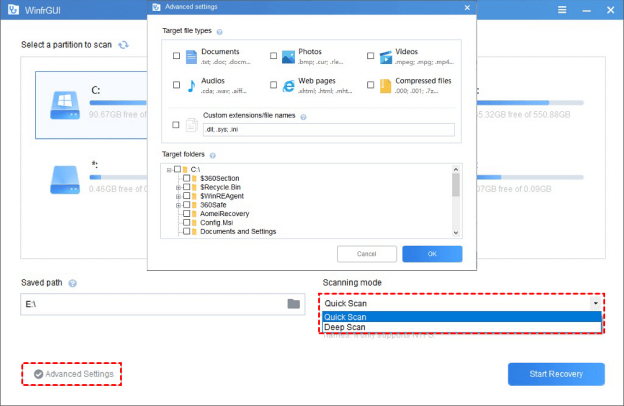
- Start Recovery: Click the “Start Recovery” button.
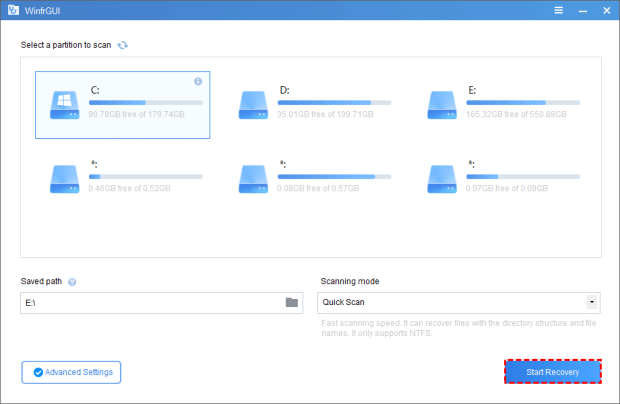
- Review Results: Wait for the scan to finish. WinfrGUI will place the recovered files in the destination folder you chose. Review the files. If the folder structure is lost, you may need to manually sort files found under the recovery folder.
How to Recover Deleted Folders in Windows Without Recovery Software
These methods rely on pre-configured backups and are not dependent on installing new software.
Method 1: Use the File History Feature
If you previously enabled Windows’ built-in backup tool, File History, it automatically backs up all your libraries (Documents, Music, Pictures, Videos, and Desktop).
- Click the Start menu and type “Control Panel.”
- In Control Panel, search for “File History” and select “Restore your files with File History.”
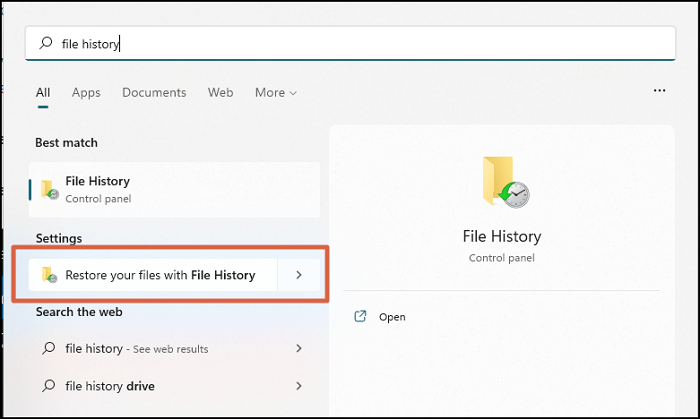
- Navigate to the original location of your deleted folder. Use the navigation arrows at the bottom to browse through different backup dates.
- Select the folder you want, and click the green restore button at the bottom to recover deleted folders.
You can also access backups by right-clicking the parent folder, selecting “Properties,” and going to the “Previous Versions” tab to restore snapshots created by File History or System Protection.
Method 2: Recover Using the Backup and Restore (Windows 7) Feature
This older feature still exists in Windows 10 and 11 and can be used to retrieve folders from local or network backups established before the deletion.
- Click the Start button and type “Control Panel.”
- Navigate to System and Security > Backup and Restore (Windows 7).
- Click “Restore my files.” If your backup is not detected, click “Select another backup” to browse for the backup location.
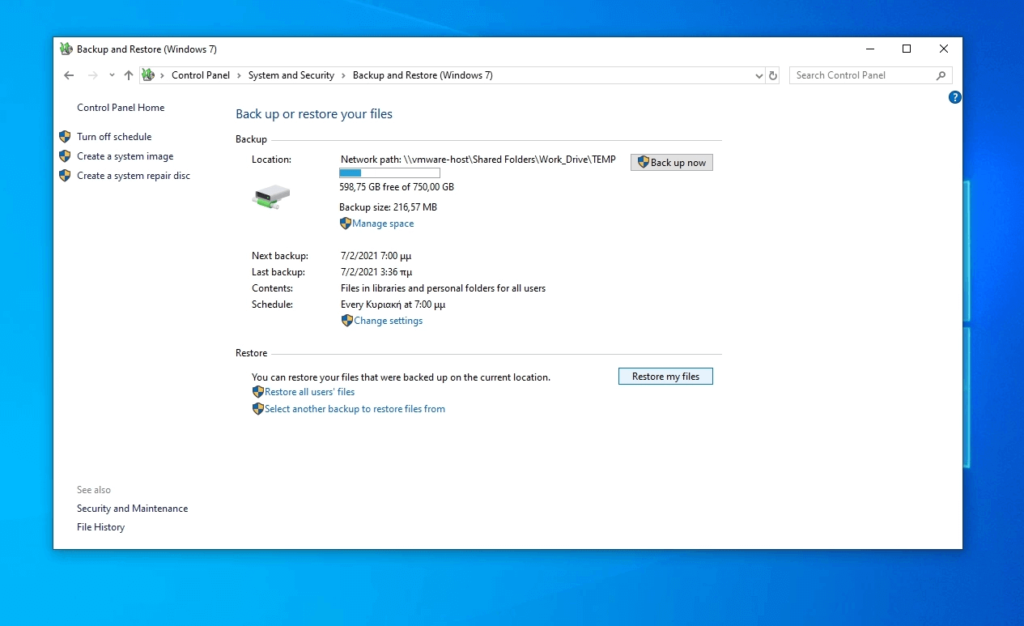
- Use the recovery wizard to browse for and select your deleted folder, choosing whether to restore to the original or a new location.
Method 3: Download the Folder from OneDrive
If your deleted folder was stored within your OneDrive-synchronized directory, a copy might still exist in the cloud or the cloud’s own Recycle Bin.
- Open your web browser and go to
https://onedrive.live.com/. Sign in with your Microsoft account. - Check the Cloud Directory: Browse your files to see if the folder is still present online. If so, download it to your device.
- Check the OneDrive Cloud Recycle Bin: On the OneDrive website, click “Recycle bin” in the left navigation pane.
- Locate and select your deleted folder, then click the “Restore” button. It will sync back to your computer’s OneDrive folder.
Method 4: Consider Contacting Data Recovery Professionals
While DIY techniques are often successful, they aren’t the only option. Data recovery professionals should be considered for critical data loss, especially when dealing with:
- Physical Damage: Your storage device is making clicking noises, is smoking, or is not recognized by the computer (a clean-room environment is required).
- Failed Recovery Attempts: You have tried software recovery, but it failed or resulted in corrupted files.
- Lack of Technical Confidence: You are uncomfortable performing the required technical steps and don’t want to risk further damage.
Though significantly more expensive, all reputable services operate on a “No Data, No Charge” policy and can how to recover deleted folders from physically damaged or corrupted drives using specialized equipment.
Frequently Asked Questions (FAQ)
Q1. Where do deleted folders go in Windows?
They go to the Recycle Bin upon normal deletion. If Shift+Delete is used or deletion occurs on an external drive, they are permanently deleted (i.e., the file system pointer is removed, and the data space is marked as available).
Q2. If the folder was on an external USB drive or SD card, does recovery work the same way?
Mostly, yes. The principles of stopping write operations and using recovery software apply. However, files deleted from external devices usually bypass the local Recycle Bin and are immediately “permanently deleted,” making immediate action even more critical.
Q3. Does SSD storage make recovery of the deleted folders more difficult?
Yes, significantly. SSDs use the TRIM command to proactively clear data blocks when files are deleted. This process can happen almost instantly, physically erasing the data and making recovery nearly impossible. You must act within minutes or seconds.
Q4. Will System Restore bring back a deleted folder, or does it only affect system files?
It only affects system files. System Restore targets system registry, drivers, and program files. It explicitly does not restore or affect user personal files and folders (e.g., Documents, Pictures). For personal file recovery, use File History or data recovery software.
Conclusion
How to recover deleted folders on Windows is a race against time, but rarely is the data truly lost immediately. By adhering to the Do’s and Don’ts—most importantly, immediately stopping all write operations to the affected drive—you significantly increase your chances of success. For the quickest restore, always check the Recycle Bin and File History first. When dealing with permanently deleted files, free graphical tools like WinfrGUI offer a powerful, non-command-line way to leverage Microsoft’s native recovery engine. Remember to always save recovered files to a separate location. For mission-critical data or physically damaged drives, professional data recovery remains the most reliable ultimate solution. Being prepared with a solid backup strategy is the best defense against future data loss.
🔗 More Tutorials:
 MyRecover
 FoneTool
