
How to Recover Deleted Files from a Pen Drive Using CMD

The sinking feeling of a deleted file is something we all know. One wrong click, a simple system error, or an unexpected power loss, and suddenly that important document, cherished photo, or critical project folder is gone from your USB drive. In a moment of panic, many people search for a solution and are often met with expensive, intimidating software that promises to fix everything—for a price. But what if you didn’t have to pay? What if your Windows PC already had a powerful, built-in tool that could help you recover your files for free? It does. The Windows Command Prompt (CMD) is a versatile utility that, while often seen as intimidating, can be your first and best line of defense against certain types of data loss. This guide will show you how to recover deleted files from a pendrive using cmd, providing a practical, step-by-step approach.
Method 1: The attrib Command
This is the most common and effective CMD method for recovering files from a pen drive. It works by changing the attributes of files and folders that have been marked as “hidden” or “system files,” a common tactic used by certain viruses and malware to make your data appear to have vanished. You can learn how to recover deleted files from a pendrive using cmd when files disappear without a clear cause. This method is your primary solution if your pen drive shows as empty, but you know there’s data on it. Step-by-Step Instructions are as follows:
Step 1: Connect Your Pen Drive and Find Its Drive Letter.
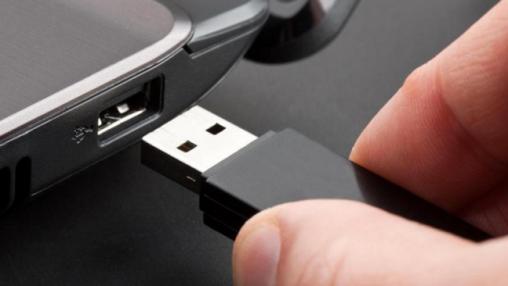
Plug your USB drive into your computer. Go to “This PC” (or “My Computer”) and note the drive letter assigned to it. For this guide, we’ll assume your pen drive is labeled G:.
Step 2: Open Command Prompt as an Administrator
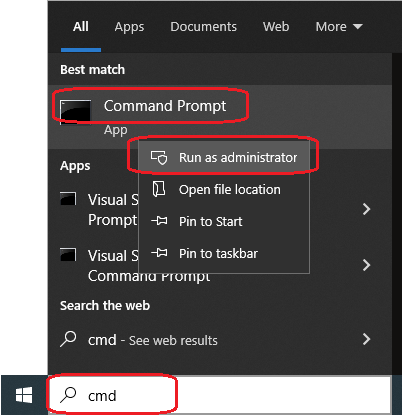
This is a critical step. A standard CMD window won’t have the permissions to make the necessary changes. Click the Windows Start Menu, type cmd in the search bar, right-click on “Command Prompt” and select “Run as administrator.” Confirm the prompt to allow the app to make changes.
Step 3: Navigate to Your Pen Drive.
In the Command Prompt window, type your pen drive’s drive letter followed by a colon and press Enter.
Example: G:Press Enter. The command line prompt should now show G:\>.
Step 4: Execute the attrib Command.
Now, type the full command to reveal the hidden files. Pay close attention to the spaces and hyphens.
attrib -h -r -s /s /d G:\*.*
Press Enter.
Step 5: Understanding the Command
To reinforce your understanding, here’s a quick breakdown of what each part of that command does:
attrib: The main command, short for “attribute.”-h: Removes the “Hidden” file attribute.-r: Removes the “Read-Only” attribute.-s: Removes the “System File” attribute./s: Applies the command to all files and folders in the specified path./d: Includes folders in the process, not just files.G:\*.*: The target of the command, meaning “all files and folders (*.*) on the G: drive.”
Step 6: Wait and Check.
The command prompt will look like it’s doing nothing for a few moments, or you might see a list of file names flash by. Do not close the window until the process is complete and you see the G:\> prompt again. Once it’s done, go back to your pen drive in “This PC.” You should now see a new folder or your files and folders restored.
Method 2: Winfr CMD and WinfrGUI
If the CMD methods above failed to recover your files, it’s a strong indicator that the data has been truly deleted and overwritten. At this point, you’ll need a more powerful, specialized tool that can scan for residual data on the disk. For those asking how to recover deleted files from a pendrive using cmd after a serious deletion, these tools are the next step.
Windows File Recovery (Winfr)
This is Microsoft’s official, free command-line tool. It’s far more powerful than attrib and can perform deep scans. However, like the native CMD, it requires complex commands, which can be a steep learning curve for many users. The commands are more precise and powerful, allowing you to specify file types, names, and even search modes.
Step1: Install Winfr: Download “Windows File Recovery” from the Microsoft Store.
Step2: Open CMD as Admin: Right-click the Command Prompt app and select “Run as administrator.”
Step3: Choose Your Drives: Identify your pen drive’s letter (e.g., E:) and a different drive to save the recovered files (e.g., C:).
Step4: Run a Command: Type a command based on what you need to recover.
Example Commands:
- To recover all deleted
.jpgphotos from a pen drive (E:) and save them to your C: drive:
winfr E: C:\recovery /extensive /n *.jpg
- To recover a specific Word document named “Report.docx” from a pen drive (E:):
winfr E: C:\recovery /extensive /n “Report.docx”
- To recover all files from a specific folder named “Old Photos” on the pen drive:
winfr E: C:\recovery /extensive /n “Old Photos\”
- Important: Remember to replace
E:with your pen drive’s letter andC:\recoverywith a folder on a different drive where you want to save the recovered files.
WinfrGUI: The User-Friendly Alternative to Winfr
For most users, navigating the command syntax of Windows File Recovery is a major hurdle. This is where WinfrGUI becomes an invaluable tool. It is a completely free, third-party software that provides a clean, graphical user interface (GUI) for Microsoft’s official Windows File Recovery engine.
Method 3: The chkdsk Command
While the attrib command is for hidden files, the chkdsk command is for a different problem entirely: file system corruption. If your pen drive is showing a message like “The drive needs to be formatted before you can use it” or is otherwise inaccessible, this command may be able to fix it. This is another method on how to recover deleted files from a pendrive using cmd. Step-by-Step Instructions are as follows:
Step 1: Open Command Prompt as an Administrator (same as Part 1).
Step 2: Type the Command
chkdsk G: /f
- Replace G: with your pen drive’s drive letter.
- The
/fswitch tells the command to “fix” any errors it finds.
Step 3: Wait for the Scan.
The process may take a while as it checks every sector of the disk for errors.
Step 4: Check for found.000 folder.
If the command is successful, it will recover file fragments and place them in a folder named found.000 on your pen drive. These files will have generic names with a .chk extension. You can try to recover them by renaming the extensions to their original format (e.g., .jpg, .doc).
Conclusion
While the threat of data loss is real, it’s not a reason to panic. By first trying the native attrib and chkdsk commands, you can solve many common data loss issues for free. And when the problem is more complex, powerful graphical tools like WinfrGUI provide a seamless, no-cost path to advanced recovery. When all else fails to answer how to recover deleted files from a pendrive using cmd, remember there are other powerful tools out there that can help.
🔗 Also Read:
 MyRecover
 FoneTool
