
How to Recover Deleted Emails and Find Lost Messages

As a tech writer, I’ve seen it happen countless times: the moment of panic after a user accidentally deletes an important email—a travel itinerary, a crucial receipt, or a priceless family photo. This immediate sense of loss is a common digital anxiety, and it often feels like there’s no way back. But after years of guiding people through this exact problem, I can tell you there is almost always a solution. This comprehensive guide is designed to restore your peace of mind. We will walk you through exactly how to recover deleted emails and find messages that seem to have vanished into thin air. From restoring items from your trash folder to advanced methods for retrieving “permanently” deleted messages, this article will equip you with the knowledge to get your data back.
The Immediate & Easiest Fix: Check Your Trash/Deleted Items Folder
Before you panic, the very first place to look is your email provider’s trash or deleted items folder. This is the simplest and most common solution because most services operate on a two-stage deletion process. When you hit “delete,” the email isn’t immediately erased; it’s simply moved to a temporary holding folder. To restore an email from here, follow these simple steps:
- Open your email service and look for the Trash, Deleted Items, or Bin folder in your left-hand menu.
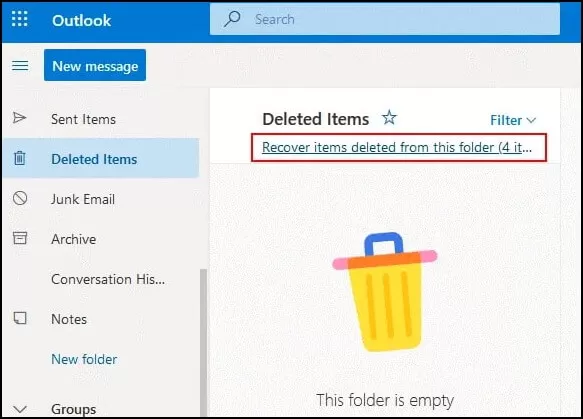
- Click on the folder to view its contents.
- Locate the email you wish to recover. You can use the search bar within the folder to find it quickly.
- Right-click on the email and select an option like Restore, Move to Inbox, or Recover.
This method works for the vast majority of accidental deletions. However, if the email isn’t there, it’s likely been “permanently” deleted, either by you or by the service’s automatic purge cycle.
How to Recover “Permanently” Deleted Emails (Service-Specific)
If an email is no longer in your trash folder, it’s considered “permanently” deleted. But even in this case, many services retain a copy on their servers for a limited period, giving you a second chance at recovery. The process varies slightly by provider.
How to Recover Deleted Emails from Gmail
Gmail’s deletion process is straightforward. When you delete an email, it goes to the Trash folder for 30 days. After this period, it is automatically and permanently deleted.
- Within 30 Days: Simply go to your Trash folder and restore the message.
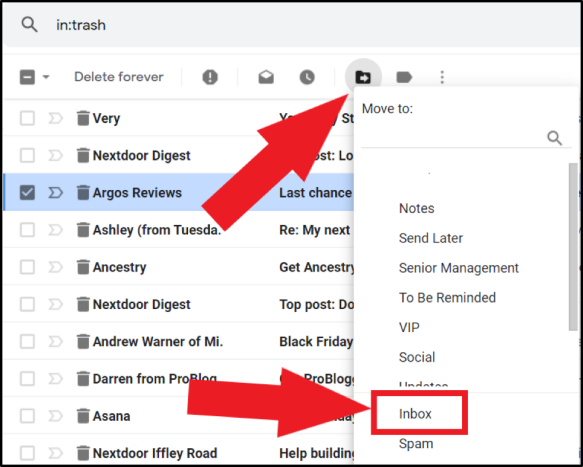
- After 30 Days: Unfortunately, once an email is purged from Gmail’s Trash folder, it is considered unrecoverable by the user. Your only recourse is to try the Google Support team, though the chances of success are very low.
How to Recover Deleted Emails in Microsoft Outlook (Hotmail/Live)
Outlook offers a more robust recovery process, which is a significant advantage. It’s a useful feature to learn about, just like how to recall an email in Outlook (and what to do if it fails).
Method 1 (From Deleted Items)
Emails deleted from your inbox are moved to the Deleted Items folder. You can restore them from there at any time.
Method 2 (From Recoverable Items)
If you empty your Deleted Items folder, emails are moved to the hidden Recoverable Items folder, where they remain for a period of up to 30 days. To access this folder:
- Open your Deleted Items folder.
- At the top of the message list, click on the link that says “Recover items recently removed from this folder.”
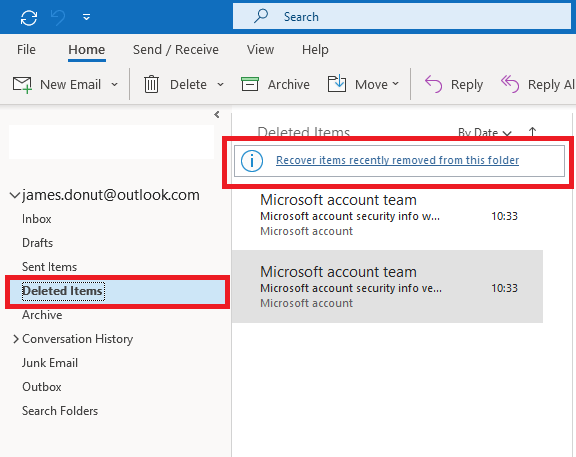
- A new window will open showing all emails that were “permanently” deleted.
- Select the emails you want to restore and click Restore.
Tips for Other Services (Yahoo, iCloud, etc.)
Most other email services operate on a similar two-stage deletion model. If you cannot find a deleted email in your trash or recycle bin, look for a “Recover,” “Purge,” or “Recoverable Items” link or folder within your deleted items. The retention period will vary, so act quickly.
Advanced Troubleshooting and Tips for Lost Messages
Sometimes, an email isn’t deleted—it’s just misplaced. This often happens due to an accidental drag-and-drop or a misconfigured filter. Here are some advanced troubleshooting tips:
- Search All Folders: The most common mistake is assuming a message is in your inbox when it was actually moved or archived. Use the search bar and select the “All Mail,” “All Folders,” or equivalent option.
- Check Your Spam or Junk Folder: Emails from new senders or with specific keywords might be automatically filtered into your spam folder. Check it regularly.
- Master the Search Bar: Use advanced search operators to pinpoint the exact message. For example, in Gmail or Outlook, you can use:
from:sender_name(e.g.,from:[email protected])subject:keywords(e.g.,subject:meeting minutes)before:yyyy/mm/dd(e.g.,before:2025/08/20)
- Review Your Filters and Rules: Check your email settings for any rules that might be automatically moving or deleting incoming messages. This is a common cause for messages that seem to disappear as soon as they arrive.
- Check for POP3 vs. IMAP Issues: If you use a desktop email client (like Outlook or Thunderbird), check your account settings. If your account is configured as POP3, emails may be downloaded to your local computer and deleted from the server, making them invisible on other devices. In this case, your best bet is to check the local copy on your PC. For Windows users, you can try using a specialized tool like WinfrGUI to recover lost email files (PST or OST) directly from your hard drive, as it offers a user-friendly interface for the powerful Windows File Recovery command-line tool.
Troubleshooting FAQ About Email Recovery
Even with the right methods, questions can arise. Here are some answers to common issues people encounter when trying to recover a lost email.
Q1: Why can’t I find my deleted email in the trash or deleted items folder?
If an email is not in your trash, it may have been automatically purged by your email service after a set period (often 30 days) or you may have manually emptied the trash. This “hard delete” state means the email has been removed from that location.
Q2: How long do email services keep deleted emails?
It varies by provider. Most services operate on a “soft delete” system, where emails sit in the trash for a fixed period (e.g., 30 days for Gmail). After that, they are “hard deleted.” Some services, like Outlook, offer an additional “Recoverable Items” folder with its own retention period.
Q3: What does “permanently deleted” really mean?
“Permanently deleted” means the email has been physically removed from a specific folder and is no longer linked to your account in a way that allows for easy user-initiated recovery. The data is often still on the server for a very short, unpublicized time before it is completely overwritten.
Q4: Is it possible to recover an email after the retention period has passed?
Unfortunately, it’s highly unlikely. Once an email’s retention period has expired and it’s been purged from the servers, the data is usually gone for good. At this point, no user-level action can retrieve it.
Q5: My email disappeared from my inbox on its own. Did it get deleted?
Not necessarily. This is a very common issue. It’s likely that the email was accidentally moved to another folder (like “Archive”), filtered into your spam or junk folder, or a rule in your settings automatically moved it. Check all your folders, not just the inbox.
Q6: I recovered my email, but it’s not showing up in my inbox. Where is it?
When you recover an email, it often goes back to its original location. If it was in a subfolder when you deleted it, it will return there. Use your email provider’s search bar to find it by sender or subject.your chances of successful recovery. Act quickly and methodically.
Conclusion
Losing an important email can be a stressful experience, but by following a systematic approach, you can often get it back. Remember the golden rules: always check your trash folder first, then explore the “recoverable items” options if they exist. Understand the time limitations of your email provider’s deletion policy and act quickly. While not every email can be recovered, using these expert-backed methods gives you the best possible chance to find your lost messages and regain control of your inbox.
🔗 More Tutorials:
 MyRecover
 FoneTool
