
How to Recover Flash Drive After Format


It’s a frustrating moment that many of us have faced: you plug in your trusty flash drive, and your computer prompts you with a jarring message, “You need to format the disk in drive X before you can use it.” Your heart sinks, knowing your important files are locked away. But don’t despair. In most cases, the data is not gone forever, and this guide will walk you through the most effective methods to how to recover flash drive after format. The key to successful recovery lies in acting quickly and understanding the different types of formatting. A quick format is the most common type and is far less destructive than it sounds. It doesn’t actually erase your data; it simply deletes the file allocation table (FAT), which is like the drive’s table of contents. Your files are still on the drive, but the computer can no longer find them and considers the space “available.” This is why immediate action is crucial, and this article will show you exactly how to recover flash drive after format.
Situation: Quick vs. Full Format
The success of your data recovery largely depends on how the drive was formatted.
A quick format is the most common type. It doesn’t actually erase your data. Instead, it deletes the file allocation table (FAT), which is like the drive’s table of contents. Your files are still on the drive, but the computer can no longer find them and considers the space “available.” This is why immediate action is crucial.
A full format, on the other hand, overwrites the data on the drive with zeros, making recovery almost impossible without professional intervention. However, Windows performs a quick format by default unless you specifically select the “full format” option.
The single most important step you can take right now is to stop using the drive immediately. Do not save any new files to it, and do not attempt to format it. Every new byte of data you write risks overwriting your old files, making them unrecoverable.
Preliminary Checks (Before You Begin)
Before you try more complex methods, perform these simple checks:
First, try plugging the flash drive into a different USB port on your computer.
If the problem persists, try it on a different computer entirely. This helps rule out a faulty USB port or an issue with your computer’s drivers.
Next, open Disk Management in Windows.
Even if the flash drive appears to be “empty” or “RAW” (a file system state indicating it’s unreadable), the fact that it is recognized with a drive letter means there’s a good chance your data is still there. Once these basic checks are done, you can move on to the more technical steps for how to recover flash drive after format.
Method 1: Using Data Recovery Software
For most users, this is the most effective and straightforward method. Data recovery software is designed to bypass the file system and read the raw data directly from the drive, reconstructing files based on their signatures. This approach is your first and best option for how to recover flash drive after format.
Step 1: Choose a Reliable Tool
There are many data recovery tools available, both free and paid. Popular options include Disk Drill, Recuva, and EaseUS Data Recovery. For Windows users looking for a user-friendly and free option, WinfrGUI is an excellent choice. It provides a graphical interface for Microsoft’s own command-line tool, Windows File Recovery, making it much easier to use for beginners.
Step 2: Download and Install
Remember to install the software on your computer’s main hard drive, not on the flash drive you are trying to recover. This prevents any new data from being written to the corrupted drive.
Step 3: Scan the Drive
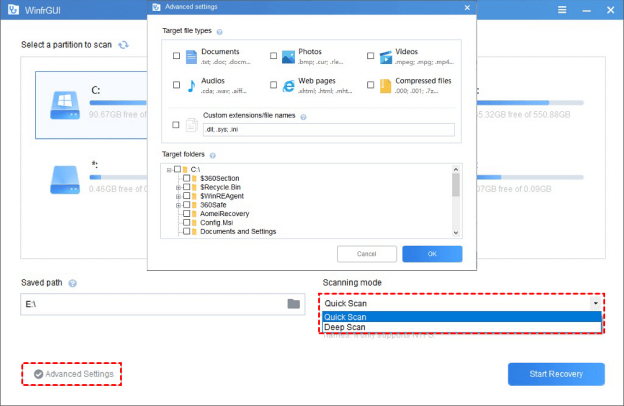
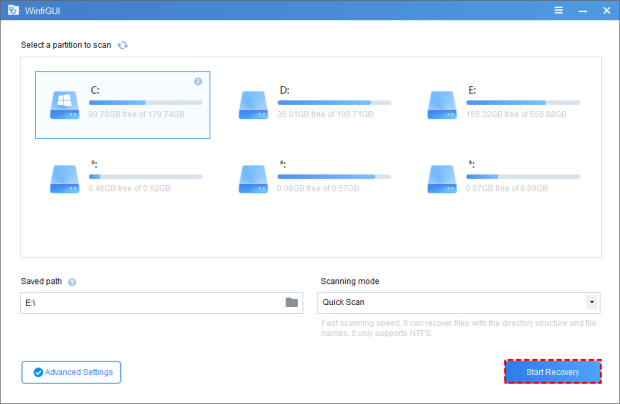
Launch the software and select your formatted flash drive from the list of available drives. The software will then offer a couple of scanning options:
- Quick Scan: This is faster but may not find all files, especially if the file system is heavily corrupted.
- Deep Scan: This is a more thorough process that scans every sector of the drive. It takes longer but has a much higher success rate.
Step 4: Preview and Recover
Once the scan is complete, the software will display a list of all recoverable files. You can often preview them to ensure they are not corrupted. Select the files you want to recover and save them to a different location, such as your desktop or an external hard drive.
Method 2: Using the Command Prompt
This method is less effective for a drive that has been formatted, but it can sometimes resolve underlying file system corruption that is causing the “format” prompt.
Step 1: Open Command Prompt as Administrator Go to the Start Menu, type “cmd,” right-click on “Command Prompt,” and select “Run as administrator.”
Step 2: Use chkdsk Type chkdsk X: /f (replace X with the letter of your flash drive) and press Enter. This command scans the drive for errors and attempts to fix them. If it finds issues with the file system, it might be able to repair them, allowing you to access your files again.
chkdsk X: /f
Step 3: Use the attrib command In some cases, a virus or corruption might have simply hidden all your files. The attrib command can make them visible again. Type attrib -h -r -s /s /d G:\*.* (replace G with the letter of your drive) and press Enter.
attrib -h -r -s /s /d G:\*.*
Method 3: Seeking Professional Data Recovery Services
If the above methods fail, or if the data on your flash drive is critically important, your best option is to seek professional help. Consider a professional service if:
- The flash drive has physical damage (e.g., it’s bent, cracked, or has been exposed to water).
- Your computer doesn’t recognize the drive at all.
- The drive has been subjected to a full format or a low-level format.
- Your DIY attempts have been unsuccessful, and the data is too valuable to lose.
Professional data recovery services have specialized tools and cleanroom environments that can recover data from physically damaged or severely corrupted drives. While this is the most expensive option, it offers the highest chance of success in dire situations.
Conclusion and Prevention
Recovering data from a formatted flash drive is often possible, especially if you act quickly and use the right tools. The best approach is to first stop using the drive, then try a reputable data recovery software like WinFRGUI. Only if that fails should you consider more advanced methods or a professional service. This guide has detailed several methods for how to recover flash drive after format. To avoid this problem in the future, it is essential to back up your important files regularly. Use cloud storage services like Google Drive or Dropbox, or regularly copy files to another location on your computer or an external hard drive. By taking these preventative steps, you can ensure that a minor formatting error never leads to a major data disaster again.
🔗 Also Read:
 MyRecover
 FoneTool
