
How to Format SD Card to NTFS on Windows

A while back, I ran into a frustrating issue while trying to transfer a 10GB video file to my SD card—only to be told the file was too large. The card had plenty of free space, but it was formatted as FAT32, which can’t handle files over 4GB. That’s when I realized I needed to format the SD card to NTFS to make it work.
If you’ve ever hit a similar wall—or your SD card keeps throwing errors, acting weird, or refusing to format—you’re not alone. In this guide, I’ll share exactly how to format an SD card to NTFS on Windows, including three easy methods I’ve personally used, why NTFS might be the better option in certain cases, and what to do if the process fails. Just a heads-up: formatting will erase all data on the card, so make sure you back up anything important first.
What Is NTFS and When Should You Use It?
NTFS (New Technology File System) is the default file system used by modern Windows operating systems. It supports features like:
- File sizes over 4GB
- Permissions and encryption
- Journaling and better reliability
- Compression and quotas
By contrast, FAT32 and exFAT are more compatible across platforms (cameras, phones, game consoles). NTFS is ideal when:
- You’re storing large media files or backups (over 4GB)
- The card is used only on Windows PCs
- You want better error handling or file security
⚠️NTFS is not readable by some Android devices, smart TVs, or cameras. Stick with exFAT if cross-platform compatibility is needed.
Method 1: Format SD Card to NTFS via File Explorer
If you just want a quick and straightforward way to format your SD card to NTFS, File Explorer is the easiest option—no extra tools or technical commands required. Steps are as follows:
Step 1: Use your SD card reader or built-in slot. Make sure the card is detected properly.
Step 2: Press Windows + E or just click on the File Explorer icon. Then click This PC to see all connected drives.
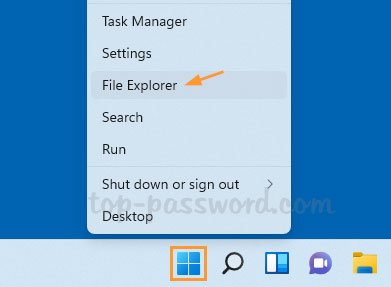
Step 3: Identify your SD card (usually labeled “Removable Disk”), then right-click it and select Format from the context menu.
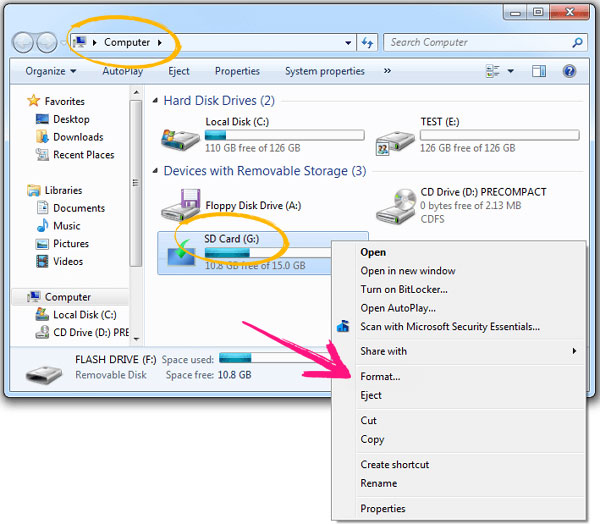
Step 4: In the Format window, change the file system from FAT32 or exFAT to NTFS. You can also give the card a name in the “Volume label” field if you want.
Step 5: Quick Format is usually fine unless you want a full scan of the card. When you’re ready, click Start, then hit OK to confirm the warning.
Step 6: You’ll see a “Format Complete” message in a few seconds. Click OK, close the window, and you’re done.
✅ Best for: Everyday formatting when your SD card is working normally
⚠️If NTFS isn’t listed, the card might be write-protected or too small (under 4GB). Try Disk Management or Command Prompt instead.
Method 2: Format SD Card to NTFS via Disk Management
If your SD card isn’t showing up in File Explorer or needs a bit more control, Disk Management is a great built-in option on Windows. Steps are as followed:
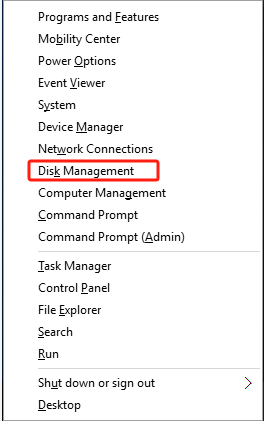
Step 1: Press Windows + X and choose Disk Management from the menu.
Step 2: In the bottom panel, look for your SD card by its size. It will usually be listed as Removable and may not have a drive letter or label.
Step 3: Right-click the main partition (the white box next to the disk label), then click Format.
Step 4: In the format window, choose NTFS from the dropdown, type in a name under Volume label, and leave Perform a quick format checked unless you need a full scan.
Step 5: You’ll get a warning that formatting will erase all data—click OK to proceed.
This method is especially useful when the card doesn’t appear correctly in File Explorer or needs to be initialized first.
Method 3: Format SD Card to NTFS Using DiskPart (Command Line)
If your SD card is acting up or not formatting through File Explorer or Disk Management, the DiskPart command-line tool can help. It’s a powerful way to force a format—even on stubborn or write-protected cards. Steps are as follows:
Step 1: Click Start, type cmd, right-click Command Prompt, and choose Run as administrator.
Step 2: Enter the following commands one by one:
diskpart
list disk
select disk X ← Replace X with the number of your SD card
list partition
select partition X ← Replace X with the correct partition number
format fs=ntfs quick
exit
⚠️ Be extra careful when selecting the disk—choosing the wrong one could wipe your main drive. Double-check the disk size to confirm it’s your SD card.
✅ Best for: Advanced users or situations where other methods fail
This method can bypass formatting restrictions, but it doesn’t offer a graphical interface—use only if you’re confident in what you’re doing.
Formatting Fails? Try These Fixes
Sometimes the format button is greyed out, or NTFS isn’t listed. Here are a few workarounds:
| Problem | Solution |
|---|---|
| SD card is write-protected | Use diskpart → attributes disk clear readonly |
| Format option missing | Try Disk Management or command line |
| Format failed / card corrupted | Use third-party tools like SD Card Formatter, MiniTool Partition Wizard, or AOMEI Partition Assistant |
| Card not recognized at all | Try different USB ports or card readers |
Recover Data Before Formatting
Before you format your SD card, it’s always wise to double-check if there’s any important data you want to save. But if you’ve already formatted the card by accident or lost files, don’t panic! I recommend using WinfrGUI, a free and user-friendly data recovery tool for Windows. It’s great at recovering photos, documents, videos, and more from formatted or corrupted SD cards. Simply install the program, select your SD card, run a scan, and recover the files you need with just a few clicks.
FAQs About NTFS Formatting for SD Cards
Q1: Can all SD cards be formatted to NTFS?
Most SD cards 4GB or larger can be formatted to NTFS. However, some lower-end cards or older devices may restrict the available file system options due to firmware limitations.
Q2: Is NTFS better than exFAT for SD cards?
It depends on your use case. NTFS offers better reliability, security features, and support for large files, but exFAT is much more compatible with non-Windows devices like cameras, game consoles, and Android phones.
Q3: Can I format a 64GB SD card to NTFS?
Absolutely. Both 64GB and 128GB SD cards can be formatted to NTFS using built-in Windows tools like File Explorer or Disk Management.
Q4: Will NTFS slow down my SD card?
Generally, no noticeable difference—especially with modern SD cards. But since NTFS has a bit more overhead than FAT32, performance might dip slightly on very slow or older cards.
Q5: Can I switch back from NTFS later?
Yes, you can reformat the SD card back to FAT32 or exFAT at any time. Just be aware that formatting again will erase all data, so make sure to back up anything important first.
Conclusion
If you need to store files larger than 4GB or want advanced features like encryption and file permissions, formatting your SD card to NTFS is a smart choice—just be sure it fits your specific needs. Windows offers several easy ways to format your card, whether you prefer the straightforward approach of File Explorer or the more powerful command-line tool DiskPart. And if something doesn’t go as planned, don’t worry—you can always reformat the card or recover lost data using reliable tools like WinfrGUI.
🔗 Also Read:
 MyRecover
 FoneTool
