
How to Recover Recently Deleted Photos Without Backup

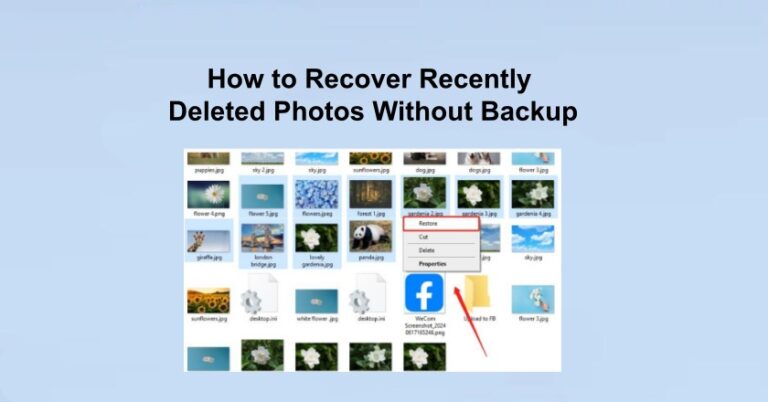
Before you dive into recovery tools, it helps to understand what really happens when a file is deleted. When you hit “Delete,” the photo doesn’t vanish—it’s simply removed from your file directory. Your device marks that space as available for new data. Until something new overwrites that area, your photos remain recoverable. That’s why acting fast is crucial. The more you use your device after deletion, the higher the risk that new data will overwrite those images permanently. Understanding this concept also helps you make better choices when learning how to recover recently deleted photos across different systems. Knowing the basics gives you confidence that recovery is possible, even without a backup.
Method 1: Check Built-in Recovery Locations
Before jumping into software tools, start with the simplest options—your system’s built-in recovery features. Hello! I’d be happy to optimize that information to be more clear, comprehensive, and informational about recovering deleted photos on different platforms. Here is the revised, optimized content:
Windows Recovery Options
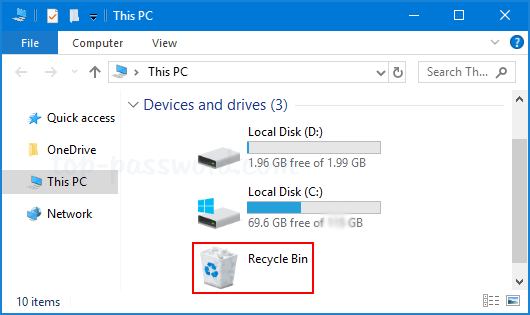
Standard Method (Recycle Bin):
- Open the Recycle Bin from your desktop.Locate your deleted photo (you can search or sort by deletion date).Right-click the photo and select “Restore.”
- Result: The file is instantly returned to its original folder location (e.g., your Pictures folder or Desktop).
Advanced Method (File History):
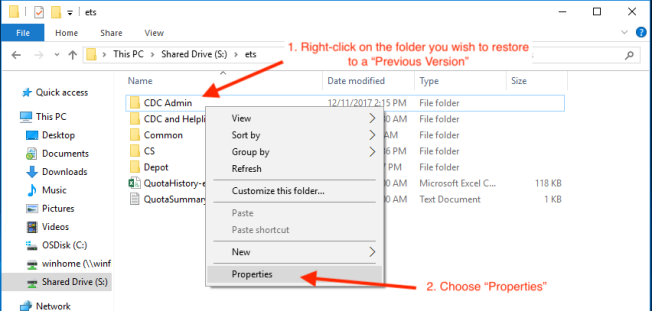
- If the file is missing from the Recycle Bin (meaning it was permanently deleted), you can use File History (if you had it enabled on an external drive or network location).
- Navigate to the folder where the photo was originally stored (e.g., the Pictures folder).
- Right-click the folder, select “Properties,” and go to the “Previous Versions” tab to look for a version of the folder containing the lost photo.
Android Recovery (Google Photos)
Time Limit is Crucial: Google Photos typically retains deleted photos and videos in the Trash for 30 days before they are permanently and automatically deleted.
- Open the Google Photos app.
- Tap Library (usually located at the bottom right).
- Tap the Trash or Bin icon.
- Select the photos you wish to recover.
- Tap “Restore” (usually at the bottom of the screen).

iPhone/iOS Recovery
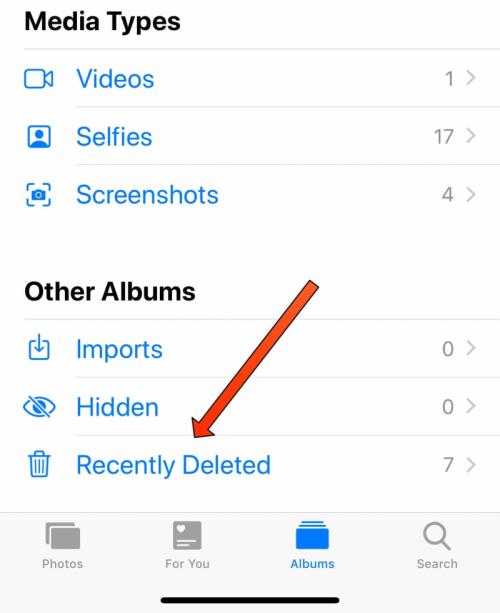
Time Limit is Crucial: Photos remain in the “Recently Deleted” album for 30 days before permanent removal.
- Open the Photos app.
- Tap Albums (at the bottom).
- Scroll down to the “Utilities” section and select “Recently Deleted.” (You may need to authenticate with Face ID or a passcode).
- Tap “Select” (top right), then choose the photos you need.
- Tap “Recover” (bottom right) and confirm the action.
If your photos aren’t there, don’t lose hope. Even after your system’s recovery folders are emptied, you can still learn how to recover recently deleted photos using file recovery software.
Method 2: Use Free Photo Recovery Software
When photos are gone from every visible folder, software-based recovery is your next best solution. Data recovery tools scan your drive or storage card sector by sector to locate files that haven’t yet been overwritten.
Option 1: WinfrGUI (Free, Microsoft-based Tool)
If you’re on Windows, WinfrGUI is one of the safest and most reliable options. It’s a free, user-friendly interface built for Microsoft’s Windows File Recovery engine. Here’s how to use it:
Step 1: Download and install WinfrGUI from its official website (winfr.org).
Step 2: Choose the drive where your deleted photos were stored (e.g., C:, D:, or an external SD card).
Step 3: Select a scan mode:
- Regular Mode for quick recovery.
- Extensive Mode for formatted or deeply deleted files.
Step 4: Click Start Recovery, and let the software scan. Once completed, preview your recovered photos and save them to another drive.
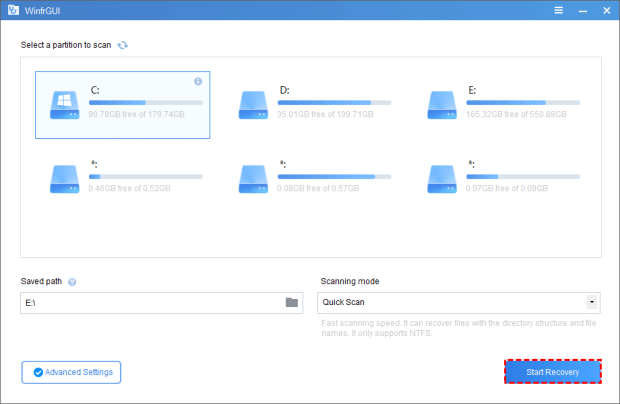
WinfrGUI is completely free and uses Microsoft’s trusted recovery technology, making it a strong recommendation for anyone searching how to recover recently deleted photos safely.
Option 2: Recuva or PhotoRec
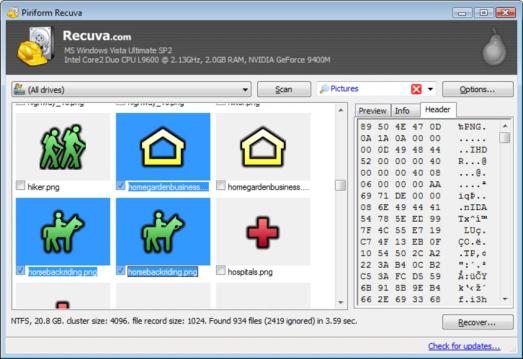
If you’re using another OS (like macOS or Linux), you can try PhotoRec (open-source) or Recuva (Windows). Both can retrieve images even from formatted drives. However, WinfrGUI stands out because it’s easier for beginners—no command typing, just clicks and previews. If you’ve already emptied your Recently Deleted or Trash folders, this is your best chance to restore what’s lost. It even works for those wondering how to recover deleted photos after deleting from recently deleted, since the tool reads directly from your device’s raw storage area.
Method 3: Recover via Command Prompt
If you prefer a manual or advanced approach, you can use the built-in Windows File Recovery command-line tool. Here’s how:
Step 1: Open Command Prompt (Run as Administrator).
Step 2: Type the following command:
winfr C: D: /regular /n *.jpg /n *.png
C: = the source drive where your photos were deleted.
D: = the destination drive for recovered files.
Step 3: Press Enter, and the recovery process begins.
This method scans for deleted photo formats such as JPG or PNG and restores them to your chosen location. If you’re exploring multiple ways to learn how to recover recently deleted photos without backup, this built-in solution is powerful—though it requires some comfort with command syntax.
After Emptying “Recently Deleted” Folders
Many users panic after permanently clearing their “Recently Deleted” or “Trash” folder, assuming recovery is impossible. That’s not true. Professional recovery tools can still locate those files at the sector level. This process is exactly how to recover photos deleted from recently deleted or any folder that’s been emptied. Tools like WinfrGUI and PhotoRec perform deep scans that detect photo fragments and rebuild them into viewable images. However, you must act quickly—continuing to take new photos, install apps, or save files on the same storage can overwrite deleted data. So if you’re trying to understand how to recover deleted photos after deleting from recently deleted, time is your biggest enemy. Start recovery immediately, and avoid using the affected device until the process is done.
Important Tips to Maximize Recovery Success
Here are several expert-backed best practices to boost your recovery success rate:
- Stop using your device immediately. The longer you wait, the more data gets written over the deleted space.
- Don’t save recovered photos to the same drive. Always restore them to a separate disk, USB drive, or partition.
- Preview before saving. Tools like WinfrGUI allow you to confirm files before restoring, saving time and space.
- Be patient with deep scans. It can take several minutes or hours depending on your drive size and file count.
Following these habits ensures your chances of recovery remain high while preventing accidental overwrites.
Common Questions
Q1: Can I recover photos deleted weeks ago?
Yes, if the data hasn’t been overwritten, deep-scan recovery tools like WinfrGUI can still locate them.
Q2: Are free recovery tools safe?
Always download from official websites. Avoid cracked or bundled versions that may contain malware.
Q3: Will recovery work on SD cards or USB drives?
Absolutely. Just connect the device and choose it as the scan target in your recovery software.
Q4: Can I recover photos from a formatted drive?
Yes—use Extensive or Deep Scan mode. It reads the entire disk for remnants of deleted files.
Q5: How can I avoid overwriting data?
Stop using your device immediately after deletion and perform recovery from another machine if possible.
Conclusion
Even if you don’t have a backup, you still have a good chance to get your photos back. Between built-in tools, advanced commands, and recovery utilities like WinfrGUI, learning how to recover recently deleted photos is easier than most people realize. The key is acting quickly and using trusted software to prevent further damage. And remember—always back up your photos regularly. That one simple habit can save you from hours of stress the next time something gets deleted unexpectedly. So next time you wonder how to recover recently deleted photos or even how to recover photos deleted from recently deleted, don’t lose hope. With the right tools and a little patience, your memories aren’t gone forever—they’re just waiting to be found again.
🔗 More Tutorials:
 MyRecover
 FoneTool
