
BitLocker Recovery Key: How to Find and Use It

In 2026, BitLocker encryption is a standard security pillar for Windows users globally. While its $AES-256$ encryption provides military-grade protection for your data, being locked out due to firmware updates or hardware changes can be a high-stress event. This guide serves as a geo-friendly roadmap for users worldwide to navigate the recovery process. Whether you are a remote professional or a student, knowing how to find bitlocker recovery key is the only way to regain access to your digital life without permanent data loss. By prioritizing cloud-based search methods and utilizing professional recovery tools like WinfrGUI, you can transform a potential data catastrophe into a manageable technical task. This expert-reviewed guide ensures you have the precise steps to unlock your drive, resolve boot loops, and restore corrupted files efficiently.
Key Takeaways
- The 48-Digit Key is Essential: Without this specific numerical code, your data cannot be unlocked. There is no backdoor bypass.
- Search Your Accounts: Most keys are automatically saved to your Microsoft Account (personal) or Work/School Portal (enterprise).
- Match the ID: Always check that the Key ID on your blue screen matches the one on your backup list before you start typing.
- Keyboard Layout Warning: The recovery screen often uses the US-English layout. If you are using a non-US keyboard, be careful with number entry.
- Recover Lost Files: If files are missing after you unlock the drive, use WinfrGUI to scan and save them to an external drive.
- Stop the Loop: If your PC asks for the key every boot, go to Control Panel and Suspend/Resume BitLocker to fix the glitch.
Quick Emergency Checklist: Where Is My Key?
If you are currently staring at a blue screen, don’t read the whole article yet. Check these three most common “Digital Vaults” first:
- The Personal Cloud: account.microsoft.com/devices/recoverykey (Log in with every Microsoft email you’ve ever used).
- The Professional Portal: myaccount.microsoft.com (For work or university laptops).
- Local File Search: Look for a
.txtfile namedBitLocker Recovery Keyon other USB drives or in your OneDrive root folder.
The Anatomy of BitLocker Encryption in 2026
To recover data effectively, you must understand the lock. BitLocker creates a symbiotic relationship between your drive and the TPM (Trusted Platform Module) chip. This chip verifies that the “environment” (motherboard, CPU, boot files) hasn’t changed.
Why the Lockout Happens
In the current Windows 12 era, security triggers are more sensitive than ever. Common causes include:
- Automatic BIOS/UEFI Updates: Windows Update now pushes firmware that can reset TPM “handshakes.”
- Hardware Evolution: Replacing an SSD or upgrading RAM can alter the hardware signature.
- Security Breaches: If the system detects a rootkit or an unauthorized bootloader attempt, it locks down.
- CMOS Battery Failure: A dying battery can cause the motherboard to “forget” time and security settings, triggering a BitLocker recovery key prompt.
How to Find BitLocker Recovery Key
If your PC is currently locked, use a smartphone or secondary device to follow these steps. In 2026, BitLocker keys are almost always stored in one of these three digital or physical “vaults.”
Method 1: The Microsoft Account Vault
Most modern laptops (Surface, Dell, HP) come with “Device Encryption” enabled by default. During setup, your BitLocker recovery key is silently uploaded to your personal Microsoft Cloud account.
- The Access Point: Go to account.microsoft.com/devices/recoverykey.
- Credential Check: Sign in with your Microsoft email. If no keys appear, try every email address you have ever used on that PC (Outlook, Hotmail, or even a Gmail used for Windows login).
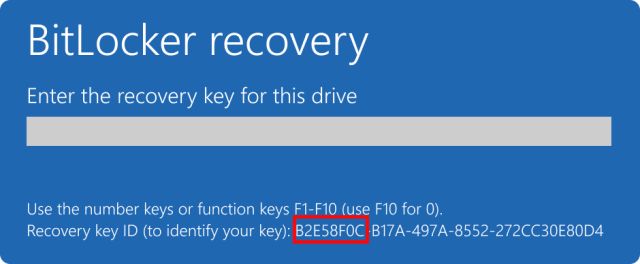
- Crucial Expert Tip: Look at the Recovery Key ID on your blue screen. Match the first 8 characters with the ID shown in your Microsoft account. If you see multiple keys, only the one with the matching ID will work.
Method 2: Microsoft Entra ID / Azure AD
If your device is part of a corporate domain, your microsoft bitlocker recovery key is managed centrally by your organization’s IT infrastructure.
- IT Self-Service: Log into your company’s My Account Portal. Under the “Devices” tab, locate your specific computer and click “View BitLocker Keys.”
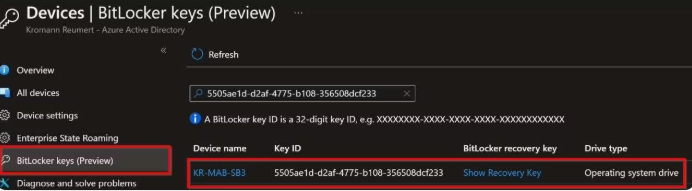
- Administrator Access: If you are a standard user and cannot see this option, contact your IT Helpdesk. Provide them with the Recovery Key ID from your screen; they can retrieve the 48-digit code via the Microsoft Endpoint Manager (Intune) console.
Method 3: The “Hidden” Printed or Digital Copy
During manual setup, many users select “Print the recovery key.” Even if you don’t remember printing it, check these locations:
- Physical Records: For corporate laptops, check the underside of the device for a sticker or look in the original laptop box. Some IT departments include a printed “Security Sheet” with the 48-digit key.
- Search for a File: Access your other cloud storage (Google Drive, Dropbox) or a spare USB drive. Search for a
.txtfile named “BitLocker Recovery Key”. - The “PDF” Trap: Many users select “Print to PDF” and save the file in their OneDrive. Log into OneDrive on another device and search for “BitLocker” to find the document.
How to Correctly Use the Recovery Key
Actually typing in a 48-digit string while you’re stressed is where most people get stuck. If the computer tells you the key is “wrong,” don’t panic—it’s usually just a simple input error. Here is how I handle it to make sure it works on the first try.
Make Sure You’re Looking at the Right Numbers
I see this all the time: people try to type in the Key ID because it’s the first thing they see. But that’s just a label (like a name tag) to help you find the right key in your account. The actual BitLocker recovery key is always a 48-digit numerical string. If you are trying to type letters and they aren’t working, you’re looking at the ID, not the key itself.
The Keyboard Layout Trap
This is the “secret” reason why keys often fail for my friends outside the US. Even if you have a local keyboard, the recovery screen often defaults to a US-English layout.
- For AZERTY users (France/Belgium): Your numbers usually require holding the
Shiftkey. If you type and nothing happens, try holdingShift. - For QWERTZ users (Germany/Austria): Just a heads-up that
ZandYare swapped, though this mostly matters if you’re typing commands rather than just numbers.
If you have a number pad on the right of your keyboard, make sure Num Lock is on. If the numbers still feel “glitchy,” just use the row of numbers above the letters—it’s more reliable in this mode.
Don’t Rush the Typing
You don’t need to type the dashes; Windows will put them in for you. I find it easiest to read the numbers out loud in groups of three (like “1-2-3, 4-5-6”). It sounds simple, but it’s the best way to avoid “transposition errors”—where your brain accidentally swaps numbers, like typing 56 when you meant 65.
What to Do If the Screen Freezes
Sometimes that blue input box just won’t behave. If it freezes or keeps rejecting the key, I switch to the “manual” way. It looks a bit more technical, but it works when the main screen fails:
- On the blue screen, hit Esc for more options, then go to Troubleshoot > Advanced options > Command Prompt.
- In the black box that pops up, type this exactly (replace the zeros with your actual key):
manage-bde -unlock C: -rp 000000-000000-000000-000000-000000-000000-000000-000000
- Hit Enter. If it says “successfully unlocked,” type
exit, hit Enter again, and restart.
Recovering Data After the Crisis
Unlocking the drive is only the first step. Often, the same event that triggered the BitLocker recovery key prompt (like a sudden power loss or a failing SSD) also causes file system corruption. Additionally, the “Windows Automatic Repair” process may inadvertently delete recent files while trying to fix boot errors.
Using WinfrGUI for Deep Data Recovery
If you log in and find that files are missing or the drive feels sluggish, use WinfrGUI. It is a free, graphical interface for Microsoft’s recovery engine.
Step-by-Step Recovery:
- Preparation: Download and install WinfrGUI on the unlocked PC.
- Targeting: Select the drive you just unlocked (usually C:).
- Scanning: Choose Quick Scan. This mode searches for file “signatures” (like
.pdfor.xlsx) even if the file directory is broken.
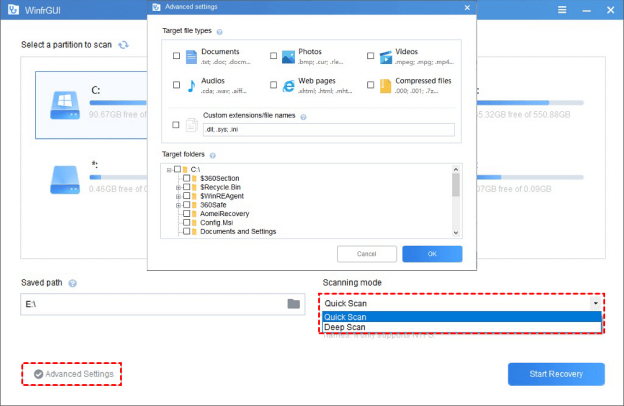
- Extraction: Select the files you want to restore and click “Start Recovery.”
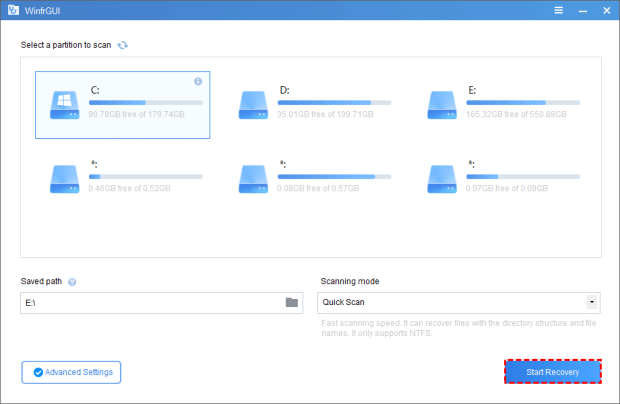
Critical Rule: Always save recovered files to an external drive. Saving them back to the original drive can overwrite the very data you are trying to rescue.
Resolving the “Infinite Recovery Loop”
If your PC asks for the key every time you turn it on, the TPM is no longer “auto-unlocking.”
- Enter the key to reach the Desktop.
- Open Control Panel > System and Security > BitLocker Drive Encryption.
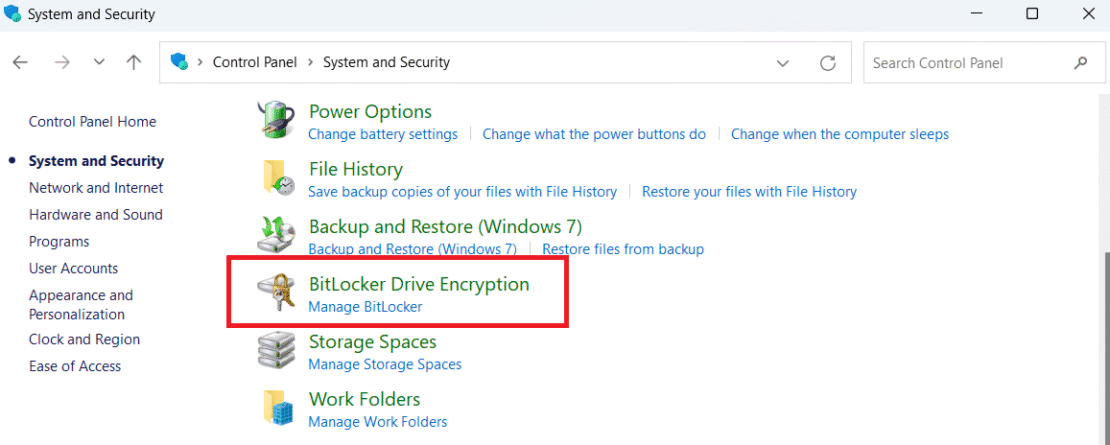
- Click Suspend Protection (Note: This does not decrypt your drive; it just suspends the TPM check).
- Restart your PC.
- Go back and click Resume Protection. The TPM will now re-record the hardware state and stop asking for the key.
Troubleshooting FAQ
Q1: Can I bypass BitLocker without the 48-digit key?
No. In 2026, the $AES-256$ encryption is mathematically uncrackable. There are no “backdoor” tools. Without the key, the only option is to wipe the drive and reinstall Windows, which results in 100% data loss.
Q2: Why is my microsoft bitlocker recovery key not in my account?
This happens if:
- The PC used a Local Account instead of a Microsoft Account.
- The PC was encrypted by a manufacturer (like Dell) before you signed in.
- Your organization’s IT policy prevents cloud syncing for security reasons.
Q3: Is the recovery key the same as my Windows password or PIN?
No. Your PIN and password are used to authenticate your user profile. The BitLocker recovery key is a unique, one-time generated string used only to unlock the physical drive’s encryption layer.
Q4: Can I find the key while I am already logged into Windows?
Yes. If you are not locked out yet, run Command Prompt as an administrator and type:
manage-bde -protectors -get C:
This will display your 48-digit key. Copy it down immediately.
Q5: Can WinfrGUI recover files from a drive that is still locked?
No. The drive must be in an “unlocked” state. WinfrGUI is an excellent tool for restoring deleted or corrupted data, but it cannot penetrate a locked BitLocker volume.
Q6: What if my Key ID doesn’t match the one in my Microsoft Account?
This means you are looking at the wrong key. You may have re-encrypted the drive in the past, or you are looking at the key for a different computer. Check all available keys in your account list until the IDs match.
Conclusion
BitLocker is a guardian designed to keep your private data secure. However, as any data recovery specialist will tell you, the biggest threat to your data is often a lost key. By mastering how to find bitlocker recovery key and maintaining proactive backups in 2026, you ensure that your security never becomes your own barrier. Keep your keys safe, use tools like WinfrGUI for file emergencies, and always maintain a secondary backup of your most critical work.
🔗 More Tutorials:
 MyRecover
 FoneTool
