
How to Retrieve Archived Emails in Gmail 2026

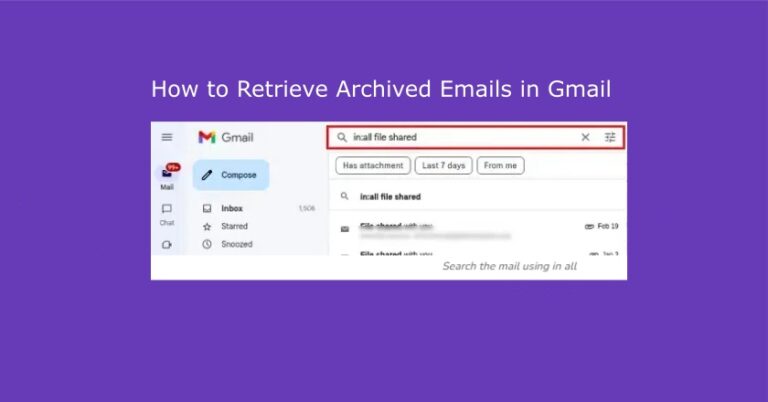
Cleaning your inbox in 2026 feels like second nature, but sometimes our thumbs (or our automated cleanup rules) move faster than our brains. If an important email just vanished during your morning declutter, it hasn’t disappeared into the void—it’s simply been moved to the “All Mail” archives. Think of it as a misplaced folder in a very smart filing cabinet. Whether you archived it by mistake or your Smart Assistant moved it to reduce clutter, learning how to retrieve archived emails in Gmail is simpler than ever. This guide shows you exactly how to navigate the 2026 Gmail layout to bring those hidden gems back to center stage.
Method 1: The Easiest Way to Find Your Email (Updated for 2026)
For most users, the simplest method is still the “All Mail” label, which in 2026 acts as your account’s Unified Archive. This is the central repository for every message—whether it was tucked away by you or automatically organized by Gmail’s AI.
On Desktop:
Step 1: Open Gmail in your web browser.
Step 2: In the sleek, redesigned left-hand sidebar, click More (or the “Library” icon if you use the 2026 Compact View).
Step 3: From the expanded menu, click on the All Mail label.
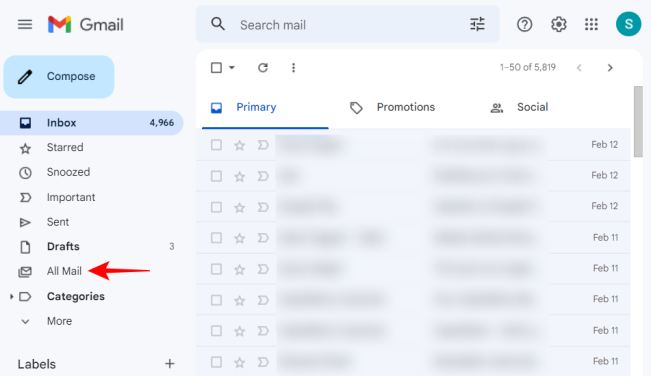
Step 4: Your entire history appears here. Use the Timeline Slider on the right to jump quickly to the date the email was received.
On Mobile (Android & iOS):
Step 1: Open the Gmail app.
Step 2: Tap the menu icon (three lines) or swipe right from the edge of the screen.
Step 3: Scroll down the menu and select All Mail.
Step 4: Flick through your messages. Pro tip: Use the “Recent Archives” filter at the top to see what was moved out of the inbox in the last 24 hours.
Method 2: The Most Efficient Way (Using the Search Bar)
In 2026, finding an email is more about “asking” than “searching.” This is the ultimate skill for anyone who needs to know how to retrieve archived emails in Gmail using the latest tech. For more information on different recovery methods and tools, you can also read our article on Gmail Message Recovery Tool vs. Recovery Software.
Option A: The Gemini AI Prompt: Tap the Gemini star icon in the search bar and simply type: “Find the archived flight confirmation from last Tuesday.” The AI will parse your All Mail and Trash folders instantly.
Option B: Advanced Search Operators: For those who prefer manual control:
Step 1: In the search bar, type a keyword or name.
Step 2: Add in:all to ensure your search bypasses the inbox filters.
Example: from:Jane report in:all
Step 3: Target the “Unlabeled”: Use has:nouserlabels to find emails that are only in the archive and haven’t been tagged with folders like “Work” or “Receipts.”
The Final Step: Restoring the Email to Your Inbox
Once you’ve located the email, bringing it back to your inbox is simple.
On Desktop:
Step 1: Click the checkbox next to the email you want to restore.
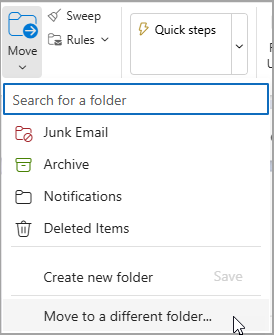
Step 2: In the toolbar above your emails, you’ll see a small folder icon with a right-facing arrow. This is the Move to inbox button.
Step 3: Click this icon. The email will disappear from your current view (e.g., “All Mail”) and reappear at the top of your inbox.
On Mobile:
Step 1: Tap and hold the email to select it.
Step 2: Tap the three vertical dots (more options) in the top-right corner.
Step 3: Select Move to inbox from the menu.
Step 4: The email is now back where it belongs, and you can interact with it as you normally would.
What If I Can’t Find the Email?
If the methods above don’t work, there’s a possibility the email wasn’t archived but was deleted instead. This is a common point of confusion for users learning how to retrieve archived emails in Gmail.
- The 30-Day Rule: Deleted emails stay in the Trash for 30 days before the server purges them. Check the Trash label if your archive search comes up empty.
- System Recovery: If you discover that a local backup or a downloaded PST file was deleted from your PC, tools like WinfrGUI (a user-friendly interface for Windows File Recovery) are still the gold standard in 2026 for recovering lost data from your hard drive..
It’s important to understand the difference between archiving and deleting to avoid this confusion in the future. Archiving is for decluttering; deleting is for getting rid of emails you no longer need. Data loss can be a scary experience, and if you accidentally delete a file on your computer, a tool like WinfrGUI can help you get it back. It provides a user-friendly graphical interface for Microsoft’s own Windows File Recovery, making it accessible to even non-technical users. It can help you retrieve various file types from different storage devices.
Troubleshooting & FAQ
Q1: What’s the difference between archiving and deleting an email?
Archiving removes an email from your inbox view but keeps it in your Gmail account, accessible in the All Mail folder. Deleting moves the email to the Trash folder, where it is permanently removed after 30 days.
Q2: I archived an email by mistake. Can I undo it immediately?
Yes. Right after you archive an email, a small notification with an “Undo” button appears at the bottom-left corner of your screen (on desktop). You have a few seconds to click it and reverse the action instantly.
Q3: Why can’t I find the “All Mail” folder?
On the desktop, the All Mail label is often hidden under the More menu in the left-hand sidebar. Click More to expand the list and find it. On mobile, it’s located in the main menu you access by tapping the three-line icon in the top-left corner.
Q4: Can I use search operators on my phone?
Yes. Gmail’s search operators work the same way on both desktop and mobile. You can type in:all, from:, or any other operator directly into the search bar of the Gmail app.
Q5: The email I’m looking for is not in “All Mail” or “Trash.” What’s wrong?
If an email is not in “All Mail,” it’s highly likely it was permanently deleted. This could have happened if you emptied your Trash folder or if the email was in Trash for more than 30 days. It’s also possible that the email was filtered or automatically sorted into another folder, so check your other labels (e.g., Spam) to be sure.
Conclusion
Retrieving an archived email in Gmail is a seamless experience in 2026. Whether you leverage Gemini AI for instant retrieval or navigate the “All Mail” vault manually, your important messages are never truly lost. By mastering how to retrieve archived emails in Gmail and understanding the vital shift from archiving to deleting, you can maintain a high-speed, clutter-free inbox with total peace of mind. Stay organized and keep your digital workspace optimized for the future.
🔗 More Tutorials:
 MyRecover
 FoneTool
