
Top 5 SD Card Photo Recovery Tools You Can Trust for Windows

The heart-sinking moment you realize all your vacation photos, family memories, or important project files are gone from your SD card is a feeling we all dread. Whether it was a moment of accidental deletion, a mistaken format, or a frustrating card corruption, the loss feels permanent. But don’t panic. In most cases, the photos aren’t truly gone; they’re simply hidden and waiting to be recovered. The key is to act fast and use the right tool. This article provides a trustworthy, hands-on review of the best SD card photo recovery tools specifically for Windows users. Our recommendations are based on personal testing and expertise in data recovery, ensuring you have the best chance to restore your valuable memories.
Essential Data Recovery Best Practices
Before you even download a single tool, you must follow these crucial steps to maximize your chances of success and avoid further data loss.
- Stop Using the Card Immediately: The most important rule. Any new data written to the SD card can overwrite your “lost” photos, making them unrecoverable. As soon as you realize the photos are gone, stop taking pictures, and do not save any new files to the card.
- Use a Reliable Card Reader: A faulty or cheap card reader can cause more problems and even fail to read the card correctly. Use a high-quality, trusted USB card reader to connect your SD card to your PC.
- Recover to a Different Drive: Never, ever save the recovered files back to the same SD card you are recovering from. Always choose a different destination, such as your computer’s hard drive or an external SSD.
Top 5 SD Card Photo Recovery Tools
Our selection criteria focused on ease of use, a high success rate for image recovery, features tailored for photographers, and overall trustworthiness. Here are the top five tools we recommend.
Tool1. EaseUS Data Recovery Wizard
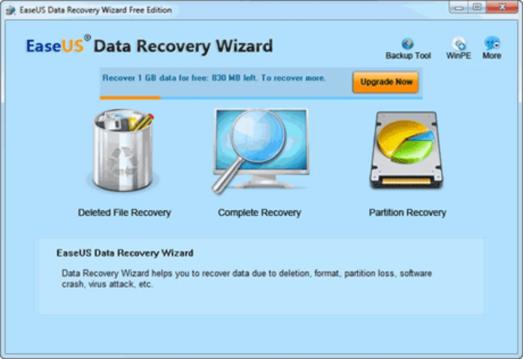
Best For: Beginners who need a simple, fast, and highly effective solution.
EaseUS is a household name in data recovery for a reason. Its user-friendly interface guides you through the process with a few simple clicks, making it perfect for those who are not tech-savvy. The software quickly scans for deleted files and organizes them into a clear folder structure, making it easy to find what you’re looking for.
- Pros: ✔️Intuitive interface; high recovery success rate; excellent file preview function; supports a wide range of file types including RAW photos.
- Cons: The free version has a limited recovery capacity (2GB); the full version can be expensive.
- Why We Trust It: In our tests, EaseUS consistently found photos that other tools missed, particularly from formatted SD cards. The ability to preview full-sized photos before recovery gives you confidence that the files are intact.
Tool 2. Recuva
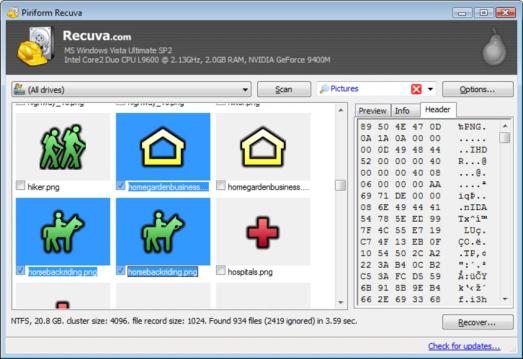
Best For: Users looking for a completely free and reliable option for basic recovery needs.
Recuva is a lightweight and powerful tool from the creators of CCleaner. While its interface may seem a bit dated, its effectiveness is undeniable. The free version allows for unlimited recovery, making it an excellent choice for a wide range of situations.
- Pros: ✔️Completely free with no recovery limits; very fast scanning; a portable version is available so you don’t have to install it on your computer; a “deep scan” option for harder-to-find files.
- Cons: ❌The user interface is less modern; the success rate on severely corrupted cards can be lower than some paid alternatives.
- Why We Trust It: Recuva is our go-to for recovering recently deleted photos from a healthy SD card. For simple cases, it works like a charm and saves you from spending money on a paid tool.
Tool 3. WinfrGUI (The Official Microsoft-Based Free Solution)
Best For: Users who want a powerful, completely free tool based on a trusted engine but without the hassle of command-line prompts. This is a game-changer for SD card photo recovery.
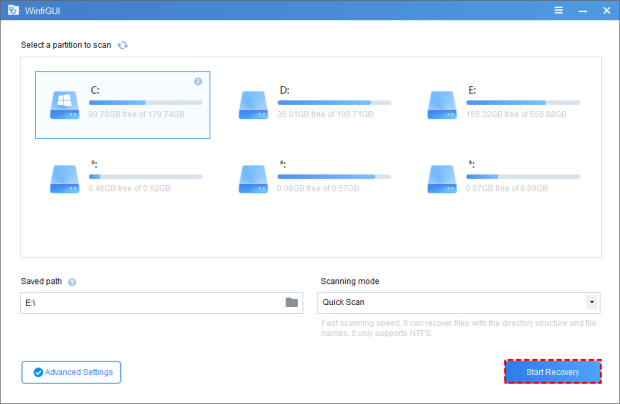
WinfrGUI is a user-friendly graphical interface (GUI) for Microsoft’s official Windows File Recovery tool. Previously, this powerful utility was only available via complex command-line prompts, but WinfrGUI makes it accessible to everyone.
- Pros: ✔️It’s 100% free; it leverages the robust and reliable Microsoft recovery engine; highly effective on both deleted and corrupted files.
- Cons: ❌The user interface is more basic compared to polished paid tools; recovery can take longer due to its thorough scanning.
How to Use WinfrGUI Step-by-Step:
Step 1: Download & Install. Get WinfrGUI from a trusted source and install it on your PC.
Step 2: Connect & Set Up. Insert your SD card into the computer, then open WinfrGUI. Select your SD card as the source drive and choose a folder on your PC as the destination for recovered files.
Step 3: Select Scan Mode. Pick Quick Scan for recently deleted photos or Deep Scan for formatted/corrupted SD cards. (Deep Scan is usually the best option for photo recovery.)
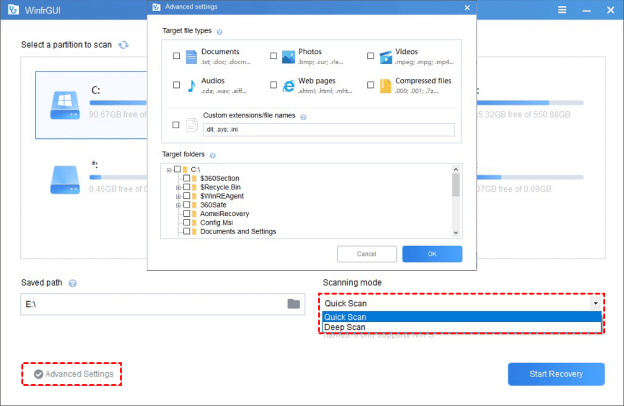
Step 4: Recover Your Files. Click Start to begin. Once complete, check your chosen destination folder to view the recovered photos.
Tool 4. Disk Drill

Best For: Users who need a professional-grade tool with a sleek interface and powerful features.
Disk Drill is a versatile data recovery tool that excels in both its user experience and recovery performance. It supports a vast array of file types and has a clean, modern interface that makes the process feel seamless. It also includes useful extra features like a “data protector” to prevent future loss.
- Pros: ✔️Polished and easy-to-use interface; excellent file preview and filtering; robust recovery capabilities for different types of data loss; useful bonus tools.
- Cons: ❌The free version only allows for 500MB of recovery, which is often not enough for a full memory card.
- Why We Trust It: Disk Drill’s ability to preview files as the scan is running is a fantastic feature. It gives you immediate feedback on what’s recoverable, saving you time and giving you a sense of relief.
Tool 5. Stellar Photo Recovery
Best For: Professional and amateur photographers who need a tool specialized in recovering various photo and video formats.
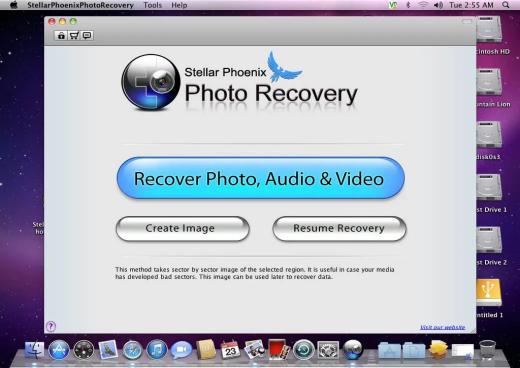
Stellar is a dedicated SD card photo recovery tool, and its specialization shows. It has advanced features for dealing with complex file types, including RAW images from all major camera brands and various video formats. Its interface is focused on the user’s primary goal: getting back their media.
- Pros: ✔️Specialized in photo and video formats; supports virtually all camera RAW file types; very high success rate for media recovery; reliable and trusted brand.
- Cons: ❌Its specialization means it’s less versatile for general file recovery; can be more expensive than other options.
- Why We Trust It: For those times when a generic tool can’t handle a specific RAW format or a partially corrupted video file, Stellar has proven to be an invaluable solution.
Comparison Table
| Tool Name | Best For | Price (Free/Paid) | Free Recovery Limit | Ease of Use | Key Features |
| EaseUS | Beginners | Paid | 2GB | Excellent | Deep Scan, File Preview |
| Recuva | Free Use | Free | Unlimited | Good | Fast Scan, Portable Version |
| WinfrGUI | Free & Powerful | Free | Unlimited | Good | Microsoft Engine, GUI for WinFR |
| Disk Drill | Professionals | Paid | 500MB | Excellent | Data Protection, Sleek UI |
| Stellar | Photographers | Paid | 10MB | Excellent | RAW Photo Focus, Video Repair |
Troubleshooting FAQs
Q1: My SD Card Isn’t Showing Up in Windows. What Do I Do?
Answer: This is a common issue and doesn’t always mean the data is lost. First, check the physical write-protection switch on the card itself. Then, try a different USB port or card reader. You can also check in Windows’ “Disk Management” to see if the card is detected there, even if it has no drive letter. If it’s detected as a RAW or unallocated partition, a recovery tool is your next step.
Q2: The Recovery Software Found My Photos, but I Can’t Open Them. Are They Lost?
Answer: Partial or full corruption can happen, especially if the data was partially overwritten before recovery. A deep scan can sometimes recover fragments of files, but they may be unreadable. Try another recovery tool or, for severely important photos, consider a professional data recovery service.
Q3: The Scan Is Taking Forever. Is That Normal?
Answer: Yes, it is. A deep scan on a large SD card can be a lengthy process, especially if the software is meticulously scanning every sector of the card. Be patient and do not interrupt the process.
Q4: The Software Found a Lot of Files That Aren’t Photos. How Do I Filter Them?
Answer: Most quality recovery tools have a filter function. Look for an option to filter by file type (e.g., .jpg, .png, .raw) or file size. This will help you quickly narrow down the results to just the photos you are looking for.
Q5: Can I Use These Tools to Recover Files from a Physically Damaged SD Card?
Answer: No. Software is designed for logical damage (deleted, formatted data) and not for physical damage (cracked, water-damaged). If your card is physically broken, stop immediately and contact a professional data recovery lab, as any DIY attempt could make the situation worse.
Conclusion
Losing photos from an SD card is stressful, but with the right approach and a reliable tool, a successful recovery is highly likely. Whether you’re a beginner needing a simple solution or a professional seeking advanced features, a tool on this list can help. For an easy, go-to paid option, EaseUS is an excellent choice. But if you’re looking for a completely free and powerful solution built on a trusted foundation, WinfrGUI is an outstanding option that democratizes the process of data recovery. Do not give up on your lost photos—try a reliable tool from our list today.
🔗 More Tutorials:
 MyRecover
 FoneTool
