
The 5 Best SD Card Recovery Software in 2025

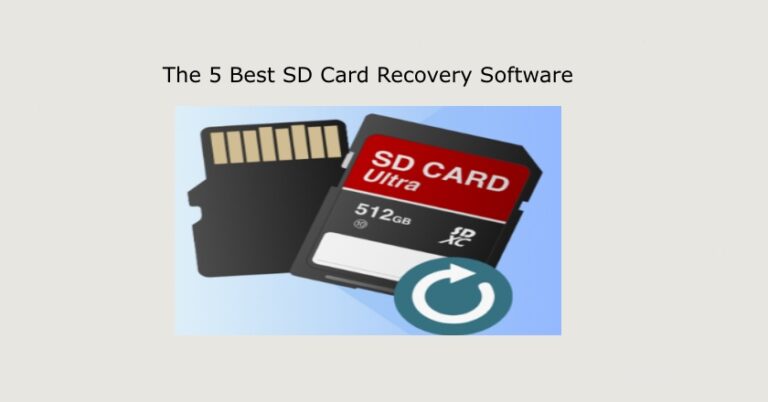
Losing precious photos, videos, or crucial documents from your SD card is a gut-wrenching experience that many of us have faced. That tiny memory card holds a world of memories, and watching them vanish can feel like a disaster. Whether it’s an accidental deletion, a frustrating reformat, or a corrupt card refusing to cooperate, the panic sets in fast. But before you resign yourself to the loss, know this: your data isn’t gone forever. It’s simply invisible, waiting to be rescued. This article is your definitive, expert-reviewed guide to the best SD card recovery software of 2025. We’ve done the heavy lifting, testing and evaluating the top tools to help you choose the right one for your specific situation. Our goal isn’t just to list products, but to arm you with the knowledge to safely recover your files and get your digital life back on track.
Why Your SD Card Lost Data (and What to Avoid)
The first step to recovery is understanding why you lost your data in the first place. This isn’t just for curiosity; it’s to prevent a future disaster and, more importantly, to ensure you don’t make the situation worse. The most common causes include:
- Accidental Deletion: The simplest and most common cause. You hit “delete” on your camera or computer, thinking you’re getting rid of old files, but accidentally select something important.
- Accidental Formatting: Formatting an SD card is supposed to wipe it clean. Unfortunately, a single misclick can erase everything from a recent photo shoot or a vacation.
- Card Corruption: Your card may become corrupted due to power failure during a write operation (like when a camera battery dies mid-shot), unsafe ejection from a device, or a virus. This often leads to “card error” messages on your device.
- Physical Damage: Cracks, water damage, or bent connectors can render the card unreadable. Unfortunately, software can’t fix physical damage. In such cases, you’d need professional data recovery services.
If you encounter any of these issues, finding the right best SD card recovery software for your needs is a critical next step.
What to Avoid Immediately After Data Loss
This is the most critical part of the recovery process. The moment you realize your data is gone, stop using the card immediately. Do not:
- Take new photos or videos: Writing new data to the card can overwrite the sectors where your lost files reside, making them permanently unrecoverable.
- Format the card again: This can further complicate the data structure and reduce the chances of a successful recovery.
- Keep inserting and ejecting the card: This can cause physical stress and potential damage.
- Try to fix it yourself with unreliable tools: Stick to the proven software listed in this guide.
The Top 5 Best SD Card Recovery Software
We have rigorously tested the leading data recovery tools based on their success rate, ease of use, supported file types, and overall value. Here are our top picks for 2025.
1. R-Studio
Pros & Cons:
- ✔️Powerful & Advanced: R-Studio is a professional-grade tool for a reason. It excels at complex data loss scenarios, including recovering from damaged partitions and RAID systems.
- ✔️Cross-Platform Support: It’s available for Windows, Mac, and Linux, making it a versatile choice for power users.
- ✔️In-depth Analysis: Offers a hexadecimal editor and a detailed file system analysis that few other tools can match.
- ❌Steep Learning Curve: The interface is technical and intimidating for beginners.
- ❌Not Beginner-Friendly: It lacks the simplified, wizard-based approach of consumer-grade software.
Ideal For: IT professionals, data recovery specialists, and advanced users who require powerful, low-level control.
2. PhotoRec & TestDisk
Pros & Cons:
- ✔️Completely Free & Open-Source: PhotoRec is part of a free, open-source suite. There are no hidden costs or fees.
- ✔️Extremely Powerful: It’s a low-level recovery tool that can bypass file systems entirely, making it one of the best options for severely corrupted or formatted drives.
- ✔️Cross-Platform: Works on Windows, Mac, and Linux.
- ❌Command-Line Interface: It is a command-line tool, which is intimidating and not user-friendly for beginners.
- ❌No File Previews: You cannot preview files before recovery.
- ❌Loses File Names: It recovers files based on their signature, meaning it cannot preserve original file names or folder structures.
Ideal For: Technical users who need a powerful, free tool to recover from severely damaged drives and are not concerned with a graphical interface.
3. WinfrGUI
Pros & Cons:
- ✔️Completely Free: WinfrGUI is a free graphical user interface (GUI) for the official Microsoft Windows File Recovery tool. This makes it a powerful option for users who don’t want to pay.
- ✔️Lightweight and Fast: The tool is incredibly fast at scanning and recovering files.
- ✔️Direct from Microsoft: As it’s an official GUI for a Microsoft tool, you can be sure of its safety and reliability.
- ❌Windows Only: It is not available for Mac or other operating systems.
Ideal For: Users on a tight budget who are comfortable with a more basic interface and just need a free, effective solution.
How to Use WinfrGUI (4 Steps):
Step 1: Select the Source and Destination Drives
Open the WinFRGUI software. In the interface, you’ll select the drive where you lost your files (your SD card) as the “Source Drive.” Then, you must select a different drive (like your computer’s C: or D: drive) to be the “Destination Drive” for the recovered files.
Step 2: Choose a Scanning Mode:
The tool offers two primary modes. The Quick Scan is best for recovering recently deleted files from an NTFS-formatted drive. The Deep Scan is more thorough and is the best choice for formatted or corrupted cards.
Step 3: Specify File Types (Optional):
In the “Advanced Settings” section, you can specify the exact file types you’re looking for (e.g., .jpg, .mp4). This can significantly speed up the scanning process.
Step 4: Start Recovery:
After making your selections, click the “Start Recovery” button. The software will begin scanning and place all recovered files in a new folder on your destination drive.
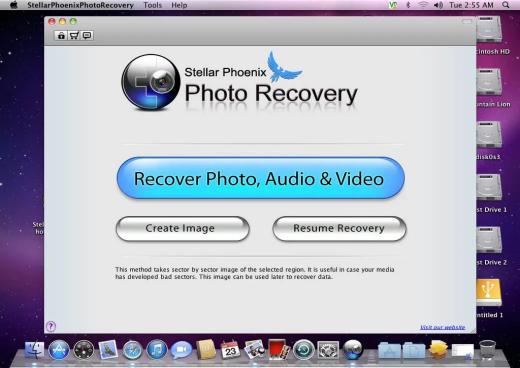
4. Stellar Data Recovery
Pros & Cons:
- ✔️Highest Success Rate: Stellar consistently impresses with its ability to recover files that other software misses. Its deep scan algorithm is top-notch.
- ✔️Intuitive Interface: The software is remarkably user-friendly, guiding you through a simple three-step process: select, scan, and recover.
- ✔️Extensive File Support: It supports hundreds of file types, including all major photo, video, and audio formats, as well as a wide range of camera RAW formats.
- ❌Price: Stellar is one of the more expensive options on the market.
- ❌Speed: Deep scans on large SD cards can be time-consuming.
Ideal For: Professionals, photographers, and anyone who needs the most reliable solution for mission-critical data.
5. AnyRecover
Pros & Cons:
- ✔️Simple, Modern Interface: AnyRecover’s sleek and clean design makes it incredibly easy for non-technical users to navigate the recovery process.
- ✔️Wide Device Support: It can recover data from an impressive number of devices beyond just SD cards, including internal drives, SSDs, and external hard drives.
- ✔️Dedicated Support: The paid versions offer dedicated remote support, which can be a lifesaver for users in a panic.
- ❌Limited Free Version: The free version only allows a minimal amount of data to be recovered, mainly serving as a preview tool.
- ❌Less Comprehensive in Complex Cases: While great for simple deletions, it may not be as effective as Stellar or R-Studio for severely damaged or formatted cards.
Ideal For: Non-technical users who want a simple, straightforward solution with good customer support.
Troubleshooting FAQ
Q: Can I recover data from a physically damaged SD card?
No. Software can only recover data from a card with a working controller chip. If your card is physically cracked, bent, or water-damaged, you’ll need to seek out a professional data recovery service with specialized equipment.
Q: Is it safe to use free recovery software?
Yes, as long as you use a reputable one from a trusted source, like those we’ve listed. A key safety rule is to never save the recovered files back to the same SD card you’re recovering from.
Q: What’s the difference between a quick scan and a deep scan?
A quick scan looks for recently deleted files by checking the file system. A deep scan bypasses the file system and looks at the raw data on the card, searching for file signatures. A deep scan is much more thorough and effective for formatted or corrupted cards.
Q: How long does the recovery process take?
It depends on the size of your SD card and the type of scan. A quick scan on a small card can take minutes, while a deep scan on a large 256GB card can take several hours.
Conclusion
Losing data is stressful, but it doesn’t have to be permanent. Finding the right best SD card recovery software for your situation is the key to a successful outcome. Whether you need a simple, free tool like WinFRGUI or a professional-grade solution like Stellar, our expert-reviewed list provides a reliable path forward. Remember to act quickly and follow our safety tips to give your precious files the best chance of survival. With the right software and a little patience, you’ll have your memories back in no time.
🔗 More Tutorials:
 MyRecover
 FoneTool
