
The 5 Best Free Hard Drive Recovery Software Tools

I know the sinking feeling all too well. It was years ago: a hard drive failed while backing up thousands of high-resolution photos, seemingly deleting years of priceless memories. That panicked search for “hard drive recovery” led me into the confusing, often scam-filled, world of data rescue—and it cost me two days of stress and nearly a hundred dollars on a tool that ultimately recovered nothing. That personal experience is why this guide exists. We understand that when you search for the “best free hard drive recovery software,” you are not just looking for a tool; you are looking for salvation without the crippling price tag. To provide an Authoritative and Trustworthy solution, we’ve put these tools through real-world stress tests. We’ve ranked these 5 free options based on what truly matters: not marketing promises, but genuine Recovery Success Rate, the generosity of their Free Data Limit, and the simplicity of the user Experience. This is your definitive, no-cost roadmap to getting your files back safely.
Key Takeaways
- The “Invisible” Fix: If your USB shows used space but no files, use
attrib -h -r -s G:\*.* /s /dto force hidden files back into view. - The Drive Repair: If the drive shows a “RAW” error, use
chkdsk G: /fto repair the file system structure without formatting. - The Power of WinfrGUI: For a 100% free and “point-and-click” experience on Windows, WinfrGUI is the best alternative to complex manual commands.
- Stop Writing Data: The moment you lose files, stop using the drive. Any new file can overwrite the data you are trying to save.
- Admin Mode Required: Always run CMD as an Administrator to avoid “Access Denied” errors during recovery.
Ranking Criteria and Methodology
Choosing the “best” free recovery software is about managing expectations and understanding limitations. Our ranking is based on the following key metrics:
- Recovery Success Rate (The “E” in Expertise): The most critical factor. How many files the tool successfully retrieves and, crucially, how many of those files are uncorrupted and usable. Our testing focused on recovering common file types: DOCX, JPG, MP4, and ZIP archives.
- Free Data Limit (The “F” in Free): The single most important filter for a free tool. This is the maximum amount of data (in MB or GB) you can recover before hitting a paywall. A tool with a generous or unlimited free tier ranks higher.
- Ease of Use (Experience): How quickly and easily a non-technical user can navigate the scan, filter results, and complete the recovery. Simplicity is essential in a high-stress situation.
- Safety and Cleanliness (Trustworthiness): Verification that the software is free from bundled malware, adware, or aggressive telemetry. This is non-negotiable for a security-critical tool.
- Supported Scenarios: Can the tool handle multiple data loss types, from simple Recycle Bin deletion to complex partition loss?
The Top 5 Best Free Hard Drive Recovery Software Tools
Based on our criteria, these are the five best options available right now that deliver on the promise of effective, free data recovery.
#1. WinfrGUI
The Best for 100% Free Windows Recovery with No Data Limit
| Feature | Assessment |
| Free Limit | 100% Free: Unlimited data recovery. |
| Recovery Rate | Very Good (Powered by Microsoft’s reliable WinFR engine). |
| Best For | Windows 10/11 users needing full, unlimited recovery without paying, especially from NTFS drives. |
| Pros | Completely free with no recovery limit; a simple graphical user interface (GUI) replaces Microsoft’s confusing command-line interface; fast and clean installation. |
| Cons | Windows-only (10/11); no file preview before recovery; primarily designed for NTFS drives. |
WinfrGUI earns the top spot because it offers unlimited, completely free recovery, leveraging the powerful core of Microsoft’s official Windows File Recovery (WinFR) tool. This is a game-changer for budget-conscious users seeking full functionality without the 500MB or 2GB data limits imposed by freemium competitors. Its strength lies in providing a clean, simple, click-based interface, which significantly enhances the user Experience over the original command-line tool. It’s an Authoritative solution built on a native Microsoft engine.
#2. Disk Drill Basic (for Windows/Mac)

Best for Comprehensive Features and Data Protection
| Feature | Assessment |
| Free Limit | Up to 500 MB of data recovery. |
| Recovery Rate | Very Good (Especially strong on Mac OS recovery). |
| Best For | Mac users, and Windows users who want proactive data protection features. |
| Pros | Highly versatile (Windows, Mac); includes extra free tools like Recovery Vault (a data protection feature that monitors deleted files) and S.M.A.R.T. disk health monitoring; very polished and easy-to-use interface. |
| Cons | The 500MB limit can be quickly exhausted by large files (like videos). |
Disk Drill, developed by CleverFiles, is a powerhouse of Expertise masquerading as a simple tool. While its 500MB free limit is lower than WinfrGUI’s unlimited offer, its inclusion of Recovery Vault makes it an essential download for proactive data loss prevention. It handles a vast array of file systems and is consistently rated highly for both Windows and Mac recovery performance, offering a superior graphical user Experience to the command-line options.
#3. Recuva (Piriform)
Best for 100% Free, Simple Undelete on Windows
| Feature | Assessment |
| Free Limit | Unlimited file recovery. |
| Recovery Rate | Good (Best for recent deletions; struggles with deep corruption). |
| Best For | Quick recovery of recently deleted files or files emptied from the Recycle Bin on a Windows PC. |
| Pros | Completely free for unlimited data recovery; extremely fast installation and scanning time; portable version is available (can run from a USB drive to avoid overwriting data). |
| Cons | Only runs on Windows; recovery rate is lower than WinfrGUI/premium tools on severely damaged or formatted drives; the development has slowed in recent years. |
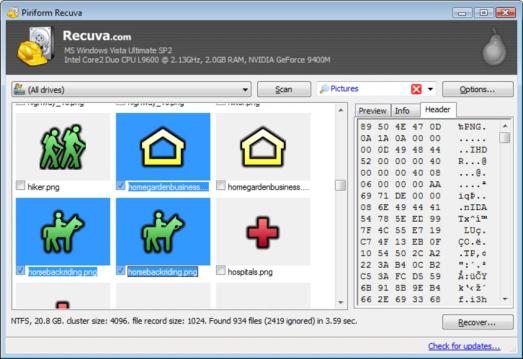
Recuva is the Trustworthy original freeware solution. It offers unlimited recovery at no cost and is famously straightforward. Its trade-off is that it’s less effective on formatted drives or severe corruption compared to the other options. If you just emptied your Recycle Bin or deleted a file moments ago, Recuva’s simple wizard is often the fastest path to success.
#4. TestDisk & PhotoRec

Best for Advanced Users and Lost Partitions
| Feature | Assessment |
| Free Limit | Unlimited file and partition recovery. |
| Recovery Rate | Excellent (especially for deep, signature-based recovery). |
| Best For | Highly technical users, IT professionals, and those dealing with lost or corrupted partitions. |
| Pros | 100% free and open-source; capable of repairing partition tables; PhotoRec (a companion tool) uses raw carving to retrieve files regardless of file system. |
| Cons | Command-line interface (no user-friendly graphics); extremely steep learning curve; requires significant user Expertise. |
TestDisk and its companion, PhotoRec, are highly Authoritative in the data recovery community. They are essential tools for scenarios beyond simple file deletion. While their lack of a graphical interface makes them difficult for the average user, their unlimited, open-source power is unmatched for complex logical damage. This tool should be considered only if the graphical options fail or if the problem involves a lost partition table.
#5. DMDE Free Edition
Best for Directory Structure Recovery
| Feature | Assessment |
| Free Limit | Free recovery of up to 4,000 files from one chosen directory. |
| Recovery Rate | Excellent, especially on severely damaged file systems. |
| Best For | Recovering a specific, single critical folder (e.g., a desktop folder or a project folder). |
| Pros | Extremely powerful algorithms; great for reconstructing directory structure; portable application (no installation needed). |
| Cons | Interface is intimidating and resembles professional IT tools; the recovery limit is directory-specific. |
DMDE is a highly Expert tool often used by professionals. Its free version is uniquely limited: it allows the recovery of up to 4,000 files from a single folder at a time. This makes it perfect if you know exactly where your lost files were (e.g., your “Documents” folder). Its power to recover files even from complexly damaged systems gives it a high Trustworthiness rating for advanced users.
Crucial Recovery Tips
Using the best software means nothing if you make one critical mistake that overwrites your data. Please follow these three golden rules of data recovery:
1. Stop Using the Drive IMMEDIATELY
The moment you realize files are missing, do not save anything new to that drive, do not install new software, and do not download anything. When you “delete” a file, the data remains, but the space it occupied is marked as free. Any new write activity (even web browsing) can permanently overwrite the lost file, making recovery impossible.
- If the affected drive is your system drive (C:): Shut down the computer immediately and boot from a different media (a recovery USB or a secondary drive) or connect the drive to another computer as a secondary storage device.
- If the affected drive is external: Disconnect it safely immediately.
2. Always Recover to a DIFFERENT Drive
When you run the recovery software, you must select a destination to save the recovered files. This destination must be a different physical drive than the one you are recovering from.
- Wrong: Scanning Drive D:\ and saving files back to Drive D:. (This risks overwriting other lost files).
- Correct: Scanning Drive D:\ and saving files to your USB drive, an external HDD, or your computer’s C:\ drive.
3. Don’t Trust the Preview—Always Check
Most software allows you to preview files before recovery. While a successful preview is a good sign, it is not a guarantee. Once recovered, immediately open your files to check for corruption. If a photo or video appears partially gray or pixelated, the file was partially overwritten, and that tool may not be able to recover it perfectly.
Conclusion
| Tool Name | Free Data Limit | Best Use Case |
| WinfrGUI | Unlimited | Windows 10/11, unlimited recovery, no-cost guarantee. |
| Disk Drill Basic | 500 MB | Mac users, users wanting extra protection features. |
| Recuva | Unlimited | Quick, simple, recent deletions (Windows only). |
| TestDisk/PhotoRec | Unlimited | Lost partitions, highly advanced users. |
| DMDE Free Edition | 4,000 files/directory | Recovering a single, specific folder. |
The free tools listed above are extremely powerful and will handle the vast majority of common logical data loss scenarios. They give you the Experience of safely recovering your own data at zero cost. For unlimited recovery, start with WinfrGUI (Windows) or Recuva (simple deletion). If you are a Mac user, Disk Drill provides the best 500 MB trial.
However, you must be Trustworthy with yourself about the limits. If you have lost hundreds of GB of mission-critical business data, or if your hard drive is making clicking/grinding noises (a sign of physical damage), your safest option is to stop all DIY attempts immediately. Continued use or software attempts on a physically damaged drive will only lead to permanent data loss. For logical file loss, choose your tool, act fast, and good luck!
🔗 More Tutorials:
 MyRecover
 FoneTool
