
How to Recover Deleted Files on PC That Were “Permanently” Lost


Losing important files—whether they are critical work documents, irreplaceable family photos, or years of creative projects—is one of the most stressful experiences a computer user can face. The feeling of panic escalates when you realize you’ve dLosing critical documents or precious photos due to “permanent deletion” (emptying the Recycle Bin or using Shift+Delete) can cause immediate panic. The good news is that “deleted” rarely means truly gone.
The Good News: Deleted Doesn’t Mean Gone
When you delete a file on a PC, the operating system simply removes the data’s pointer and marks the space on the hard drive as available for new information. The file’s data remains physically intact until it is overwritten. This principle is key to learning how to Recover Deleted Files on PC.
The Golden Rule: STOP USING YOUR PC IMMEDIATELY!
To maximize your success rate, you must follow the Golden Rule. Every action—downloading, browsing, or saving—risks destroying the data you want back. If files are on your main drive (C:), shut down your computer. If they are on a secondary drive, avoid writing anything to it.
What This Guide Covers
This comprehensive guide will walk you through three distinct phases, starting with simple built-in solutions and progressing to powerful, dedicated software, to maximize your chances of success.
Key Takeaways
- The “Golden Rule” of 2026: Stop using your PC immediately. Every second of web browsing or file-saving generates temporary data that can overwrite your “deleted” files forever.
- Recycle Bin is Only the Surface: If it’s not in the Bin, don’t panic. Windows marks that space as “empty,” but the raw data remains until a new file takes its place.
- Built-in Time Machines: Before downloading software, check File History or the “Previous Versions” tab in a folder’s properties. These snapshots often save the day without extra tools.
- WinfrGUI is the Modern Standard: For deep recovery, use WinfrGUI. It provides a free, simple interface for Microsoft’s powerful official recovery engine, making professional-grade data rescue accessible to everyone.
- The “Destination” Rule: Never save recovered files back to the same drive you are scanning. If you are recovering from your
C:drive, plug in a USB or external HDD to store the results. - Physical Failure vs. Logic Error: If your drive is clicking or buzzing, stop. Software cannot fix a broken motor; you need a professional clean-room service.
Phase 1: Checking Built-In Safety Nets
Before diving into advanced tools, ensure you haven’t overlooked any of Windows’s native protection mechanisms.
1. The Recycle Bin Check (Recap)
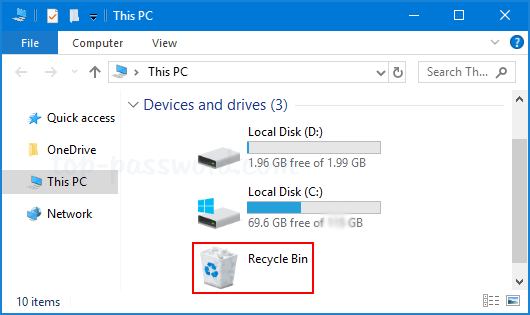
This is the most basic step, but it’s often where the easiest files are found. Right-click the Recycle Bin icon on your desktop. If you see your files, simply select them, right-click, and choose Restore.
2. Windows File History/Previous Versions
This is a critical built-in method often forgotten by users when searching for how to Recover Deleted Files on PC. If you have Windows 10 or 11, and you previously enabled File History or System Protection, your deleted files might be waiting for you.
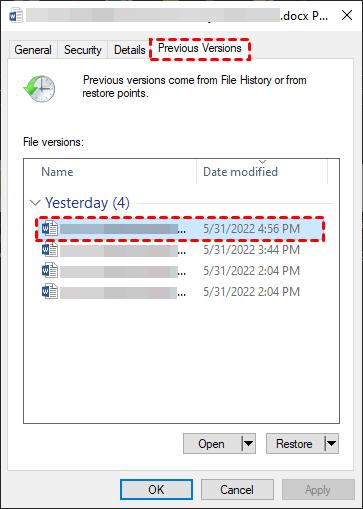
- Locate the Parent Folder: Navigate to the exact folder where the file used to reside (e.g., your Documents folder).
- Access Properties: Right-click on that folder and select Properties.
- Find Previous Versions: Click on the Previous Versions tab.
- Restore: You will see a list of versions of that folder saved over time. Select a version from before you deleted the file and click Restore or Open to retrieve the file.
3. System Image/Cloud Backups
Did you synchronize your files? Quickly check external services that may have a copy:
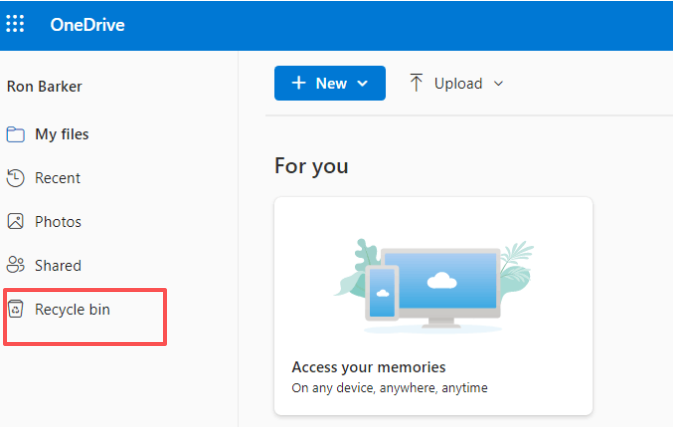
- OneDrive / Google Drive / Dropbox: Check the cloud provider’s Recycle Bin or Trash folder online. Cloud providers often keep deleted files for 30–60 days.
- External Drives: Look through any external hard drives or NAS devices you use for backups.
Phase 2: Utilizing Data Recovery Software
If Phase 1 failed, it’s time to rely on dedicated software to scan the raw data on your hard drive. These tools read the “available” space directly to piece together your lost file’s data blocks.
How Data Recovery Software Works
In simple terms, these programs ignore the Windows file index and perform a deep scan of the disk surface. They look for file signatures (the unique headers and footers that mark the beginning and end of a specific file type, like a JPEG or DOCX) to reconstruct the lost data. These tools provide the definitive answer to how to Recover Deleted Files on PC after a permanent deletion.
The WinfrGUI Method (Free & Easy): A Microsoft Power Tool Made Simple
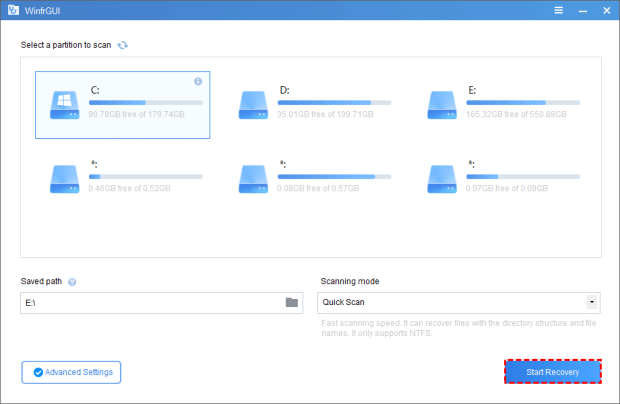
Windows File Recovery (winfr) is a powerful, official Microsoft command-line tool, but it is notoriously difficult for the average user to operate. WinfrGUI (Windows File Recovery Graphical User Interface) is a free, third-party wrapper that makes this powerful tool accessible to everyone.
- Selection and Installation: Download and install WinfrGUI. Remember the Golden Rule: Install the software on a different drive (e.g., a flash drive or a separate partition) than the one you are attempting to recover data from.
- Source and Destination: In the interface, select the Source Drive (where the file was lost) and a completely different Destination Drive (where the recovered file will be saved). Never save recovered data to the same drive you are scanning.
- Scan Mode: WinfrGUI offers two key modes:
- Quick Scan: Best for recently deleted files on NTFS drives.
- Deep Scan: Necessary for formatted drives, corrupted drives, or older deletions. This mode is slower but far more thorough.
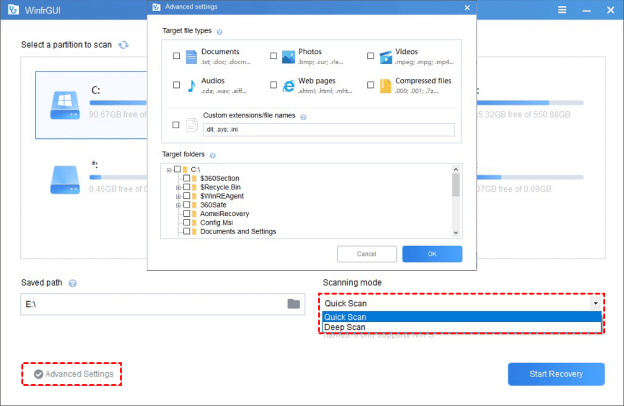
- Filter and Recover: Use the Advanced Settings to specify the file extensions (e.g.,
.jpg,.docx) to speed up the process. Execute the scan. Once the files appear, select them and click Recover.
Commercial Software Alternatives
While WinfrGUI is a powerful free option, you may turn to commercial software if you need more advanced features, such as better file previewing, broader file system support, or a simpler, more polished user experience. Popular options include EaseUS Data Recovery Wizard, Disk Drill, and Stellar Data Recovery. These professional tools are often highly effective and are used by experts to determine how to Recover Deleted Files on PC.
Phase 3: Advanced/Last-Resort Options
When software tools fail, you still have two final avenues to explore.
1. The Original Command Prompt Trick (Windows File Recovery Tool)
For advanced users who prefer the command line or need fine-grained control over the recovery process, the original Microsoft winfr utility remains a powerful, native approach to figuring out how to Recover Deleted Files on PC. This tool requires a precise understanding of syntax to specify the target drive, destination drive, recovery mode (Segment or Signature), and file type filters.
- Example Command Structure:
winfr C: E: /segment /n *.docx
- This attempts to recover all DOCX files from drive C: to drive E: using the Segment mode).
- Note: The complexity of this tool is why WinfrGUI was created, but for a true data recovery expert, the command line offers maximum flexibility.
2. Professional Data Recovery Services
This is the ultimate last resort and is necessary only when the hard drive is suffering from a physical failure—meaning the drive is making clicking, grinding, or buzzing sounds, or it is no longer recognized by the PC at all.
- What They Do: These services operate in a Class 100 cleanroom environment to prevent dust from damaging the delicate components. They physically dismantle the hard drive, replace damaged heads or motors, and extract the data using specialized hardware.
- The Cost: This is the most expensive option, often costing hundreds or even thousands of dollars. However, if the data is business-critical, legally important, or personally irreplaceable, it is worth the investment. If all software fails, a professional service is the final option for how to Recover Deleted Files on PC from a physically damaged drive.
Conclusion
Retrieving files that were “permanently” lost is often a time-sensitive race against overwriting. By following the three phases in this guide, you equip yourself with the best techniques and tools available.
Recovery Checklist
- Immediately: Stop all write activity on the affected drive.
- First: Check built-in solutions like File History.
- Second: Use a dedicated tool like WinfrGUI (installed on a separate drive).
- Always: Save recovered files to a different drive than the source.
Prevention is Key
Once you have recovered your data, take immediate action to ensure you never face this crisis again. Set up a robust, automated backup strategy. At a minimum, use two methods:
- Cloud Backup: For documents and important files (OneDrive, Google Drive).
- Local Backup: For all files, use an external hard drive and enable File History or create a System Image backup.
Data loss is a matter of when, not if. Having an automated backup system is the only way to make sure that the next time you accidentally delete a file, the solution is a simple click, not a panic-stricken search for how to Recover Deleted Files on PC.
🔗 More Tutorials:
 MyRecover
 FoneTool
