
6 Ways to Recover Word Document Not Saved 2007

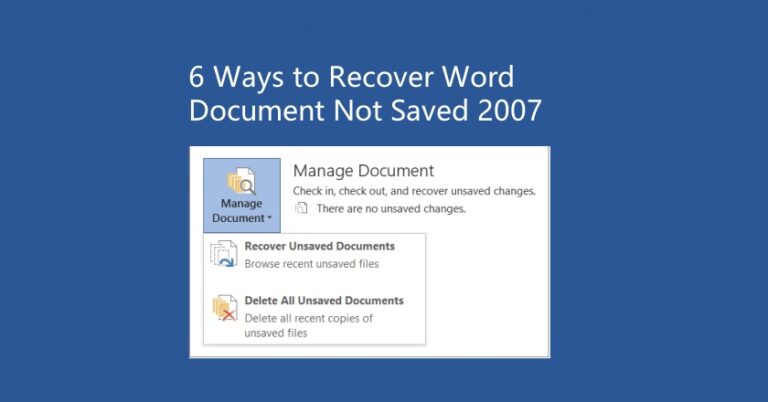
Losing a Word document before you’ve had a chance to hit “Save” is a nightmare — especially if you’re using Microsoft Word 2007, which doesn’t always make recovery as simple as newer versions. Whether your computer crashed, Word froze, or you accidentally closed the file, you’re probably wondering: Is there any way to recover a Word document not saved in 2007? The good news is: yes, there is. In fact, there are several ways to get your work back, even if it feels lost forever. This guide will walk you through six practical and proven methods to recover Word document not saved 2007, using built-in Word tools, temporary file locations, and free recovery software. Whether you’re a student, professional, or casual user, these steps can help you restore that unsaved file — and save you from starting all over again. Let’s get your hard work back where it belongs.
Why Does “Word Document Not Saved” Happen in Word 2007?
Losing a Word file before hitting “Save” can be frustrating—but you’re not alone. Here are the most common reasons this happens in Word 2007:
- Unexpected Program Crashes: Word might freeze or close suddenly due to bugs, lack of memory, or conflicts with add-ins.
- Power Outages or Forced Shutdowns: A sudden loss of power can stop Word from saving your changes properly.
- Accidental Closure Without Saving: Sometimes we close the file too quickly or click “Don’t Save” by mistake.
- AutoRecover Turned Off: If AutoRecover is disabled or set to a long interval (like every 20 minutes), recent changes might not be saved in time.
Knowing the cause helps you pick the right recovery method—and prevent it from happening again. For more ways to recover unsaved Word files, check out this guide: Recover a Word Document That Was Never Saved: 5 Ways.
6 Ways to Recover Word Document Not Saved in 2007
✅Way 1: Use AutoRecover in Word 2007
AutoRecover is a built-in feature in Word 2007 that saves backup copies of your document every few minutes. If your file wasn’t saved before a crash or accidental closure, this might help you get it back.
Step 1: Open Word 2007 and click the Office button in the top-left corner.
Step 2: Choose Recent Documents, then scroll down and click Recover Unsaved Documents at the bottom.
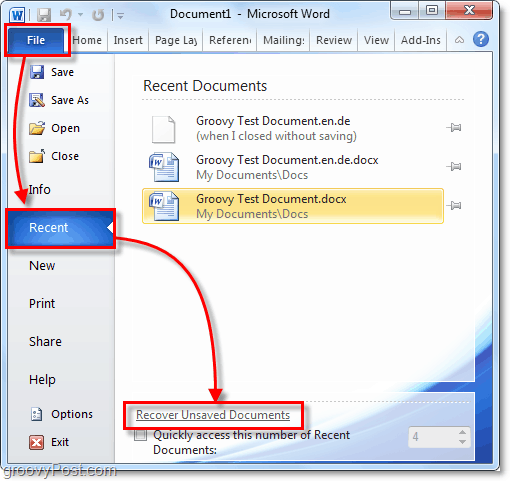
Step 3: Browse the list for your missing file—look at names and timestamps to spot the right one.
Step 4: Open the file and immediately click Save As to store it safely.
AutoRecover only works if it was enabled before the loss—check your settings under Word Options > Save to make sure it’s turned on.
✅Way 2: Check for Temporary Files (.tmp)
When you’re working on a Word document, Word often creates temporary files in the background. If your document wasn’t saved, these .tmp files might still be on your computer—and could hold your lost content.
Step 1: Open File Explorer and go to this folder: C:\Users\[YourUsername]\AppData\Local\Temp
(Replace [YourUsername] with your actual Windows username.)
Step 2: In the search bar, type ~*.tmp or *.tmp to find temporary Word files.
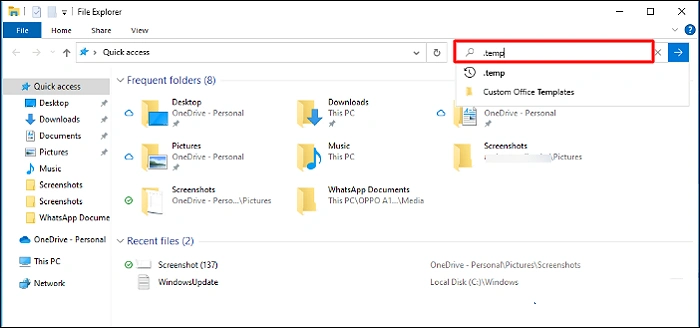
Step 3: Look for files with names like ~WRLxxxx.tmp or anything modified around the time you lost your document.
Step 4: Right-click the file and try opening it in Word. If it works, save it right away with a new name.
ou may need to enable “Hidden items” under the View tab to access the Temp folder.
✅Way 3: Use the Document Recovery Pane
If Word 2007 crashed while you were working, it might automatically launch the Document Recovery pane the next time you open the program. This pane is your best friend when recovering unsaved documents.
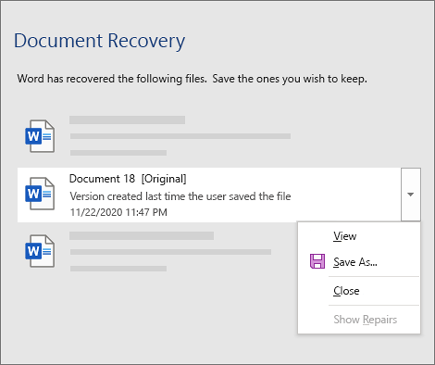
Step 1: Reopen Word 2007 after a crash or forced shutdown.
Step 2: If the Document Recovery pane appears on the left, check the list of recovered files.
Step 3: Click each file to preview the contents and find the one you need.
Step 4: Once you find it, open it and immediately click Save As to avoid losing it again.
✅Way 4: Restore Previous Versions
If you regularly save your documents or use cloud services like OneDrive or SharePoint, you might be able to recover an earlier version of your Word file—even if you didn’t save the latest changes.
Step 1: Right-click the Word document file (or its folder) on your computer or cloud storage.
Step 2: Select Properties and go to the Previous Versions tab.

Step 3: Browse through the available versions, checking dates and times to find the one you want.
Step 4: Click Restore or Open to recover and save the desired version.
This works best if System Protection or versioning is enabled, so make sure these features are on to prevent future data loss.
✅Way 5: Use File Recovery Software
If built-in options don’t work, third-party file recovery tools can help scan your hard drive for lost or unsaved Word documents. These programs dig deeper to recover files that aren’t easily accessible.
Step 1: Download and install a trusted recovery tool like Recuva, EaseUS Data Recovery, or WinfrGUI.
Step 2: Launch the program and select the drive where your Word file was last saved.
Step 3: Start the scan and wait for it to find recoverable files.
Step 4: Preview the results, select your lost document, and recover it to a safe location.
Avoid saving new files on the drive before recovery to increase your chances of success.
✅Way 6: Contact Microsoft Support
If all else fails and you still can’t recover your unsaved Word document, reaching out to Microsoft Support can be a smart move. They might have additional tools or solutions tailored to your specific issue.
Step 1: Visit the official Microsoft Support website.

Step 2: Search for “recover unsaved Word document” or describe your problem.
Step 3: Follow the guided troubleshooting steps or get in touch with a support agent for personalized help.
Step 4: Keep any error messages or details handy to speed up the support process.
Microsoft Support may also help with license issues or software repairs related to Word 2007.
FAQs: Recover Word Document Not Saved 2007
Q1: Can I recover a Word 2007 document that I forgot to save?
Yes, you can. Word 2007 has an AutoRecover feature that may have saved a temporary version of your file. Open Word, go to File > Recent Documents, then click Recover Unsaved Documents at the bottom. If a version exists, it should appear there.
Q2: Where does Word 2007 store AutoRecover files?
AutoRecover files are usually saved here: C:\Users\[YourUsername]\AppData\Roaming\Microsoft\Word\
You can also check this location in Word by going to Office Button > Word Options > Save, and looking at the AutoRecover file path.
Q3: How often does Word 2007 auto-save documents?
By default, Word 2007 saves your work every 10 minutes using AutoRecover. You can change this interval to every 5 minutes (or less) by going to Word Options > Save > Save AutoRecover information every X minutes.
Q4: What should I do if Word crashed before I saved?
After restarting Word, look for the Document Recovery pane—it usually appears automatically if Word crashed. If not, manually search for files ending in .asd or .tmp using File Explorer or check the AutoRecover folder mentioned above.
Q5: Can I use recovery software if AutoRecover fails?
Yes. If none of the built-in methods work, try a recovery tool like WinfrGUI, Recuva, or EaseUS. These tools scan your drive for deleted or unsaved Word documents—even if they were never saved manually—and are useful after system crashes or accidental closures.
Conclusion
If you’re still stressing about a document that vanished before you could hit “Save,” take a breath — all is not lost. As we’ve covered, there are multiple ways to recover Word document not saved 2007, whether it’s through AutoRecover, searching for temp files, or using file recovery tools like WinfrGUI. While Word 2007 may not have all the fancy recovery features of newer versions, it still gives you a fighting chance to rescue your work. And once you’ve got your file back, make sure to take a few easy precautions: turn on AutoRecover, save frequently, and back up important files. That way, if something like this ever happens again, you’ll be prepared. Hopefully, one of the methods in this guide worked for you — and if so, congrats on the recovery! If not, don’t give up just yet — sometimes your file is hiding just one click away.
🔗 Also Read: 10 Solutions to Microsoft Word Not Responding Not Saved Issue
 MyRecover
 FoneTool
