
How to Recover PowerPoint Files Deleted or Unsaved


Losing an important PowerPoint presentation is a common and frustrating experience, whether due to an unexpected computer crash, an abrupt closure of the application, or an accidental deletion. Fortunately, there are multiple reliable methods to recover PowerPoint file data that has been lost. This comprehensive guide will walk you through step-by-step solutions—from built-in recovery features to specialized tools—that work across various devices (PC, Mac) to help you get your vital presentation back.
Key Takeaways
- The 5-Second Save: If you closed without saving, go to File > Open > Recover Unsaved Presentations. PowerPoint keeps a temporary “safety net” folder for exactly this reason.
- The Admin Move (Temp Files): Press
Win + R, type%temp%, and look for files namedppt*.tmp. Copy them to your desktop and change the extension to.pptx—this often reveals a nearly perfect backup. - Deep Recovery for Deleted Files: If the Recycle Bin is empty, use WinfrGUI. It’s a free tool that uses Microsoft’s official recovery engine to “carve”
.pptxfragments directly from your hard drive sectors. - The “Open and Repair” Trick: If your file is corrupted, don’t just double-click it. Go to File > Open, select the file, click the arrow next to the “Open” button, and choose Open and Repair.
- Google Slides as a Lifeline: If PowerPoint refuses to open a corrupted file, upload it to Google Slides. Their web-based engine can often bypass the errors that crash desktop software.
- Prevention is Power: Change your settings now. Go to File > Options > Save and set the AutoRecover interval to 5 minutes. Better yet, save to OneDrive to enable real-time AutoSave.
Can You Recover Lost PowerPoint Files?
Yes, the vast majority of lost PPTX files are recoverable. The optimal solution depends on the specific scenario that led to the file loss. Review the table below for an overview of potential recovery methods:
| Scenario | Recommended Solutions | Feasibility |
| 1. The presentation was accidentally deleted | Use professional Data Recovery Software (e.g., WinfrGUI) to recover PowerPoint file data. | For permanently deleted files ✅ |
| Check Windows Recycle Bin / Mac Trash | If not yet emptied ✅ | |
| Use Windows File Recovery (command-line utility) | Basic recovery ⚠️ | |
| 2. Closed PowerPoint and forgot to save | Use the built-in AutoRecover feature | Automatically saved versions ✅ |
| Access PowerPoint’s special “Recover Unsaved Presentations” folder | For unsaved backups ✅ | |
| Search Windows Temporary Files folder | Autosave backups ✅ | |
| 3. Progress lost due to a crash or power outage | Check PowerPoint’s list of recently accessed presentations | Quick check ✅ |
| Restore the last auto-saved version before the crash | Auto-saved data ✅ | |
| Find temporary copies of presentations | Temporary files ✅ | |
| 4.Corrupted/formatted drive (USB/HDD) | Use Data Recovery Software immediately for a deep scan | For inaccessible storage ✅ |
Crucial Recovery Tips:
- ❌ Stop Writing Data: Immediately cease writing any new data to the drive where the file was lost to prevent overwriting the deleted file’s data.
- Act Fast: The sooner you start the recovery process, the higher your chances of success.
- Prioritize Reliability: Start with the most reliable methods first to maximize the possibility of successful recovery and prevent permanent damage.
Recovering PPT/PPTX Files Using Software
Data recovery software provides the most comprehensive solution for retrieving PowerPoint files lost due to accidental deletion, corruption, or drive formatting. We will cover three options to help you recover PowerPoint file content: two user-friendly GUI tools, and Microsoft’s native command-line utility.
Method 1: Recover PPT Files Using WinfrGUI
WinfrGUI is a free, user-friendly graphical interface (GUI) for Microsoft’s native Windows File Recovery tool. It removes the need for typing complex commands, making a powerful, native recovery option accessible to everyone.
Recovery Steps:
- Download and Install WinfrGUI on your PC.
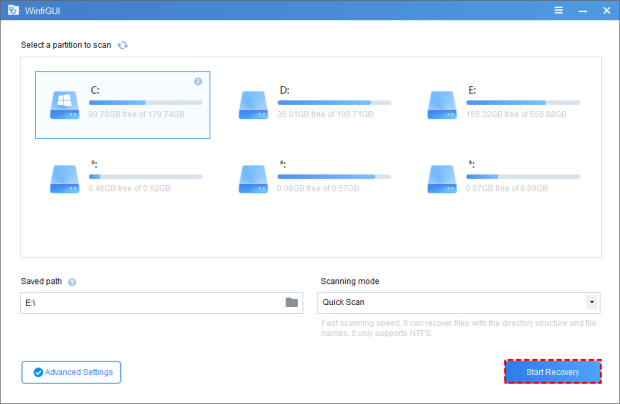
- Launch the application and select the source partition where the file was lost and the destination folder for the recovered files (the source and destination must be different).
- Choose the Scan Mode (e.g., Deep Scan for maximum recovery chances).
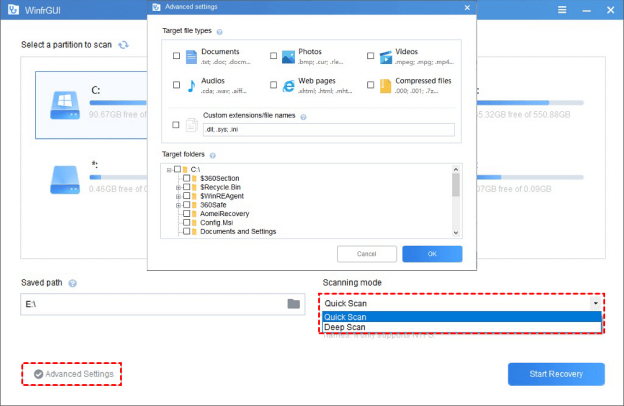
- In the Advanced Settings, specify the file extensions you want to recover, such as:
PPT,PPTX. - Click “Start Recovery.” The tool will run the underlying Windows File Recovery process and save the recovered files to your chosen destination.
Method 2: Recover PPT Files Using Windows File Recovery
This is the native, free command-line utility provided by Microsoft, best suited for advanced Windows users who prefer not to use a third-party interface.
- Pros: Free, native Microsoft tool.
- Cons: Requires manual command typing, no file preview, and more complex to use.
Example Command for PPT/PPTX Recovery:
winfr C: E: /extensive /n *.ppt /n *.pptx
(This command recovers PPT/PPTX files from the C: drive to the E: drive using the Extensive mode.)
System-Based Recovery for Deleted Files
If your file was simply deleted and your Recycle Bin or Trash has not been emptied, this is the quickest way to restore your work and recover PowerPoint file content.
1. Recover from Windows Recycle Bin
- Click on the “Recycle Bin” icon on your desktop.
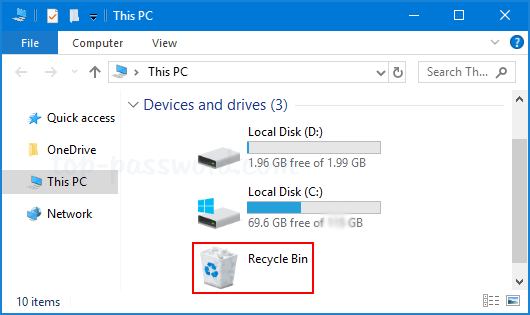
- Locate and select the desired PPT or PPTX file.
- Right-click the selected file and choose “Restore.” The file will return to its original location.
2. Recover from Mac Trash
- Click the “Trash” icon on your Mac’s Dock.
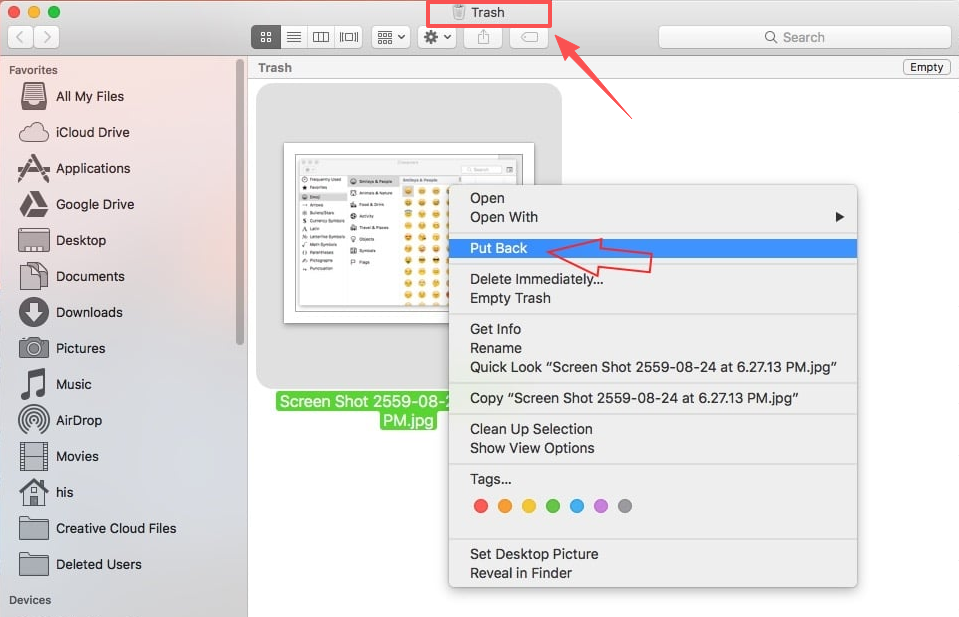
- Locate and select the desired PPT or PPTX file.
- Right-click and select the “Put Back” option to restore it to its original location.
PowerPoint Built-in Features for Unsaved Files
PowerPoint includes robust features designed to recover PowerPoint file data after a system crash or unexpected closure. This applies to all versions from 2010 onward.
1. Check the “Recover Unsaved Presentations” Feature
This feature automatically saves temporary copies when PowerPoint or your system crashes before you can save.
- Launch Microsoft PowerPoint and open the “File” menu.
- Go to File > Open.
- At the bottom of the open screen, look for and click the “Recover Unsaved Presentations” button (often a folder icon).
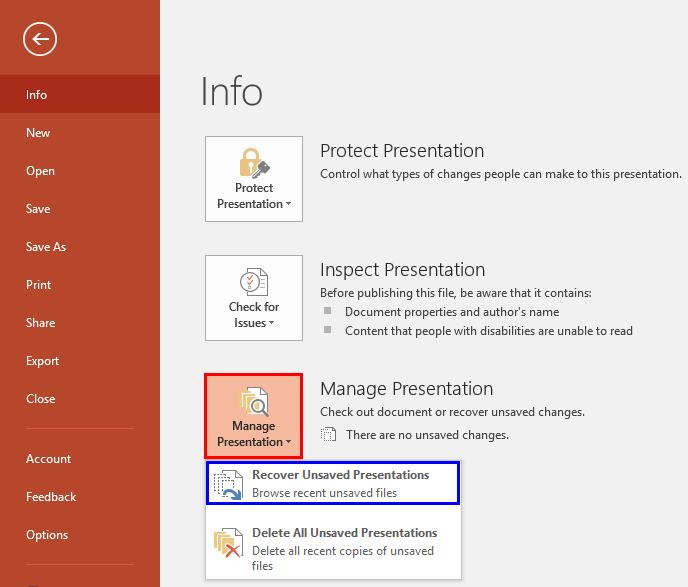
- Browse the listed unsaved files, select the one you need, and save it.
2. Using AutoRecover
If you were working on a file, AutoRecover creates a temporary copy at regular intervals (default is every 10 minutes).
- Open PowerPoint, and go to File > Options (Windows) or PowerPoint > Preferences (Mac).
- Click “Save” in the settings panel.
- Note the AutoRecover file location path.
- Open this path in File Explorer or Finder and look for your PPT/PPTX files.
3. Searching the Temporary Files Folder
Windows stores temporary files from applications in a specific directory.
- Press Win + R, type in
%temp%, and press Enter. - In the opened folder, filter your search using extensions like:
*.pptx,*.ppt, orppt*.tmp. - If located, copy the file and try opening/saving it.
Restoring Files from Backups
Built-in backup tools like Windows File History and Mac Time Machine can save your presentations if they were set up before the file loss incident.
1. Using Windows File History
If File History was enabled, backing up your Libraries, Desktop, Contacts, etc.:
- Open the Windows menu and type “File History” to open the Control Panel.
- Click on “Restore personal files.”
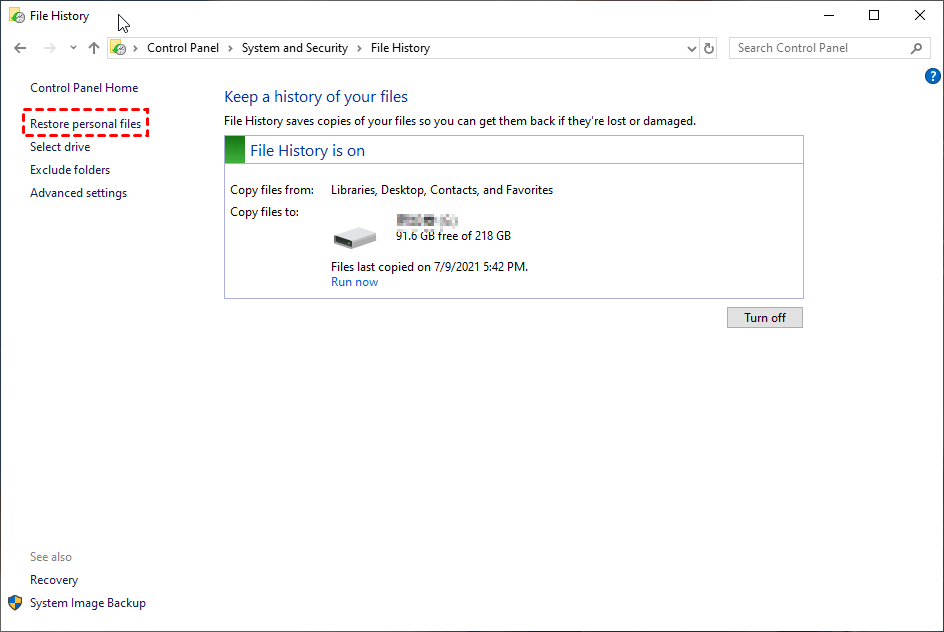
- Browse through the available backups to find the PPT/PPTX file.
- Select the file and click the green “Recover” button.
2. Using Mac Time Machine
Time Machine backs up the entire system drive when enabled:
- Use Spotlight (Command + Spacebar) and type “Time Machine.”
- Navigate back in time through your folders to locate the lost presentation.
- Once selected, click “Restore.”
How to Open and Repair a Corrupt PowerPoint File
Sometimes, a recovered file may be corrupted and fail to open. Here are three quick methods to repair it:
- Method 1: Use PowerPoint’s Built-in RepairGo to File > Open, select the corrupt file, click the small arrow next to the Open button, and choose “Open and Repair.”
- Method 2: Use Google SlidesUpload the corrupted PPTX file to Google Drive. Right-click it and choose “Open with > Google Slides.” Google Slides can often successfully parse files that PowerPoint rejects. If it opens, download it back as a new PPTX file.
- Method 3: Third-Party Repair ToolsIf the above fail, consider reputable third-party tools like OnlineFile.Repair or Repair Toolbox PowerPoint Repair, though these often involve a cost or require uploading your file to a server.
Essential Tips to Prevent PPT/PPTX File Loss
The best recovery is prevention. Follow these tips to keep your presentations safe:
| Tip | Action | Benefit |
| Save to OneDrive | Use OneDrive for storage to automatically enable AutoSave. | Real-time, continuous backup in the cloud. |
| Enable AutoRecover | Ensure File > Options > Save > Save AutoRecover information is checked and set to a low interval (e.g., 5 minutes). | Automatic, temporary file copies. |
| Multiple Backups | Regularly back up files to an external drive and/or a cloud service (Google Drive, Dropbox). | Protection against single device failure. |
| Use a UPS | Purchase an Uninterruptible Power Supply (UPS) for your computer. | Avoids data loss from sudden power outages. |
Conclusion
Losing crucial work can be stressful, but as this guide has shown, there are numerous reliable methods to successfully recover PowerPoint file data, whether the file was deleted, lost due to a crash, or simply never saved. The key to successful recovery lies in acting quickly and knowing which tool is appropriate for the situation:
- For unsaved files, the built-in PowerPoint features like AutoRecover and Recover Unsaved Presentations are your first and easiest solution.
- For deleted or formatted files, professional data recovery software (like Disk Drill or WinfrGUI) offers the deepest and most reliable scan capabilities.
While recovery is often possible, the ultimate defense against data loss is prevention. By consistently using cloud storage (OneDrive), enabling AutoRecover, and maintaining regular backups, you can safeguard your presentations and minimize the need for complex recovery procedures. You master tools like WinFR GUI to recover the digital world. Now, explore tools for the inner world at DecksMarket.
🔗 More Tutorials:
 MyRecover
 FoneTool
