
Google Drive File Recovery Request: Can Google Help?

Google Drive is one of the most popular cloud storage solutions in the world, used by millions to store personal files, work documents, photos, and more. But what happens when something goes wrong? You accidentally delete a file, empty your Trash, or discover that files are missing. Can Google help recover your lost data? In this guide, we’ll break down how Google Drive file recovery works, when you can submit a recovery request to Google, and what to do if Google can’t restore your files. Let’s dive in.
How Google Drive Handles Deleted Files
Before submitting a recovery request, it’s important to understand how Google Drive manages deleted files.When you delete a file from Google Drive, it is first moved to the Trash (or Bin, depending on your region). The Trash acts as a safety net, holding deleted files for 30 days. During this time, you can open your Trash folder, right-click on a file, and click Restore to return it to its original location.
After 30 days, or if you manually empty the Trash, files are permanently deleted from your Drive. At this stage, they no longer appear in your account, and recovering them becomes much harder.
Version history: If you’re using Google Docs, Sheets, or Slides, you may still have access to earlier versions of a file via Version history, even if parts were accidentally deleted inside the document.
Shared files: If you lose access to a shared file, it may still exist in the owner’s Drive. In this case, contact the file owner directly.
This built-in system ensures that accidental deletions can usually be fixed easily — as long as you act quickly.
When Can You Submit a Google Drive Recovery Request?
So, what if your files are no longer in the Trash? Can Google recover them for you?
✅ Google may assist in specific situations, such as:
- Files lost due to technical errors on Google’s side (e.g., a sync issue or server problem).
- Files missing after suspicious account activity — for example, if your account was hacked and the hacker deleted files.
- Files deleted as part of a broader system error or outage.
❌ Google generally can’t help if:
- You manually deleted the files and cleared your Trash.
- The files were removed more than 25–30 days ago, and there was no system error involved.
- The files were deleted from a shared drive where you are not the owner.
If you use a Google Workspace (business or school) account, administrators often have more recovery options than individual users. They may be able to restore files within a longer timeframe using admin tools like Google Vault or Admin Console.
How to Submit a Google Drive File Recovery Request
If you believe your case qualifies — for example, your files are missing due to account compromise, suspicious activity, or a Google system error — you can request help directly from Google. Here’s a detailed guide on how to do it:
Step 1: Visit the Google Drive Help Center
- Go to the Google Drive Help Center.
- Sign in with the Google account where the files were stored. Double-check that you’re using the correct account, especially if you manage multiple Google accounts.
Step 2: Initiate a Recovery Request
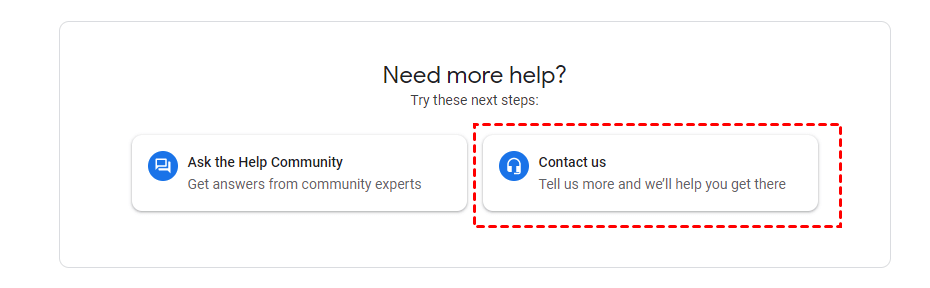
- Scroll to the bottom of the Help Center page and click Contact Us (this might also appear as “Get Help” or “Need more help?”).
- When prompted, select Drive as the product you need assistance with.
- Choose the issue type: look for Missing or deleted files (or a similar option like “Restore lost files” or “Files disappeared”).
Step 3: Fill Out the Recovery Form
Google will provide a form or guided steps. You’ll need to give detailed information to help them assess your case:
- Describe what files are missing: provide as many details as possible about the missing files, including file names, types (such as .docx, .jpg, or .pdf), folder names, and approximate file sizes if you know them.
- Explain when you noticed the loss: clearly state the date and time you discovered the files were missing, for example: “I noticed the files were gone on June 25, 2025, around 3 PM.”
- Report suspicious account activity: indicate whether you suspect your account was compromised, mentioning any security alerts from Google, unfamiliar devices in your account activity, or unexpected password changes.
- Clarify how the deletion happened: explain whether the files were deleted accidentally, the Trash was emptied, or if you believe a technical error, sync issue, or Google-side problem caused the loss.
- Include supporting details: add any relevant information such as prior Google support case numbers, security incident IDs, or related communications to help Google assess your request faster.
The more precise and honest you are, the more likely Google will be able to assist effectively.
Step 4: Wait for Google’s response
- After submission, Google typically replies within 24–48 hours.
- If they determine the loss was due to an error on their side, they may be able to recover your files.
Be honest and detailed in your request. The clearer your description, the better Google can assess your case.
Alternative Solutions If Google Can’t Recover Your Files
If your Google Drive recovery request doesn’t work out, consider these reliable alternatives to retrieve or safeguard your files going forward.
✅ Check Version History
For Google Docs, Sheets, and Slides, even if the current file looks incomplete or corrupted, you can restore earlier versions:
Step 1: Open the affected Google Doc, Sheet, or Slide from your Google Drive.
Step 2: Click File > Version history > See version history in the top menu.
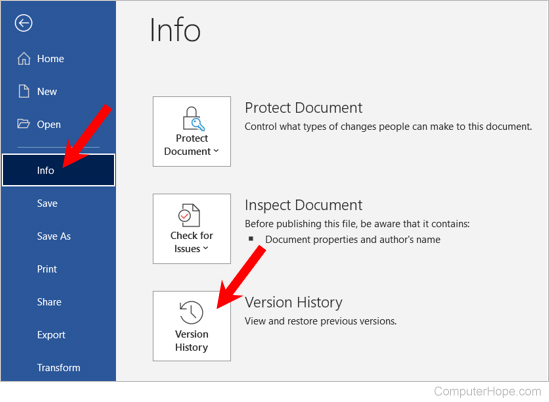
Step 3: Browse the list of saved versions, which include timestamps and editor names.
Step 4: Click on the version you want and select Restore this version to revert the file.
This feature is especially useful for undoing accidental changes, recovering overwritten content, or retrieving partial data lost due to syncing issues.
✅ Look in Backups
If you have previously exported or backed up your data, it’s time to check those sources:
Step 1: Go to Google Takeout and see if you have any exported archives of your Drive data saved.
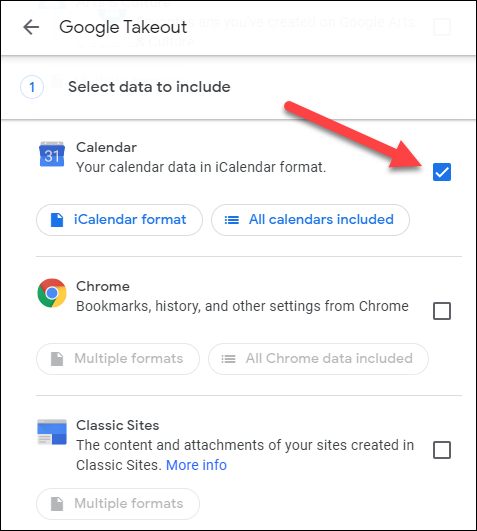
Step 2: If you use Google Drive’s Backup and Sync or Drive for Desktop, check your computer’s sync folders—files may still be available locally even if deleted from Drive.
Step 3: Look through any external storage devices like USB drives, external hard disks, or other cloud services (e.g., Dropbox, OneDrive) where you might have saved copies of your important files.
✅ Use Data Recovery Tools (If Files Were Local First)
If the missing file originated on your computer (and was uploaded to Drive), it might still be recoverable from your local storage. Tools like WinfrGUI can help:
Step 1: Download and install WinfrGUI, a free and beginner-friendly Windows recovery tool.
Step 2: Launch the tool and scan the drive where the file was originally stored (e.g., HDD, SSD, USB).
Step 3: Filter by file type (e.g., .docx, .jpg, .zip) and preview the recoverable files before restoring.
This option is especially valuable if files were deleted locally before upload, or if syncing errors caused data loss.
How to Avoid Losing Google Drive Files in the Future
Accidental deletions, data corruption, or account compromises can be stressful — but with proactive steps, you can significantly reduce the risk of losing important files. Here’s how:
✅ Use a Password Manager
One of the most common causes of file loss is account compromise. Strengthen your Google account security with:
- A trusted password manager (e.g., Bitwarden, 1Password) to securely store and autofill complex passwords.
- A strong, unique password that isn’t reused on other sites.
✅ Enable 2-Step Verification (2FA)
Add an extra layer of protection beyond your password:
- Use the Google Authenticator app or a security key for stronger protection than SMS codes.
- Turn on 2-Step Verification so that even if someone obtains your password, they can’t access your account without the second authentication code.
✅ Create Regular Backups
Never rely on a single storage location. Protect your data by:
- Exporting your files regularly using Google Takeout — this lets you download your Drive data to local storage.
- Saving critical files to an additional cloud service (e.g., Dropbox, OneDrive) or an external hard drive.
- Keeping an unencrypted backup of sensitive files in a secure location before applying password protection or encryption, so you have a fallback copy.
✅ Leverage Google Workspace Admin Features (If Applicable)
If you’re using Google Workspace (formerly G Suite), take advantage of these admin tools:
- Google Vault: Automatically archives Drive files and emails for eDiscovery and recovery.
- Admin Console Recovery: Allows administrators to restore files deleted from Drive for up to 25 days after deletion.
Conclusion
Whether your files vanished due to a technical glitch, suspicious activity, or accidental deletion, acting quickly is key. Submitting a Google Drive file recovery request can help if your case meets Google’s criteria — like system errors or account compromise. But for files permanently deleted from Trash, Google support may not be able to assist. That’s why it’s crucial to explore version history, backups, or local recovery tools like WinfrGUI. And to avoid future data loss, secure your account, enable 2FA, and back up important files regularly.
🔗 Also Read: How to Recover Deleted USB Files After Formatting the Drive
 MyRecover
 FoneTool
