
How to Retrieve Deleted Files from Recycle Bin

Ever wondered how to retrieve deleted files from recycle bin after emptying it by mistake? Don’t worry — you’re definitely not the only one. We’ve all been there: you delete a file thinking you’ll never need it again, and then realize it was something important. The good news? There are still ways to get it back.
In this guide, I’ll show you several easy and effective methods to recover your deleted files — whether they’re still in the Recycle Bin, permanently deleted, or lost due to a system glitch. We’ll go over step-by-step solutions using File History, Windows File Recovery, backup options, and even command-line tricks. No matter your skill level, you’ll find a method that works for you. So take a deep breath — your files might not be gone forever. Let’s get started and bring them back!
Is it possible to recover files from the trash?
In fact, it is possible to recover deleted files from the recycling tank. When you delete the file, it will not be permanently delete from your computer. Instead it will be moved to the trash you can recover if necessary. Even if you lose the storage tank, there are still ways of recovering the delete files using special software. These tools can scan your computer’s hard drives, locate the removed files and allow you to restore them to their original location to ensure recovery of recycled tanks.
How to Recover Deleted Files from Cache
If you are looking for a way on how to retrieve deleted files from recycle bin, there are several methods available. Each varies in complexity and efficiency depending on the specific situation and level of data loss.
Method 1: Recover Files Directly from the Recycle Bin
If you’re wondering how to retrieve deleted files from recycle bin, the easiest way is to restore them directly — no extra software needed. Windows keeps deleted files in the Recycle Bin until you empty it, so if you act quickly, recovery is simple. Follow these steps:
Step 1: Double-click the Recycle Bin icon on your desktop to open it.
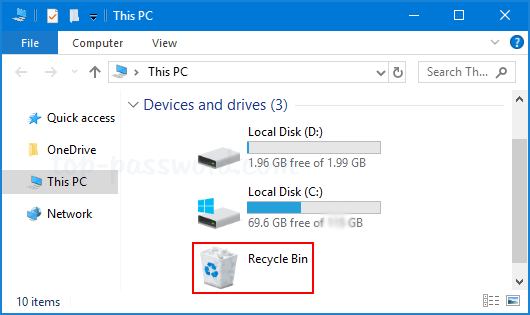
Step 2: Browse through the list or use the search bar to find the deleted files you want to recover.
Step 3: Right-click on the selected file(s) and choose Restore.Your files will be instantly restored to their original folder locations.
💡 Tip: If you don’t see the file in the Recycle Bin, it may have been permanently deleted — but don’t worry. You can still recover it using advanced methods like File History, backups, or recovery tools (covered next).
Method 2: Recover deleted files from cache with WinfrGUI
Accidentally deleted an important file and can’t find it in the Recycle Bin? Don’t worry — specialized recovery tools like WinfrGUI can help. WinfrGUI is a free, easy-to-use Windows file recovery tool that goes beyond the limits of the Recycle Bin, letting you restore permanently deleted files even after emptying it.With its simple interface, WinfrGUI makes the recovery process straightforward for everyone. It automatically sorts scan results into clear categories (such as documents, photos, and videos), so you can quickly locate what you need. Plus, its preview feature lets you check the file’s integrity before recovery — saving time and ensuring accuracy.
To recover deleted files using WinfrGUI:
Step 1: Download and install WinfrGUI on your computer.
Step 2: Open the program and choose Recycle Bin as the location to scan.
Step 3: Click Scan and wait for WinfrGUI to search for deleted files.
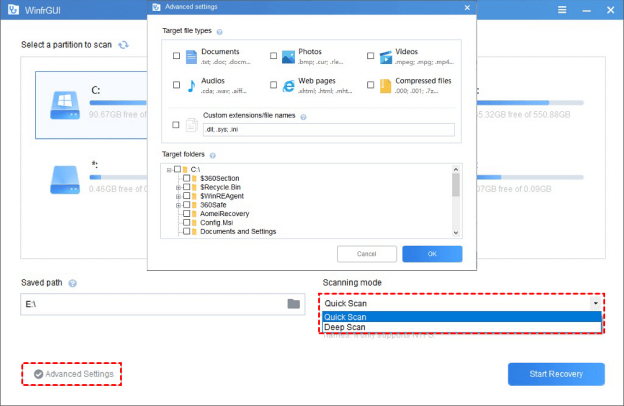
Step 4: Preview the found files to confirm they’re intact.
Step 5: Select the files you want to restore and click Recover to save them to a secure location.
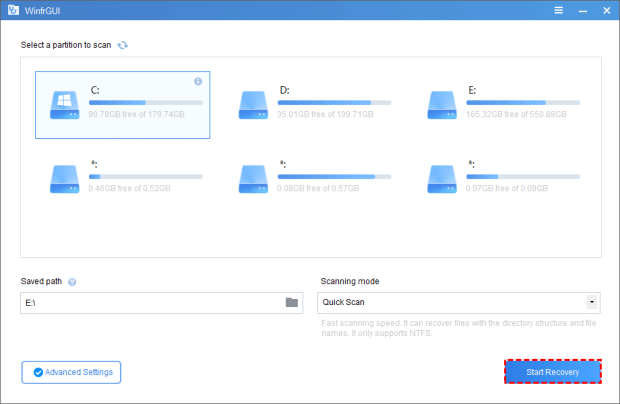
💡 Tip: For best results, avoid saving recovered files back to the same drive where they were deleted — this prevents overwriting lost data.
Method 3: Get the deleted files out of the repository with the file history.
If you’ve accidentally deleted or modified an important file, Windows’ built-in File History feature can help. It automatically backs up files stored in key folders (like Documents, Pictures, Desktop, and more) and allows you to restore earlier versions — even after deletion.
To recover deleted files with File History:
Step 1: Type File History in the Windows search bar and select Restore your files with File History.
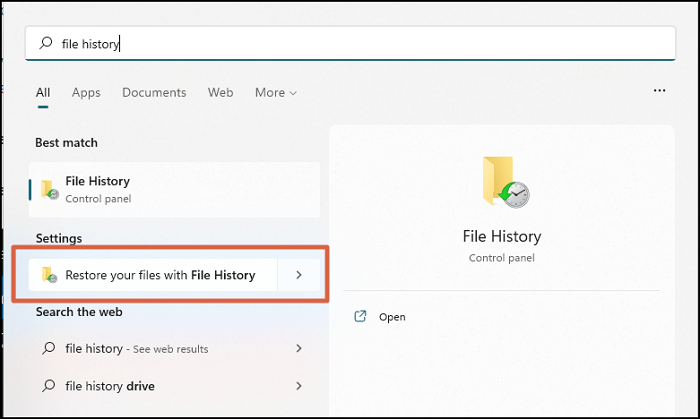
Step 2: Navigate to the folder where your deleted file was originally stored.
Step 3: Browse through the available backups to find the version you want.
Step 4: Click the Restore button to recover the selected file to its original location.
💡 Tip: If you want to restore the file to a different folder, right-click Restore and choose Restore to, then select your preferred location.
Method 4: Remove the recycling tank using the system recovery feature.
The System Restore feature in Windows allows you to roll your computer back to a previous state — effectively undoing recent system changes that may have caused file loss. When a restore point is created before the deletion occurred, you can use it to bring your system (and sometimes your files) back to that earlier time. This method is especially useful if other recovery options haven’t worked.
To recover deleted files using System Restore:
Step 1: Type System Protection in the Windows search bar and select Create a Restore Point.
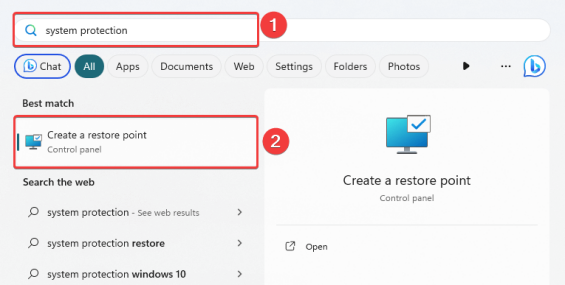
Step 2: In the System Properties window, click System Restore.
Step 3: Choose a restore point dated before the file was deleted, then click Next.
Step 4: Follow the on-screen instructions to complete the process.
💡 Tip: System Restore mainly recovers system settings and configurations, but it can sometimes bring back deleted files stored in protected system folders.
Method 5: Recover deleted items from the trash through Windows File Recovery
Microsoft provides a free built-in tool called Windows File Recovery that helps you retrieve deleted files directly from your Windows system. It’s an official Microsoft utility designed for users who want a reliable recovery solution without needing advanced technical skills. Whether you deleted files from your Recycle Bin, hard drive, or external storage, this tool can help bring them back.
To recover deleted files with Windows File Recovery:
Step 1: Download and install Windows File Recovery from the Microsoft Store.
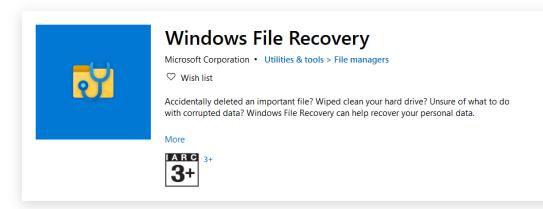
Step 2: Launch the tool and select the drive or location where the deleted files were stored.
Step 3: Follow the on-screen prompts to start the scan.
Step 4: Once the scan is complete, review the recovered files and save them to a safe location.
💡 Tip: Avoid saving recovered files to the same drive where they were deleted to prevent overwriting and improve recovery success.
Method 6: Recycle Tank Recovery via Command Prompt
If you prefer a more technical approach, you can use Command Prompt to recover deleted files from the Recycle Bin. This method allows advanced users to manually browse the contents of the $Recycle.Bin folder and restore files directly through command-line operations.
To recover deleted files via Command Prompt:
Step 1: Type CMD in the Windows search bar, then right-click Command Prompt and choose Run as administrator.
Step 2: Type the following command and press Enter:
cd $Recycle.bin
Step 3: To list all deleted files, type:
dir /s
This displays all items stored in the Recycle Bin along with their directory structure.
Step 4: Locate the file you want to recover and use the move command to restore it to a safe location. For example:
move filename.extension D:\RecoveredFiles
💡 Tip: Replace filename.extension and D:\RecoveredFiles with the actual file name and your desired recovery folder. This method requires precision, so double-check commands before pressing Enter.
Method 7: Get deleted files from backup in the cloud.
If you regularly back up your files to cloud storage, you may be able to recover deleted files from your cloud backup with just a few clicks. Popular cloud services like Google Drive, Dropbox, and OneDrive keep deleted files in a “Trash” or “Recycle Bin” folder for a limited time before permanent deletion. This makes cloud recovery one of the easiest and most secure ways to restore lost data without depending solely on your local drive.
To recover deleted files from cloud backup:
Step 1: Log in to your cloud storage account (e.g., Google Drive, Dropbox, or OneDrive).

Step 2: Go to the Trash or Deleted Files section.
Step 3: Locate the files you want to recover.
Step 4: Right-click the file and choose Restore or Download to save it back to your computer.
💡 Tip: Check your cloud service’s retention policy — most platforms keep deleted files for 30 days before permanently removing them.
Tips for Recovering Recycled Tanks
To make sure the recovery of the recycled tank is successful, please consider the following tips:
- Take immediate action: If you accidentally delete a file from the recycle tank, do not use your computer to prevent the deleted data from being rewritten.
- Use Reliable Data Recovery Software: Choose a reputable data recovery software to scan and recover files from recycling tanks, increasing your chances of successful recovery.
- Backup Check: Find backups of deleted files from external drives, cloud storage or other devices for easy recovery.
- Minimize computer usage: Avoid installing new programs or saving new files until you recover deleted files to reduce the risk of permanent data loss.
- Manage the backup of important files consistently: Don’t forget to back up your necessary files regularly to prevent data loss in case of unintentional deletion in the future.
Conclusion
In conclusion, recovering deleted files from recycling tanks is not only possible, but also quite easy when using the right tools and methods. Whether you choose to use your own recycled tanks. Data recovery tools such as WinfrGUI, File History, System Restore, Command Instructions or Cloud Backups have several options that will help you get your lost data back. By following the tips provided and acting immediately, you can increase your chances of recovery of delete files and prevent permanent data loss.
🔗 Also Read: [SOLVED] Will System Restore Recover Deleted Files?
 MyRecover
 FoneTool
