
How to Find Deleted Files on Windows 10 Using Free Tools

Wondering how to find deleted files on Windows 10 after accidentally erasing something important? Whether it was a crucial document, a family photo, or a folder emptied from the Recycle Bin — don’t panic. Even if it seems permanently gone, your data might still be recoverable. In this 2025 guide, we’ll walk you through easy, free methods to recover deleted files on Windows 10 — from built-in features to powerful third-party recovery tools. I’ll also share my personal experience using WinfrGUI, a beginner-friendly tool that helped me recover recently deleted files windows 11 more than once. Let’s dive in and get your lost data back — safely and for free.
Where Do Deleted Files Go on Windows 10?
Before recovery, it’s helpful to understand what happens behind the scenes when you delete something:
If you delete normally:
- Files go to the Recycle Bin, where they remain until manually emptied.
- They’re easy to restore — no special tools needed.
If you use Shift + Delete or empty the Recycle Bin:
- Files are marked as deleted, but not actually erased from your drive.
- Windows just frees up that space — until something else overwrites it.
- This means recovery is possible if you act quickly and avoid using that drive.
Built-in Ways to Find Deleted Files on Windows 10
Let’s start with what’s already on your system — no downloads required.
Method 1: Check the Recycle Bin
Accidentally deleted a file? The first place to look is your Recycle Bin—it might still be there!
Step 1: Double-click the Recycle Bin icon on your desktop to open it.
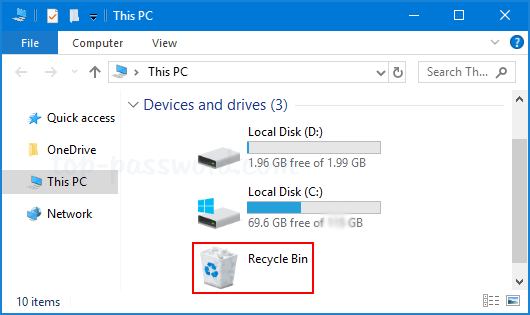
Step 2: Use the search bar or scroll through the list to locate your deleted file.
Step 3: Once you find it, right-click the file and select Restore. This will return it to its original location on your computer.
If you can’t find it here, the file may have been permanently deleted or the bin was emptied—check the next recovery method. Also Related How to Recover Shift Deleted Files in Windows 10
Method 2: Use “Restore Previous Versions”
If File History or System Protection was enabled, Windows may have automatically saved older versions of your files..
Step 1: Right-click on the folder where your file was originally stored.
Step 2: Select “Restore previous versions” from the context menu.
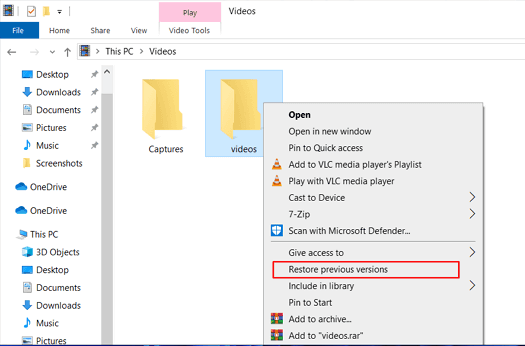
Step 3: A list of available backup versions will appear. Choose a version dated before the file was deleted.
Step 4: Click Restore to recover the folder contents, including your lost file.
This feature works only if System Restore or File History was turned on before the deletion. If there are no available versions, try another method below.
Method 3: Use File History (if configured)
If File History was set up on your PC, it automatically backs up versions of your files to an external drive or network location.
Step 1: Open the Control Panel and go to System and Security > File History.
Step 2: Click on “Restore personal files” in the left-hand sidebar.
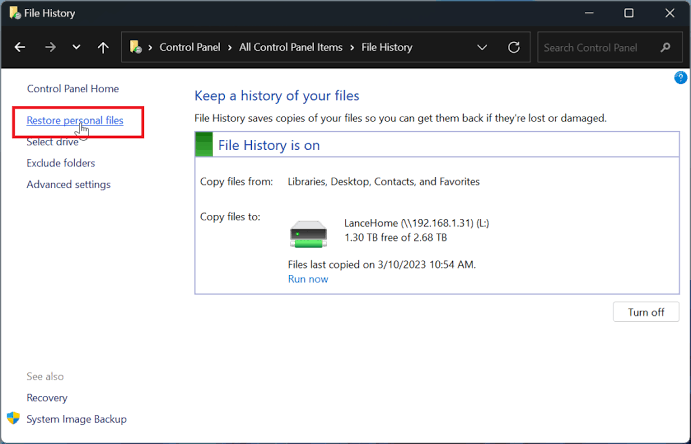
Step 3: Browse through your backed-up folders to find the file or version you want.
Step 4: Select the file, then click the green restore button to return it to its original location.
You can also right-click the file and choose “Restore to” if you want to save it to a different location. This method works best if File History was configured before the file was lost.
Still Can’t Find It? Use These Free Recovery Tools
If your file is permanently deleted or not showing up, you’ll need a file recovery tool. Don’t worry — we’re sticking to 100% free and safe ones here.
Comparison Table: Best Free Tools to Recover Deleted Files
| Tool | Interface | Effectiveness | File Types Supported | Pros | Cons |
|---|---|---|---|---|---|
| WinfrGUI | Graphical | ★★★★★ | Documents, images, more | Built on Microsoft’s tool, very easy | Only for Windows 10/11 |
| Recuva | Graphical | ★★★★☆ | Most common types | Beginner-friendly, quick scan option | May miss deeply deleted files |
| PhotoRec | Command-line | ★★★★☆ | Almost all file types | Very powerful, works on damaged drives | Complex interface, no preview |
My Recovery Experience (🔥Highly Recommend)
A few months ago, I accidentally deleted an entire folder of Excel reports during a routine cleanup—and to make matters worse, I had just emptied the Recycle Bin. My stomach dropped. These files weren’t just random documents; they were monthly reports I desperately needed for work. I tried searching online for solutions and stumbled across WinfrGUI, and honestly, it saved the day.
What is WinfrGUI?
WinfrGUI is a completely free, beginner-friendly file recovery tool built on Microsoft’s official Windows File Recovery engine. But instead of dealing with complicated command-line instructions, you get a clean, point-and-click interface that anyone can use.
- No command line required – just a few clicks to scan and recover
- Supports NTFS, FAT32, exFAT, and ReFS
- Works with USB drives, SD cards, HDDs, SSDs, and more
- Offers both Quick and Deep scan modes
Tips to Maximize Recovery Success
- Stop using the drive immediately after deletion
- Run recovery scans ASAP before data is overwritten
- Use Deep Scan mode if Quick Scan doesn’t find what you need
- Recover to an external or separate drive
Always save recovered files to a different drive to avoid overwriting!
Frequently Asked Questions
Q1: Can I recover files deleted a month ago?
Yes, if they haven’t been overwritten. Use Deep Scan in WinfrGUI or PhotoRec.
Q2: Is WinfrGUI really free?
Yes — it’s 100% free with no hidden costs. Built on Microsoft’s own recovery engine.
Q3: What if my file is corrupted after recovery?
Sometimes recovered files are partially overwritten. Try other versions or backup tools.
Q4: Where to find recently deleted files on Windows?
Check the Recycle Bin for recently deleted files. If it’s not there, use tools like WinfrGUI or File History to recover them.
Q5: Will recovery tools work on USB drives or SD cards?
Yes — all tools in this guide support removable storage.
Final Thoughts
If you’re wondering how to find deleted files on Windows 10, don’t panic—there’s a clear path to recovery. Start with the basics: check your Recycle Bin and try restoring previous versions of the file or folder. These quick checks often work if the deletion was recent. But if those methods come up empty, WinfrGUI is one of the best free tools available. It’s built on Microsoft’s recovery engine but wrapped in a simple, user-friendly interface—perfect for non-tech users. Just point, scan, and recover. Other tools like Recuva or PhotoRec also offer good results, especially if you want to try a few different options. Whatever you do, act fast. The longer you wait, the higher the risk that your deleted files will be overwritten by new data. So don’t delay—download a trusted recovery tool and start scanning. You might be surprised at what you can recover.
🔗 Also Read: How to Restore Permanently Deleted Files: 5 Easy Methods
 MyRecover
 FoneTool
