
Windows 10 Start Button Not Working? Top 7 Easy Fixes

If your Start button suddenly stops responding, you’re not alone. This common Windows 10 issue can prevent you from opening apps, searching files, or shutting down your PC normally. It often happens after a Windows update, a system crash, or even without any obvious reason. The good news is that you don’t need advanced technical skills to solve it. In this guide, we’ll walk you through 7 simple and effective fixes to restore your Start menu quickly. We’ll also share a bonus tip to help you recover files in case your system freezes or crashes during the process. Let’s get started.
Why Is the Windows 10 Start Button Not Working?
There isn’t a single trigger behind this problem. In most cases, the Start menu stops responding because something in the system breaks or fails to load properly. Common causes include:
- Corrupted system files that prevent core Windows components from running
- Problematic Windows updates that introduce temporary bugs
- Windows Explorer process errors, which affect the taskbar and Start menu
- Corrupted user profiles that block menu settings from loading
- Third-party software conflicts, especially optimization or security tools
For many users, the issue appears right after a major update. The taskbar may still work, but the Start button becomes completely unresponsive. You click it, and nothing happens—no menu, no animation, no error message. Just a silent failure.
Fix 1: Restart Windows Explorer
In many cases, the issue is just a temporary glitch in Windows Explorer. Restarting it can quickly refresh the Start menu and taskbar. Here’s how to do it step by step:
- Press Ctrl + Shift + Esc on your keyboard to open Task Manager.
- (If you see a small window, click More details at the bottom.)
- Under the Processes tab, scroll down and find Windows Explorer.
- Click Windows Explorer, then select Restart in the bottom-right corner.
- Or right-click it and choose Restart.
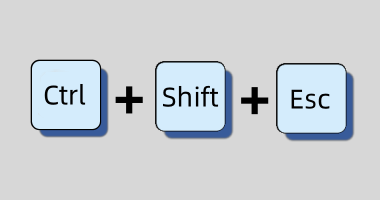
This refreshes your desktop and taskbar without needing a full reboot. If you’re lucky, this is all it takes.This action reloads the Windows shell without restarting your entire computer.
Fix 2: Run System File Checker (SFC)
If restarting Windows Explorer doesn’t help, corrupted system files could be the reason. Windows has a built-in tool called System File Checker (SFC) that can scan and repair damaged files automatically. Follow these steps:
- Right-click the taskbar and open Task Manager > File > Run new task.
- Type
cmd, check “Create this task with admin privileges,” and hit Enter. - In Command Prompt, type:
sfc /scannowand press Enter.
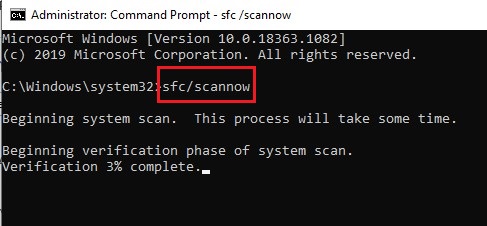
Windows will begin scanning your system files. This process may take several minutes. Don’t close the window until it reaches 100%. If corrupted files are found, Windows will repair them automatically. Once the scan is complete, restart your computer and check if the Start button works again.
Fix 3: Re-register Start Menu with PowerShell
If the Start button is still unresponsive, you can reset its components using PowerShell. This method re-registers built-in Windows apps, including the Start menu. Here’s how to do it:
- Press Ctrl + Shift + Esc to open Task Manager.
- Click File > Run new task.
- Type powershell.
- Check Create this task with administrative privileges.
- Click OK to open PowerShell as an administrator.
- In the PowerShell window, copy and paste the following command:
Get-AppXPackage -AllUsers | Foreach {Add-AppxPackage -DisableDevelopmentMode -Register “$($_.InstallLocation)\AppXManifest.xml”}
Then press Enter.
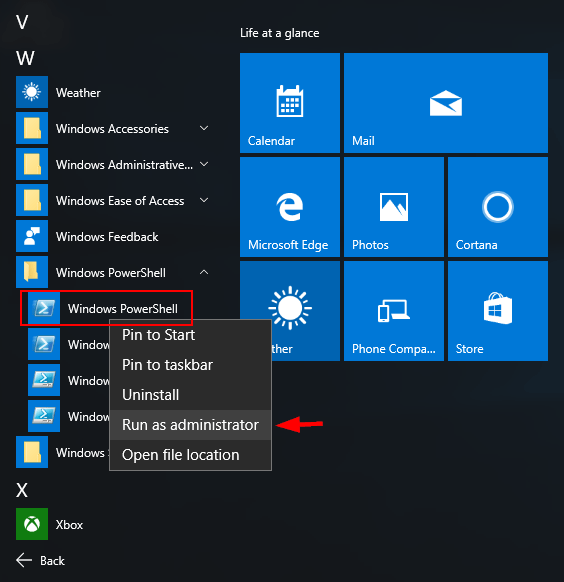
The system will start re-registering apps. You may see some red error messages—this is normal in many cases. Let the process finish completely. It may take a few minutes. Once done, restart your computer and test the Start button again.
Fix 4: Create a New User Account
If the Start menu still doesn’t respond, your current user profile may be damaged. Creating a new account helps you check whether the problem is profile-related. Follow these steps:
- Press Ctrl + Shift + Esc to open Task Manager.
- Click File > Run new task.
- Type netplwiz and click OK.
- The User Accounts window will open. Click Add.
- Choose to create a local account (you can skip Microsoft account sign-in if you prefer).
- Set a username and password, then finish the setup.
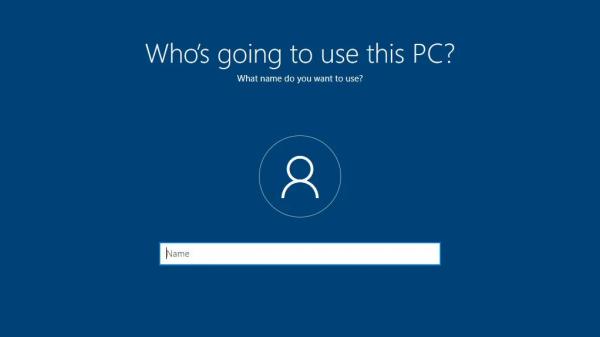
After creating the account, sign out of your current account and log in to the new one. Now test the Start button. If it works normally in the new account, the issue is likely caused by a corrupted user profile. You can then move your files to the new account and continue using it.
Fix 5: Remove Conflicting Apps
In some cases, third-party software can interfere with the Start menu. This is especially common with antivirus programs, system optimization tools, cloud sync apps (like Dropbox), or shell extensions that modify Windows.
If the issue started after installing a new program, that software may be the cause. Here’s what you can do:
Option 1: Uninstall recently installed programs
- Press Ctrl + Shift + Esc to open Task Manager.
- Click File > Run new task.
- Type control and press OK to open Control Panel.
- Go to Programs > Programs and Features.
- Find recently installed apps.
- Right-click the suspicious program and choose Uninstall.
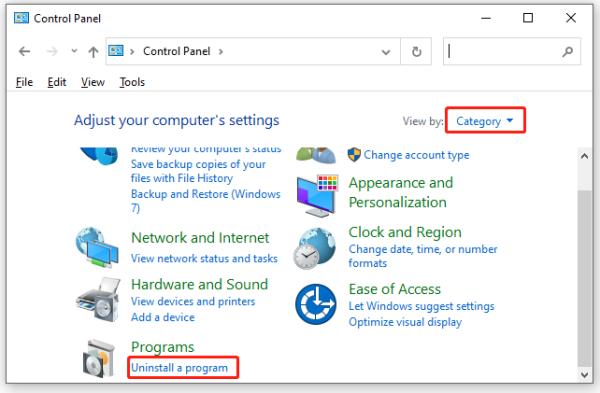
Restart your computer after uninstalling and check the Start button again.
Option 2: Use Safe Mode
If you’re not sure which app is causing the issue, boot into Safe Mode. Safe Mode loads Windows with only essential drivers and services. If the Start menu works there, a third-party program is likely the problem. From there, uninstall recently added software one by one until the issue is resolved. Sometimes third-party apps like Dropbox, anti-virus tools, or even shell extensions interfere with system UI. Try uninstalling recently installed programs from Control Panel > Programs or via Safe Mode.
Fix 6: Use System Restore
If the Start button stopped working after a Windows update or software installation, you can roll your system back to an earlier point. This won’t affect your personal files, but it will remove recent system changes. Follow these steps:
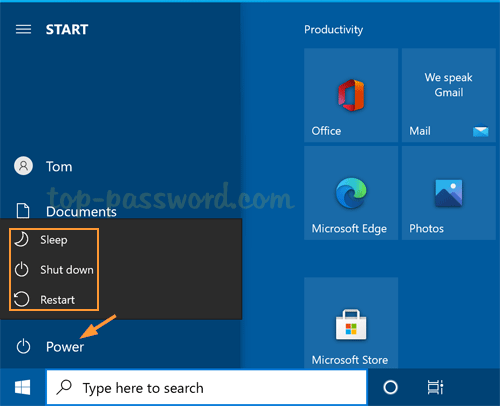
- On the login screen, hold down the Shift key and click Power > Restart.
(Keep holding Shift until the recovery screen appears.) - In the Advanced Startup menu, select Troubleshoot.
- Click Advanced options.
- Choose System Restore.
- Select a restore point dated before the Start button issue began.
- Follow the on-screen instructions to complete the process.
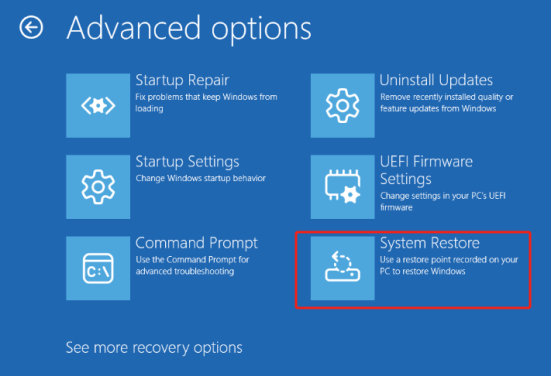
Your computer will restart during the restore. Once finished, log back in and check if the Start menu is working again. System Restore is especially helpful if the problem started immediately after an update or major system change.
Fix 7: Boot into Safe Mode
Safe Mode starts Windows with only essential drivers and services. This helps you check whether the Start menu problem is caused by third-party software. Here’s how to enter Safe Mode:
- On the login screen, hold down the Shift key.
- Click Power > Restart while still holding Shift.
- In the recovery screen, choose Troubleshoot.
- Click Advanced options > Startup Settings.
- Select Restart.
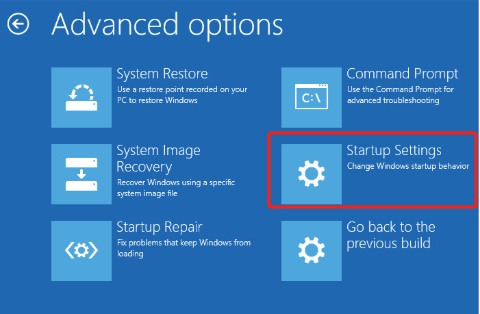
After your PC restarts, you’ll see a list of options.Press 5 or F5 to select Safe Mode with Networking. Once inside Safe Mode, try clicking the Start button.
- If it works normally, a background app or third-party service is likely causing the issue.
- If it still doesn’t work, the problem may be related to system files or Windows itself.
From here, you can uninstall recently installed programs or disable startup apps to narrow down the cause.
Recover Files Lost After a Crash or Force Restart
Fixing the Start button sometimes requires force restarts or system repairs. In rare cases, that can lead to missing files—especially if your system freezes or crashes during the process. It happened to me. After trying one of the fixes, I noticed a few important video files were gone. They weren’t in the Recycle Bin either. That’s when I used a free tool called WinfrGUI to recover them.
My Experience with WinfrGUI:
WinfrGUI is a graphical version of Microsoft’s Windows File Recovery tool. Unlike the command-line version, it’s much easier to use. Here’s what I did:
- Downloaded WinfrGUI from the official website. Installed and launched the program.
- Selected the drive where the files were lost.
- Chose Deep Scan for a more thorough search.
- Waited for the scan to complete.
- Previewed the results and restored my deleted videos.
It’s beginner-friendly and works wonders—definitely worth keeping on hand.Within minutes, my files were back. If your system crashes during troubleshooting and you lose important data, having a recovery tool like WinfrGUI can save you a lot of stress.
Real User Experience from Quora:
“My laptop froze completely after the Start menu stopped responding. After a hard reset, some files were missing. I used a file recovery tool WinfrGUI and got most of them back.” — Paraphrased from a Quora thread on Windows 10 Start menu freezing issues
”The Start button stopped working right after a Windows update. Restarting Explorer didn’t help. Running an SFC scan and creating a new user account finally solved the problem.”
— Paraphrased from Quora discussions about Start menu not responding after updates
“The Start menu wouldn’t open at all, but it worked in Safe Mode. That’s how I realized a third-party antivirus program was causing the conflict. After uninstalling it, the issue disappeared.”
— Paraphrased from Quora answers on troubleshooting Windows 10 UI problems

Troubleshooting FAQs
Q1. What if none of the fixes work?
If you’ve tried all the solutions and the Start button is still unresponsive, the issue may be deeper within the system.
Q2. Should I back up my files first?
Yes. Before taking advanced steps like reinstalling Windows, back up your important files to an external drive or cloud storage.
Q3. How can I reinstall Windows 10?
You can use Microsoft’s Media Creation Tool to perform a clean reinstall. This gives your system a fresh start and often resolves persistent issues.
Q4. Should I contact professional support?
If you’re not comfortable reinstalling Windows yourself, contacting Microsoft Support or a local technician is a safer option.
Q5. How can I prevent this problem in the future?
Avoid installing unverified or unnecessary third-party software. Problematic apps are a common cause of Start menu issues.
Q6. Are there system habits that reduce risk?
Yes. Pause major Windows updates temporarily after release, enable System Restore and File History, and avoid overloading your startup programs. These small steps can help keep your system stable.
Final Thoughts
If you’ve been battling with the Windows 10 Start button not working, I hope one of these fixes helped you out. In my experience, restarting Windows Explorer or running PowerShell commands usually does the trick. And if you ended up losing files in the process, tools like WinfrGUI can be real lifesavers. Still stuck or found another solution? Drop a comment—I’d love to hear what worked for you.
Also Read👉 How to Force Quit on Windows When a Program Won’t Close
 MyRecover
 FoneTool
