
Where To Find Autosave Excel Files: Top Methods

In the fast-paced world of data management, Excel is a powerhouse tool for organizing, analyzing, and visualizing information. However, even the most meticulous of users can fall victim to unexpected data loss due to accidental closures, crashes, or other mishaps. That’s where Autosave comes to the rescue, offering a lifeline by automatically saving your work at regular intervals. But if you wonder where to find autosave excel files? Fear not, as we delve into the various methods for locating these crucial files.
What Is Excel Autosave?
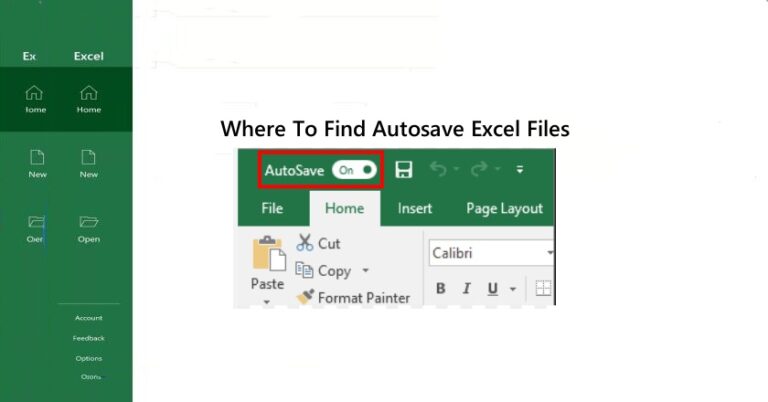
Excel AutoSave is a handy feature that automatically saves your work every few seconds as you type — so you don’t have to keep clicking “Save.” It’s a real lifesaver if your computer crashes or you accidentally close Excel without saving. But there’s one important thing to know: AutoSave only works if you’re using Microsoft 365 and your file is saved in OneDrive or SharePoint. If that’s the case, you’ll see an AutoSave switch at the top of Excel. Just turn it on, and Excel will save everything in real time, automatically.
Where Are Excel AutoSave Files Stored?
If AutoSave is turned off, or you’re not using OneDrive, Excel still tries to protect your work using a feature called AutoRecover. These unsaved or backup files are usually stored on your computer in certain default folders. Here’s where you can look:
Local Autosave File Locations
These are the typical folders where Excel saves temporary or unsaved files:
C:\Users\[YourUsername]\AppData\Local\Microsoft\Office\UnsavedFiles
C:\Users\[YourUsername]\AppData\Local\Temp
These folders contain temporary files Excel creates in case you forget to save manually.
You might also check:
C:\Users\[YourUsername]\Documents
C:\Users\[YourUsername]\AppData\Roaming\Microsoft\Excel
These paths are often used in older versions of Excel or when files are manually saved but not closed properly.
If You’re Using OneDrive
If your Excel file is saved to OneDrive, good news — changes are autosaved and synced in real time. Your file will usually be in: OneDrive > Documents
OneDrive also keeps version history, so you can go back to earlier versions of your work if needed.
How to Recover Autosaved Excel Files
Method 1: Use Excel’s Built-In Recovery Feature
Excel is smarter than you think — it often saves backup versions in the background. Here’s how to check:
Step 1: Open Excel (just the app — you don’t need to open any file).
Step 2: Go to the File tab in the top-left corner, then click Info from the sidebar.
Step 3: Under the “Manage Workbook” section, you’ll see an option called Recover Unsaved Workbooks — click on it.
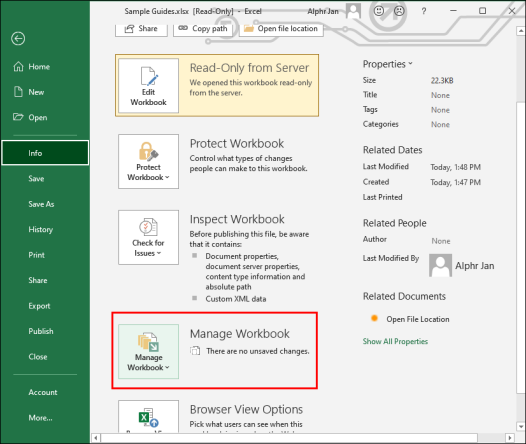
Step 4: A new window will pop up showing any autosaved files that haven’t been manually saved. Browse through the list, open the one that looks right, and don’t forget to save it this time!
Step 2: Select Recover Unsaved Workbooks
Step 3: Browse through the list of available autosaved files and choose the one you want to recover.
Method 2: Manually Check Excel’s Autosave Folders
If the first method didn’t bring up your file, it might still be buried in one of Excel’s autosave or temp directories. You’ll have to do a bit of digging:
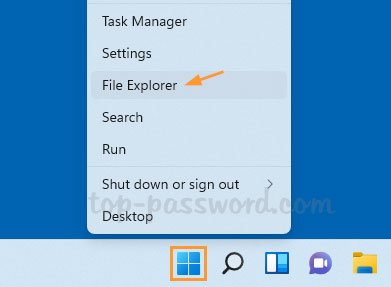
Step 1: Open File Explorer (press Windows + E if you’re not sure how).
Step 2: Copy and paste the following path into the address bar at the top, replacing [YourUsername] with your actual Windows username: C:\Users\[YourUsername]\AppData\Local\Microsoft\Office\UnsavedFiles
Step 3: If there’s nothing there, try this folder too: C:\Users\[YourUsername]\AppData\Local\Temp
Step 4: Once inside, sort the files by date and look for ones that were last modified around the time you lost your Excel document. They might have random or long names, but if the timing matches, open them up in Excel to see what you’ve got.
You might need to enable hidden folders to access these paths. In File Explorer, click View > Show > Hidden items to reveal them.
Method 3: Search by File Extension in File Explorer
Still coming up empty? Try letting Windows do the hunting for you by searching for autosave-related file types.
Step 1: Open File Explorer again.
Step 2: In the search bar (top-right corner), type the following one at a time:
*.xlsx— this will show all Excel workbooks*.tmp— these are temporary files, often autosaves in disguise
Step 3: Hit Enter and wait for the results. If the list is long, sort by Date Modified to bring the most recent files to the top. Look for any files created or updated around the time you lost your work.
Temporary files may not have obvious names. You might have to open a few in Excel to see what’s inside.
Manual Recovery from Located Files
So you’ve found an autosave or temporary Excel file — nice work! Now it’s time to safely open and recover it. Whether it’s from Excel’s recovery list, a hidden folder, or just sitting in your Temp directory, here’s exactly what to do next:
Step 1: If the file you found ends with .xlsx, simply double-click it to open in Excel, then immediately save it with a new name in a safe folder.
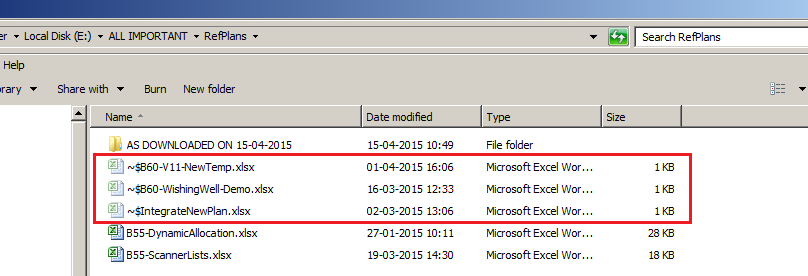
Step 2: If the file has a .tmp extension or no extension at all, right-click the file, choose rename, change the extension to .xlsx, and then open it in Excel.
Step 3: After opening the file, use File > Save As to save it under a new, descriptive name in an easy-to-find location like your Documents or OneDrive folder to keep it safe. other files. Pick a clear name and save it somewhere easy to find — like Documents or OneDrive.
Alternative Software: WinfrGUI
If you’re unable to locate autosaved Excel files through traditional methods, WinfrGUI offers an alternative solution. Here’s how you can use WinfrGUIto find autosave Excel files:
Recovering Unsaved or Lost Excel Files
Step 1: Download and Install WinfrGUI: Down WinfrGUI from the official website and install it on your Windows system.
Step 2: Launch the Application: Open WinfrGUI to access its intuitive interface.
Step 3: Select the Drive: Choose the drive where your Excel files were last saved or where you suspect the autosave files might be located.
Step 4: Initiate the Scan: Click on the ‘Scan’ button to allow WinfrGUI to search for recoverable files.
Step 5: Preview and Recover: Once the scan is complete, browse through the list of found files, preview them if possible, and select the Excel files you wish to recover. Click ‘Recover’ to restore them to a safe location.
Locating Autosave Excel Files Using WinfrGUI
Step 1: Target Specific Folders: WinfrGUI can be directed to scan specific folders where Excel autosave files are typically stored, such as:
C:\Users\[YourUsername]\AppData\Local\Microsoft\Office\UnsavedFilesC:\Users\[YourUsername]\AppData\Local\Temp
Step 2: Filter by File Type: Utilize WinfrGUI’s filtering options to narrow down the search to Excel file formats like .xlsx or .xls, making the recovery process more efficient.
By integrating WinfrGUI into your data recovery toolkit, you enhance your ability to retrieve important Excel files that may have been lost due to unexpected shutdowns, accidental deletions, or other unforeseen events.
FAQs About Locating Autosave Excel Files
Q1: Where does Excel Autosave store files?
Excel Autosave files are typically stored in a designated folder specified in Excel’s settings. However, the exact location may vary depending on your system configuration.
Q2: Can I recover an Autosave Excel file if Excel crashes?
Yes, Autosave Excel files are designed to help you recover your work in the event of a crash or unexpected closure. You can usually locate these files using the methods outlined above.
Q3: Are Autosave Excel files encrypted or password-protected?
By default, Autosave Excel files are not encrypted or password-protected. However, you can encrypt or password-protect your Excel files manually if desired.
Q4: How often does Excel Autosave my work?
The frequency of Autosave in Excel depends on your settings, but it typically occurs every few minutes. You can adjust the Autosave interval in Excel’s options to suit your preferences.
Q5: Can I disable Autosave in Excel?
Yes, you can disable Autosave in Excel’s settings if desired. However, it’s generally recommended to keep Autosave enabled to minimize the risk of data loss.
Q6: What should I do if I can’t find the Autosave Excel file?
If you’re unable to locate the Autosave Excel file using the methods outlined above, consider seeking assistance from IT support or data recovery professionals for further assistance.
Conclusion
Autosave Excel files are invaluable lifelines, offering a safety net for recovering your work in the event of unexpected closures or crashes. By familiarizing yourself with where to find Autosave Excel files and exploring the various methods outlined in this guide, you can ensure that your important data is always within reach. Whether checking Autosave settings, searching temporary folders, or utilizing file recovery software, taking proactive steps to locate Autosave Excel files can save you time and frustration in the face of data loss.
🔗 Also Read: Where To Find Autosave Word Documents
 MyRecover
 FoneTool
